
Looking to close laptop and use monitor for a cleaner, more productive workspace? You're not alone. Thousands of professionals, gamers, and students are discovering the benefits of transforming their laptop into a desktop powerhouse. This comprehensive guide shows you exactly how to close laptop with external monitor on Windows, Mac, and explains why this setup might be the productivity boost you've been searching for.
Why Close Your Laptop and Use an External Monitor?
Before diving into the setup process, let's explore why this configuration has become increasingly popular among remote workers and tech enthusiasts.
Space-Saving Benefits
When you close laptop with external monitor, you immediately reclaim valuable desk space. A closed laptop takes up minimal room compared to an open one, allowing you to position your external monitor at the perfect viewing height and angle. This streamlined setup is especially beneficial for smaller home offices or shared workspaces.
Improved Ergonomics and Comfort
Using a laptop with external monitor setup while the lid is closed enables better posture. You can position your monitor at eye level, reducing neck strain and promoting healthier sitting habits. Many users report less fatigue during long work sessions after switching to this configuration.
Enhanced Productivity
Studies show that dual-screen or external monitor setups can increase productivity by up to 42%. When you use external monitor with laptop closed, you're dedicating your entire screen real estate to a larger, higher-quality display, making multitasking and detailed work significantly easier.

Essential Equipment for Your Setup
To successfully close laptop lid with external monitor, you'll need a few key components:
Required Hardware
- Portable Monitor : Any modern monitor with HDMI, DisplayPort, or USB-C connectivity
- Appropriate Cable: HDMI, DisplayPort, USB-C, or Thunderbolt cable depending on your ports
- External Keyboard: Essential since your laptop keyboard will be inaccessible
- External Mouse: Complete your peripheral setup for comfortable use
- Laptop Stand (Optional): Helps with cooling and organization
Recommended: Portable Monitors for Flexibility
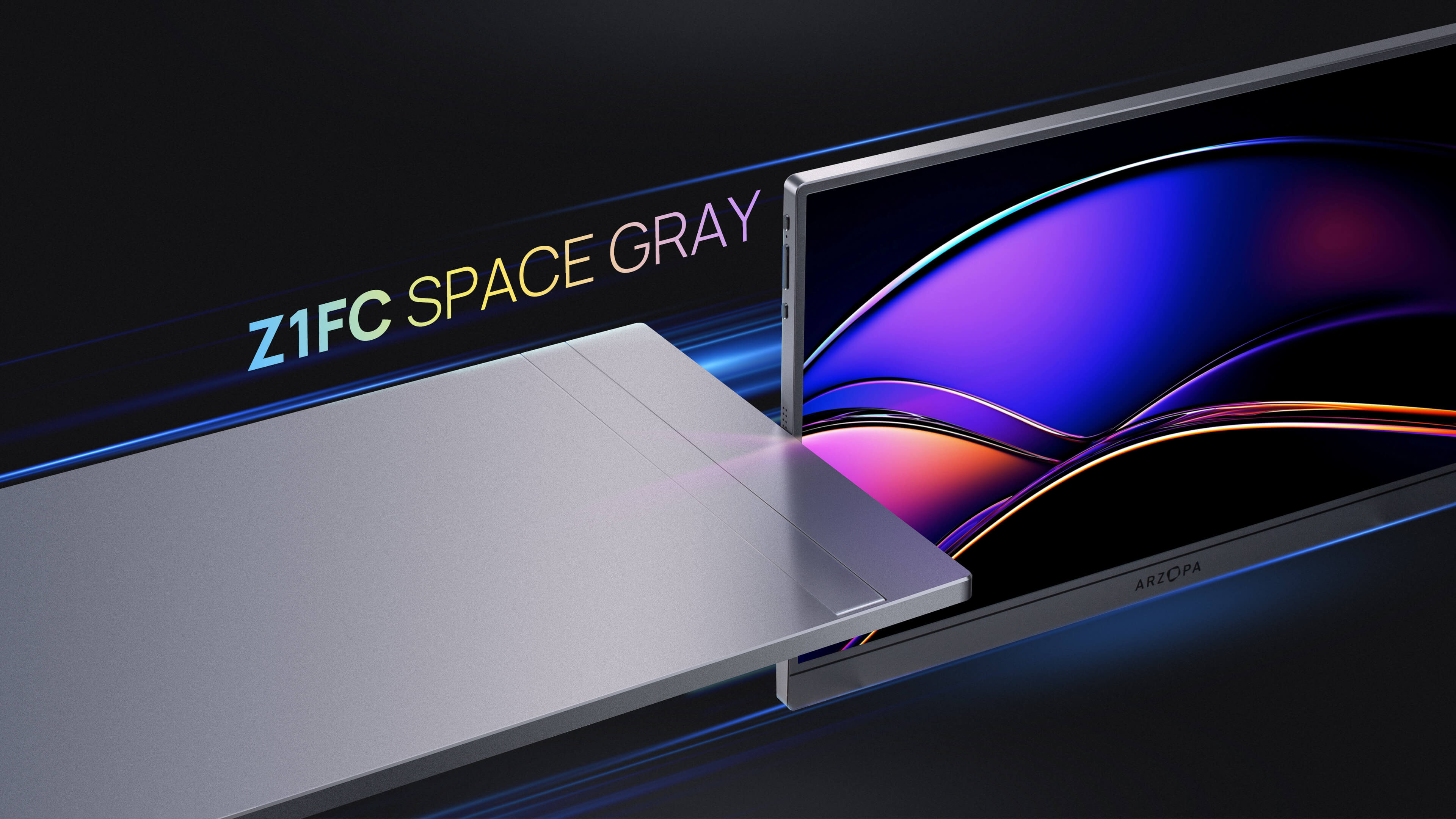
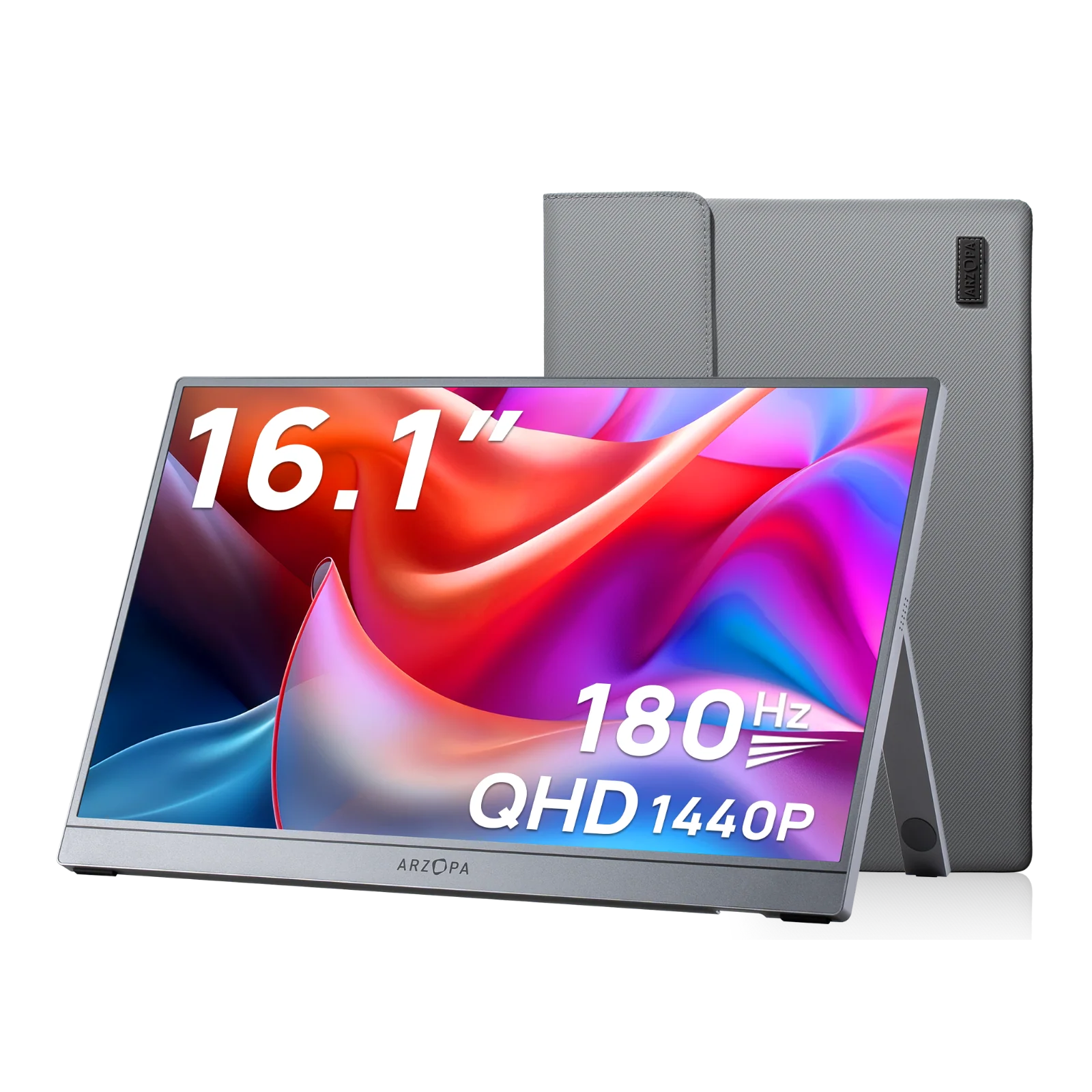
For those seeking ultimate flexibility, consider investing in a portable monitor like the Arzopa Z3FC portable monitorThese lightweight displays offer:
- Ultra-portability: Perfect for remote workers who frequently change locations
- High refresh rates: The Z3FC delivers stunning 180Hz for smooth visuals
- QHD resolution: Enjoy crisp 2560x1440 clarity in a compact form factor
- Versatile connectivity: USB-C power delivery and display in one cable
- No desk clutter: Slim profile that complements your closed laptop setup
Why Choose Arzopa Portable Monitors?
When upgrading your laptop with external monitor and keyboard setup, Arzopa portable monitors offer distinct advantages over traditional displays:
Superior Portability Without Compromise
The Arzopa Z3FC redefines what's possible in portable display technology. Unlike bulky desktop monitors, this 16.1-inch powerhouse delivers:
- True portability: Weighs less than 2 pounds and fits in any laptop bag
- Professional-grade display: QHD 2560x1440 resolution rivals expensive desktop monitors
- Gaming-ready performance: 180Hz refresh rate for buttery-smooth visuals
- Single-cable simplicity: USB-C carries both power and video signal
Perfect for Remote and Hybrid Workers
Modern professionals need flexibility. Arzopa portable monitors enable you to:
- Create a dual-screen setup in coffee shops, coworking spaces, or client offices
- Transform any location into a productive workspace
- Maintain consistent workflow whether at home or traveling
- Pack your entire workstation in a single bag
Cost-Effective Productivity Boost
Compared to traditional external monitors, Arzopa portable monitors offer:
- Lower upfront investment while maintaining premium features
- No need for separate power adapters or complex cable systems
- Space-saving design that doesn't require permanent desk space
- Versatility to use with laptops, phones, tablets, and gaming consoles
Explore the full range of Arzopa monitors to find the perfect match for your close laptop and use monitor setup.
How to Close Laptop and Use Monitor on Windows 11/10
The process to keep external monitor on when laptop is closed requires adjusting your Windows power settings. Follow these step-by-step instructions:
Step 1: Connect Your External Monitor
- Power off your laptop (recommended but not required)
- Connect your external monitor using the appropriate cable
- Plug in your external keyboard and mouse
- Power on your laptop and monitor
- Windows should automatically detect the external display
Step 2: Configure Display Settings
Before closing the lid, ensure your display is configured correctly:
- Press Windows Key + P to open the projection menu
- Select "Second screen only" to use only your external monitor
- Alternatively, choose "Extend" if you want to keep both screens active before closing
Step 3: Adjust Power Settings
This is the crucial step to close laptop with external monitor Windows 11:

- Open Control Panel (search for it in the Start menu)
- Navigate to Hardware and Sound
- Click Power Options
- Select "Choose what closing the lid does" from the left sidebar
- Find the "When I close the lid" section
- Change both "On battery" and "Plugged in" settings to "Do nothing"
- Click "Save changes"
Video Tutorial: Windows Setup
For a visual walkthrough of this process, check out this helpful video:
Duration: 2:29 | Views: 106K+Troubleshooting Windows Issues
If your external monitor turns off when laptop closes, try these solutions:
- Update graphics drivers: Outdated drivers often cause display problems
- Check cable connections: Ensure all cables are securely connected
- Verify power settings: Double-check that you selected "Do nothing" for both power modes
- Restart your computer: Sometimes a simple restart resolves detection issues
- Try a different port: If available, test with an alternate video output port
How to Close MacBook and Use External Monitor (Clamshell Mode)
Apple calls this feature "Clamshell Mode," and the setup process differs from Windows. Here's how to close laptop with external monitor Mac:

Requirements for MacBook Clamshell Mode
To successfully use external monitor with laptop closed on Mac, you need:
- MacBook connected to power (charger plugged in)
- External monitor connected via USB-C, Thunderbolt, HDMI, or DisplayPort
- External keyboard (wired or Bluetooth)
- External mouse or trackpad (wired or Bluetooth)
Step-by-Step MacBook Setup
- Connect your external monitor to your MacBook using the appropriate cable
- Plug in your MacBook charger (essential for Clamshell Mode)
- Connect your external keyboard and mouse (must be connected before closing)
- Close your MacBook lid - the external monitor should remain active
- Wake your MacBook by pressing a key on your external keyboard or clicking your mouse
- Your MacBook screen will remain off, and the external monitor becomes your primary display
Configuring Mac Display Settings
If you want to adjust display preferences:
- Open System Settings
- Click Displays
- In the Arrangement tab, you can set which display is primary
- Adjust resolution and scaling as needed
Video Tutorial: Mac Clamshell Mode
Video: How to Connect MacBook to Monitor Closed (Clamshell Mode) YouTube URL: https://www.youtube.com/watch?v=emv2ezWRkeE Duration: 4:27 | Views: 1M+
MacBook Troubleshooting Tips
If MacBook close lid external monitor isn't working:
- Ensure charger is connected: Clamshell Mode requires power
- Check external peripherals: Keyboard and mouse must be connected and active
- Verify cable compatibility: Use Apple-certified cables for best results
- Reset NVRAM: Hold Command + Option + P + R during startup
- Update macOS: Ensure you're running the latest operating system version
Laptop with External Monitor Setup: Best Practices
Once you've successfully configured your laptop with external monitor setup, optimize it with these professional tips:

Positioning Your Equipment
- Monitor height: Top of screen should be at or slightly below eye level
- Viewing distance: Position monitor 20-40 inches from your eyes
- Laptop placement: Store vertically using a laptop stand to save space and improve airflow
- Cable management: Use cable ties or channels to keep wires organized
Cooling Considerations
When you close laptop and use monitor, thermal management becomes important:
- Use a laptop stand: Vertical stands promote better airflow around your closed laptop
- Ensure ventilation: Don't cover vents with books or papers
- Monitor temperatures: Use software to check if your laptop is running hot
- Consider a cooling pad: Especially for gaming or intensive tasks
- Clean vents regularly: Dust buildup reduces cooling efficiency
Power Management Tips
- Keep laptop plugged in: Prolonged use on battery while closed can reduce battery lifespan
- Use surge protector: Protect all equipment from power fluctuations
- Enable energy-saving features: Configure sleep settings for when not in use
Advanced Setup: Multiple Monitors with Laptop Closed
Ready to take productivity even further? You can use multiple monitors with laptop closed for an ultimate workstation:

Windows Multi-Monitor Configuration
- Connect both external monitors to your laptop
- Right-click desktop and select Display Settings
- Arrange monitors by dragging their representations to match physical layout
- Set resolution and orientation for each display
- Choose "Extend these displays" from the multiple displays dropdown
- Apply the same power settings as single monitor setup
Mac Multi-Monitor Setup
- Connect multiple monitors via USB-C hub or Thunderbolt dock
- Open System Settings > Displays
- Click Arrange to position displays
- Drag the white menu bar to your preferred primary display
- Close MacBook lid while connected to power with peripherals active
Recommended Hardware for Multi-Monitor Setups
- USB-C docking station: Simplifies connections for multiple monitors
- DisplayPort MST hub: Enables daisy-chaining compatible monitors
- Powerful charging adapter: Ensure adequate power delivery for all devices
Common Questions About Closing Laptop and Using Monitor
Can You Close Laptop and Use External Monitor Without Power?
Windows: Yes, if you configure power settings to "Do nothing" for the battery option. However, this drains battery quickly. Mac: No, Clamshell Mode requires the MacBook to be plugged into power. Without a charger, closing the lid puts the Mac to sleep.
Does This Setup Harm My Laptop?
No, using your laptop closed with an external monitor does not cause damage when done correctly. Follow these guidelines:
- Ensure proper ventilation around the closed laptop
- Monitor internal temperatures occasionally
- Use a laptop stand for better airflow
- Keep vents clear of obstructions
Will My Laptop Run Slower with an External Monitor?
Minimal impact for general tasks. Your laptop's GPU works slightly harder to drive the external display, but modern laptops handle this efficiently. For demanding tasks like gaming or video editing, ensure your laptop has dedicated graphics and adequate cooling.
How to Switch Back to Using Laptop Screen?
Simply revert your power settings:
- Windows: Change "When I close the lid" back to "Sleep" or "Hibernate"
- Mac: Disconnect external monitor and peripherals, then open the lid
- Both: Press Windows Key + P (Windows) or adjust Display Settings (Mac) to change display modes
Conclusion: Transform Your Workspace Today
Learning how to close laptop and use monitor opens up new possibilities for workspace optimization, improved ergonomics, and enhanced productivity. Whether you choose a traditional desktop monitor or opt for the flexibility of Arzopa portable monitors, this setup provides significant benefits for professionals, students, and gamers alike.
The process is straightforward: adjust your power settings on Windows or enable Clamshell Mode on Mac, connect your peripherals, and enjoy a cleaner, more efficient workspace. With the Arzopa Z3FC portable gaming monitor, you get professional performance in an ultra-portable package that's perfect for the modern mobile lifestyle.
Ready to upgrade your setup? Visit Arzopa.com to explore premium portable monitors designed for the way you work and play. Transform your laptop into a powerful desktop workstation without sacrificing portability.
s