
Connecting your laptop to a desktop monitor can dramatically boost your productivity and enhance your computing experience. Whether you're working from home, gaming, or simply need more screen real estate, learning how to connect laptop to desktop monitor or how to connect external monitor to laptop is a valuable skill that takes just minutes to master. In this comprehensive guide, we'll walk you through every connection method, from traditional HDMI cables to wireless solutions, ensuring you get the perfect dual-screen setup regardless of your laptop brand or monitor type.
What You Need to Connect Laptop to Desktop Monitor
Before you begin connecting your laptop screen to monitor, it's essential to identify the available ports on both devices. Modern laptops and monitors typically feature multiple connection options, and choosing the right one ensures optimal display quality and compatibility.
Common Port Types:
- HDMI (High-Definition Multimedia Interface): The most universal option found on nearly all modern laptops and monitors. HDMI supports both audio and video transmission, making it ideal for most users.
- USB-C/Thunderbolt: Increasingly common on newer laptops, especially MacBooks and premium Windows devices. These versatile ports can carry video, audio, data, and power through a single cable.
- DisplayPort: Often found on gaming laptops and high-performance monitors, DisplayPort offers excellent refresh rates and resolution support.
- VGA/DVI: Older connection standards still present on legacy equipment. These require separate audio cables and may need adapters for modern devices.
To determine which cable you need, inspect the sides and back of your laptop and monitor. Most devices have small icons next to each port indicating their type. If your laptop and monitor don't share a common port, affordable adapters are readily available at Arzopa and most electronics retailers.

How to Connect Laptop Screen to Monitor Using Cables
Method 1: HDMI Connection (Most Popular)
HDMI remains the gold standard for how to connect laptop to external monitor due to its widespread compatibility and ease of use. Here's a detailed walkthrough with HDMI for various laptop brands:
Step-by-Step Instructions:
- Turn off your laptop (recommended but not mandatory for HDMI hot-plugging).
- Locate the HDMI port on both your laptop and monitor.
- Connect the HDMI cable firmly into both devices.
- Power on your monitor and select HDMI as the input source using the monitor's menu buttons.
- Turn on your laptop and wait for Windows to automatically detect the external display.
Brand-Specific Tips:
- How to connect HP laptop to monitor using HDMI: HP laptops typically have HDMI ports on the left or right side. Press Windows + P immediately after connection to quickly access display options.
- How to connect Lenovo laptop to monitor using HDMI: Lenovo ThinkPads often feature mini HDMI or USB-C ports. Check your model specifications and use the appropriate adapter if needed.
- How to connect Dell laptop to monitor: Dell Latitude and Inspiron models usually include full-size HDMI ports. Dell monitors often auto-detect inputs, minimizing manual configuration.
- How to connect gaming laptop to monitor: Gaming laptops may have both HDMI and DisplayPort options. For high refresh rate gaming monitors (120Hz+), use DisplayPort if available for better performance.
Windows Display Configuration:
After physical connection, configure your display settings:
- Right-click on your desktop and select Display Settings
- Scroll to Multiple Displays section
- Choose your preferred mode (Extend, Duplicate, or Second Screen Only)
- Click Apply to save changes
HDMI Convenience Meets Portability: The Arzopa Advantage
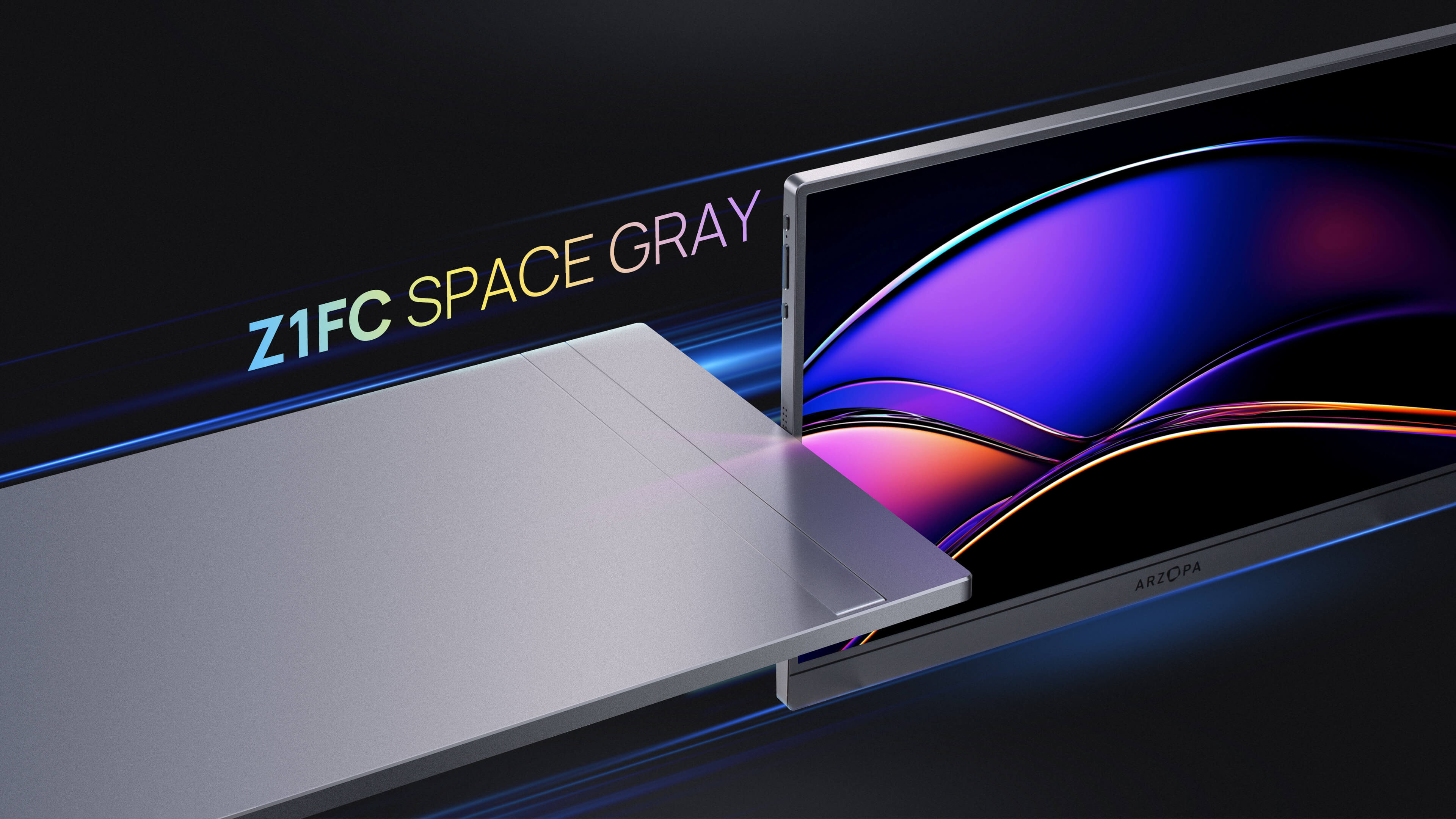
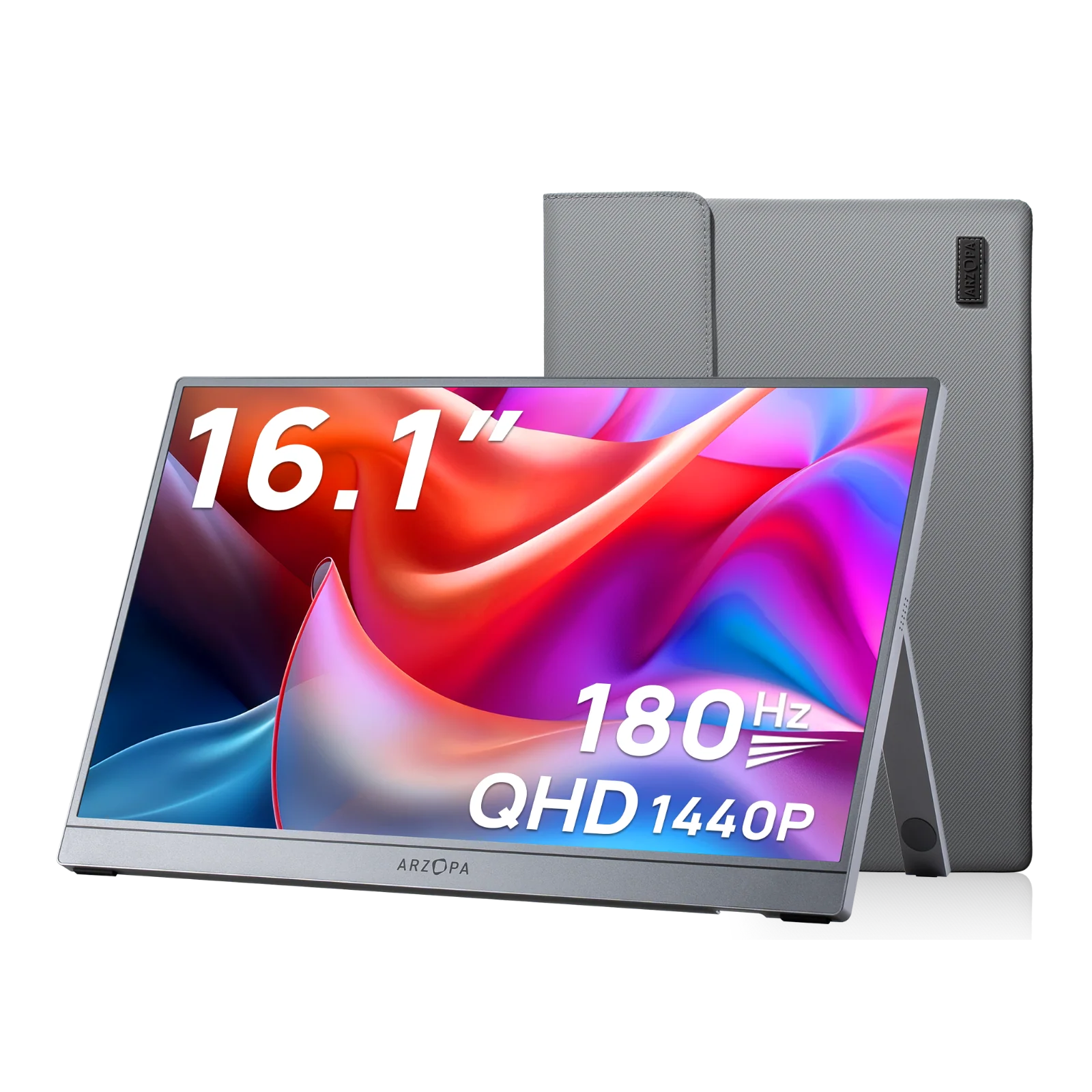
If you frequently work on the go or need a flexible display solution, consider a portable monitor like the Arzopa Z3FC Portable Gaming Monitor. Unlike bulky desktop monitors, Arzopa portable monitors offer plug-and-play HDMI connectivity in a lightweight, travel-friendly design. The Z3FC features a stunning 16.1" QHD display with 180Hz refresh rate, making it perfect for both productivity tasks and gaming sessions. Simply connect via HDMI or USB-C, and you're ready to work anywhere—whether at a coffee shop, client site, or home office.

Method 2: USB-C and DisplayPort
Modern laptops increasingly rely on USB-C ports for display connectivity. These versatile connections support higher resolutions and refresh rates, making them ideal for 4K monitors and professional workflows.
USB-C Setup:
- Ensure your laptop supports DisplayPort Alt Mode over USB-C (check manufacturer specifications)
- Use a certified USB-C to HDMI/DisplayPort cable or adapter
- Connect and configure displays using the same Windows settings as HDMI
DisplayPort Advantages:
- Supports daisy-chaining multiple monitors from a single port
- Better for high-refresh-rate displays (144Hz, 240Hz)
- Preferred for color-critical work like photo and video editing
Method 3: Alternative Connections (VGA, DVI)
For older monitors or laptops, VGA and DVI connections remain functional options, though they require adapters for modern devices.
Setup Requirements:
- Purchase a USB-C to VGA or HDMI to DVI adapter
- Connect a separate 3.5mm audio cable (VGA doesn't carry audio)
- Expect lower maximum resolutions compared to modern standards
Watch This Tutorial:
How to Connect Laptop to Monitor Wirelessly
If you want to learn how to connect laptop to monitor without HDMI, wireless solutions offer cable-free convenience, though with some trade-offs in latency and image quality.
Windows Wireless Display (Miracast):
- Ensure your monitor supports Miracast or has a wireless display adapter
- On your laptop, press Windows + K
- Select your monitor from the available devices list
- Follow on-screen prompts to establish the connection
Key Considerations:
- Wireless connections may introduce slight latency (not ideal for gaming)
- Both devices must be on the same Wi-Fi network
- Maximum resolution typically limited to 1080p
- Useful for presentations and casual content consumption
Third-Party Solutions:
- Google Chromecast: Cast your entire screen or specific browser tabs
- Apple AirPlay: Seamless wireless connection for MacBook users with compatible displays
- Dedicated wireless HDMI kits: Professional-grade options for minimal latency
For users seeking the best of both worlds, Arzopa portable monitors combine wired reliability with wireless-ready designs, giving you flexibility when you need it most.

How to Connect My Laptop to Monitor and Set Up Dual Screens
Once you've physically connected your laptop to a monitor, configuring the display arrangement is crucial for optimal productivity. Understanding how to connect laptop to second monitor settings ensures you maximize your screen real estate effectively.
Windows Display Modes Explained:
- Duplicate: Shows identical content on both screens—ideal for presentations
- Extend (Recommended): Treats monitors as one continuous workspace, allowing you to drag windows between screens
- Second Screen Only: Disables laptop display and uses only the external monitor
Quick Configuration Steps:
- Press Windows + P for instant display mode switching
- Select Extend for maximum productivity
- Right-click desktop → Display Settings to arrange monitor positions
- Drag monitor icons to match your physical setup (left/right positioning)
- Adjust Scale and Layout settings for comfortable text size
Resolution and Scaling Optimization:
- Set each display to its native resolution for sharpest image quality
- Adjust scaling percentages if text appears too small or large
- Configure refresh rate in Advanced Display Settings (important for gaming monitors)
Pro Tip: Place your primary monitor as "Monitor 1" in display settings for consistent application behavior.

Fixing Connection Problems
Even when following proper procedures for how to connect laptop to desktop monitor, you may encounter occasional issues. Here are proven solutions to common problems:
Monitor Not Detected:
- Verify cable connections are secure at both ends
- Try a different cable or port to rule out hardware failure
- Update your graphics drivers (Device Manager → Display Adapters)
- Restart laptop with monitor connected and powered on
No Signal Error:
- Confirm monitor input source matches your cable connection (HDMI 1 vs HDMI 2)
- Check monitor power cable and ensure it's receiving power
- Press Windows + P and manually select a display mode
Resolution or Scaling Issues:
- Right-click desktop → Display Settings → adjust resolution to native value
- Update graphics drivers from manufacturer website (Intel, NVIDIA, AMD)
- Disable display scaling in compatibility settings if applications appear blurry
Audio Not Playing Through Monitor:
- Right-click volume icon → Sound Settings → select monitor as output device
- Check monitor has built-in speakers or requires separate audio connection
- Verify HDMI cable supports audio transmission (most modern cables do)
Driver Update Procedure:
- Press Windows + X → Device Manager
- Expand Display Adapters
- Right-click your graphics card → Update Driver
- Choose Search automatically for updated driver software
If problems persist, consult your laptop manufacturer's support documentation or visit Arzopa's support resources for additional troubleshooting guidance.
Maximizing Your Dual Monitor Setup
Beyond the basics of how to connect laptop to monitor, optimizing your workspace can significantly enhance productivity and comfort.
Optimal Monitor Positioning:
- Position monitors at arm's length distance (approximately 20-30 inches)
- Align top of screen with or slightly below eye level
- Angle monitors inward slightly to reduce neck strain
- Minimize glare by positioning away from windows or using anti-glare screens
Cable Management Tips:
- Use cable clips or sleeves to bundle and route cables neatly
- Invest in an adjustable monitor arm for better ergonomics and desk space
- Consider cable length when purchasing—too short causes tension, too long creates clutter
Using Laptop with Lid Closed (Clamshell Mode):
Many users prefer how to connect my laptop to monitor with the lid closed for a cleaner setup:
- Connect external keyboard and mouse
- Connect monitor and power adapter
- Go to Control Panel → Power Options
- Click Choose what closing the lid does
- Set to Do nothing when plugged in
- Close lid—laptop continues running using external display
Color Calibration Basics:
- Use Windows built-in calibration tool (Display Settings → Advanced → Color Calibration)
- Match brightness levels between laptop and external monitor
- Adjust color temperature for consistent appearance across screens
Why Choose Arzopa Portable Monitors for Your Setup:
Arzopa portable monitors offer unique advantages over traditional desktop monitors:
- Travel-Friendly: Lightweight design (under 2 lbs) fits in any laptop bag
- High Performance: 180Hz refresh rate and 2560x1440 QHD resolution rival desktop monitors
- Versatile Connectivity: HDMI and USB-C inputs support all modern laptops
- No External Power Required: USB-C single-cable solution powers display and transmits video
- Professional and Gaming Ready: sRGB 100% color accuracy for creative work, 1ms response time for gaming
Whether you're a digital nomad, gamer, or professional needing a flexible second screen, Arzopa delivers desktop-quality displays in a portable package.
Reverse Connection: Using Laptop as Monitor for Desktop
While less common, you may want to know how to connect a desktop to a laptop screen or how to connect desktop PC to laptop screen. This reverse setup allows you to use your laptop as a secondary display for your desktop computer.
Windows Projection Feature:
On your laptop (receiving device):
- Open Settings → System → Projecting to this PC
- Change settings to Available everywhere or Available everywhere on secure networks
- Note the laptop's device name
On your desktop (source device):
- Press Windows + K
- Select your laptop from available devices
- Your desktop screen will now project to the laptop display
Third-Party Software Options:
- Spacedesk: Free virtual display software with excellent performance
- Duet Display: Premium solution with low latency and high resolution support
- Air Display: Cross-platform option supporting Windows and macOS
Important Limitations:
- Wireless projection may have noticeable latency (not suitable for gaming)
- Most laptops don't support direct video input through HDMI (HDMI ports are output-only)
- Performance depends heavily on network speed and CPU capabilities
For a more reliable experience when you need how to connect a laptop to a desktop screen, consider using a portable monitor as an intermediary display or dedicated KVM switch solution.
Conclusion
Mastering how to connect laptop to desktop monitor opens up a world of productivity possibilities, whether you're working from home, gaming, or creating content. From the simplicity of HDMI connections to the flexibility of wireless displays, modern technology offers multiple solutions to fit your specific needs.
Key Takeaways:
- HDMI provides the easiest plug-and-play experience for most users
- USB-C and DisplayPort offer superior performance for high-resolution displays
- Wireless connections work well for presentations but may not suit gaming or professional work
- Proper display configuration and ergonomic positioning maximize productivity benefits
Ready to upgrade your workspace? Explore Arzopa's range of portable monitors designed for professionals, gamers, and travelers who demand flexibility without compromising quality. With features like 180Hz refresh rates, QHD resolution, and USB-C single-cable connectivity, Arzopa delivers desktop performance in a truly portable form factor.
Whether you're connecting an HP laptop to monitor using HDMI, setting up a gaming laptop with dual screens, or exploring wireless display options, this guide has equipped you with the knowledge to create your ideal multi-monitor setup. Start connecting and experience the productivity boost that comes with expanded screen real estate!
Frequently Asked Questions (FAQ)
Q: Why does my monitor say no signal when HDMI is plugged in?
A: Check that your HDMI cable is fully inserted, select the correct HDMI input on your monitor, ensure your PC is outputting to the correct display (Windows + P), and verify the cable isn't damaged.
Q: How do I fix USB-C monitor not detected?
A: Verify your USB-C port supports DisplayPort Alt Mode, try different USB-C ports on your device, use a certified USB-C video cable, update USB and graphics drivers, and ensure adequate power delivery (15W minimum).
Q: Why is my second monitor not detected?
A: Open Display Settings (Windows + P), click "Detect," ensure the monitor is powered on and cables are secure, try different ports, update graphics drivers, and verify the monitor works with another computer to rule out hardware failure.
Q: What cable do I need to connect laptop to monitor?
A: Most modern laptops use HDMI or USB-C cables. Check your laptop's ports: if it has HDMI, use an HDMI cable. If it has USB-C with DisplayPort Alt Mode, you can use USB-C to HDMI or USB-C to USB-C cable depending on your monitor.