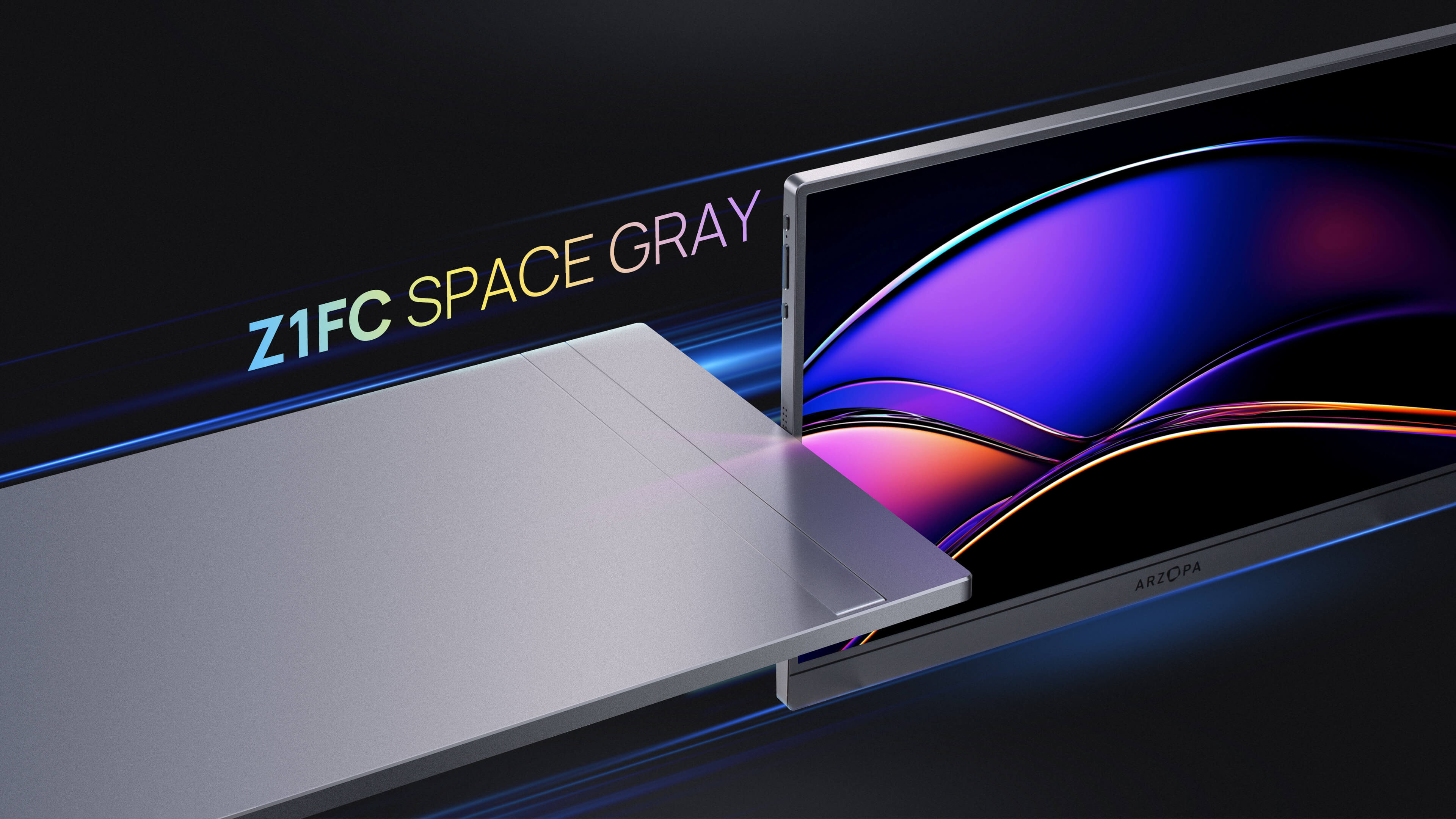
When you unbox a new display, the factory defaults are rarely optimized for your specific environment. Finding the best monitor settings is the single most effective way to upgrade your visual experience without spending a dime on new hardware. Whether you are a competitive gamer seeking an edge, a creative professional demanding color accuracy, or an office worker trying to reduce eye strain, proper calibration is key to getting the most out of your purchase.
Many users unknowingly suffer from washed-out colors, crushed blacks, or unnecessary motion blur simply because they haven't adjusted their OSD (On-Screen Display) menu. Manufacturers often ship screens in "Demo" modes designed to look bright in a store, not accurate on a desk. This guide will walk you through the essential adjustments needed to unlock the full potential of your screen, ensuring that your monitor serves your needs rather than hindering them.
Understanding Color Modes and Presets
Before diving into granular controls, you must navigate the "Color Mode" or "Preset" menu. This is usually the first option in your monitor's OSD. Most monitors come with a variety of presets such as "Standard," "Gaming," "Cinema," "Scenery," and "sRGB." Understanding these is the first step to achieving the best monitor settings.

Standard / User Mode: For the vast majority of users, this is the best starting point. It typically unlocks all other settings (brightness, contrast, color channels), allowing you to manually calibrate the display. Other modes often lock these settings out, preventing you from fixing color inaccuracies.
Gaming / FPS / RTS Modes: These presets are often marketed heavily but can be detrimental to image quality. They frequently oversaturate colors and crank up sharpness artificially. While they might make an enemy "pop" against a background, they often destroy image fidelity and color accuracy. Only use these if you are strictly competitive and don't care about how the game actually looks.
Cinema / Movie Mode: These modes often employ "Dynamic Contrast," which dims the backlight in dark scenes and brightens it in loud scenes. This constant fluctuating brightness can be distracting and often results in lost detail. It is generally recommended to avoid this mode for PC usage.
 Selecting the "User" or "Standard" mode usually unlocks the necessary controls for proper calibration.
Brightness Settings
Brightness is often the first setting users adjust, yet it is frequently set incorrectly. Many monitors ship with brightness cranked to 100% to stand out on showroom floors, but this is detrimental to image quality and eye health in a home environment. The goal is to match your monitor's luminance to your room's ambient lighting.
For office environments and general productivity, a brightness level between 120 and 150 cd/m² (nits) is the industry standard. This usually equates to a setting of 30-50% on most consumer monitors. This range provides enough visibility without causing the pupil to constrict excessively, which leads to fatigue during long work sessions.
For gaming, especially in rooms with controlled lighting, you might push this slightly higher, to around 200-300 nits, to make highlights pop and improve visibility in darker in-game corners. However, avoid maxing out brightness unless you are in direct sunlight, as it can wash out black levels and reduce the perceived contrast ratio.
| Environment | Target Luminance | Approximate OSD Setting |
|---|---|---|
| Dim Room / Night | 80 - 100 nits | 0% - 20% |
| Typical Office Lighting | 120 - 150 nits | 30% - 50% |
| Bright Daylight / Gaming | 200 - 300 nits | 60% - 80% |
Contrast Settings
Contrast controls the white level of your image. If set too high, you lose detail in bright areas (clipping), meaning light grey details disappear into pure white. If set too low, the image appears dull, washed out, and flat. For the vast majority of monitors, the factory default—usually 50% or 70-75% depending on the brand—is often the most accurate point.
Moving the contrast significantly from the default can introduce unwanted color shifts. For example, pushing contrast too high often introduces a pink or yellow tint to white highlights. When calibrating for the best monitor settings, utilize online lagom tests or built-in calibration tools. You want to adjust the contrast to the highest possible point where you can still distinguish between the brightest shades of white.
 Use a grayscale chart to ensure you aren't losing detail in bright or dark areas.
Different panel types react differently to contrast adjustments. IPS panels generally maintain color accuracy better at higher contrast settings than TN panels. VA panels naturally have higher contrast ratios, so you may not need to push the settings as hard to achieve deep blacks. Always prioritize detail retention over sheer punchiness.
Black Level / Black Equalizer Settings
While standard "Brightness" controls the backlight, settings often labeled "Black Level," "HDMI Black Level," or "Black Equalizer" control the digital black point. This is crucial for ensuring that black looks like black, not dark grey, and that shadow details are preserved.
HDMI Black Level: This usually has two options: "Low" (or Limited, 16-235) and "High" (or Full, 0-255). PC monitors should almost always be set to "High" or "Full" to match the signal from your graphics card. If blacks look grey and washed out, your monitor is likely set to "High" while the PC is sending "Limited." If blacks are crushed and shadow detail is gone, the reverse is true.
Black Equalizer: Popularized by brands like BenQ and Samsung, this feature artificially brightens dark areas of the screen without overexposing bright areas. In competitive gaming, this helps you spot enemies hiding in shadows. However, for cinematic immersion or content creation, it distorts the image by flattening the depth.
 Advanced menus allow you to fine-tune RGB offset and gain for perfect black levels.
For the best monitor settings in competitive titles like CS: GO or Valorant, setting Black Equalizer to a medium level (around 10-15 on a 20-point scale) can offer a competitive advantage. For everything else, leave it at 0 or the default setting to maintain a rich, contrasty image.
Color Temperature Settings
Color temperature defines whether whites appear yellowish (warm) or bluish (cool). The standard target for sRGB and almost all digital content is 6500K (Kelvin), often labeled as "Normal," "Warm 1," or "sRGB" in monitor menus. This mimics the temperature of daylight at noon and ensures colors look as the creator intended.
Many "Gaming" presets default to a cooler temperature (often 7000K-9000K) because blue light appears brighter and "sharper" to the human eye initially. However, this distorts skin tones, making characters look pale, and causes significantly more eye strain over time. For the most accurate image, switch to the "User" or "Custom" mode and aim for that 6500K warm daylight standard.
Gamma Settings
Gamma controls the luminance of the grayscale steps between absolute black and absolute white. It determines how fast the screen gets bright as you move from dark to light. The industry standard for Windows PCs and the web is Gamma 2.2.
Gamma 2.2: This is the default target for almost all monitors. It provides a balanced image suitable for typically lit rooms. If your gamma is too low (e.g., 1.8), the image will look washed out and whitish. If it is too high (e.g., 2.4 or 2.6), the image will look dark, and shadow details will be crushed into black.
 Selecting the correct Gamma curve (usually 2.2) is essential for accurate mid-tone reproduction.
Some enthusiasts prefer Gamma 2.4 (often labeled as BT.1886) for watching movies in a completely dark room, as it provides a richer, more cinema-like depth. However, for general mixed usage and gaming, ensure your monitor is set to 2.2 or "Mode 1" (check your manual) to prevent visibility issues in dark scenes.
Refresh Rate Settings
One of the most critical aspects of the best monitor settings for gaming is the refresh rate. Windows often defaults high-refresh monitors to 60Hz out of the box, meaning you might be missing out on the performance you paid for. For basic browsing, 60Hz is functional, but for gaming, higher is essential.
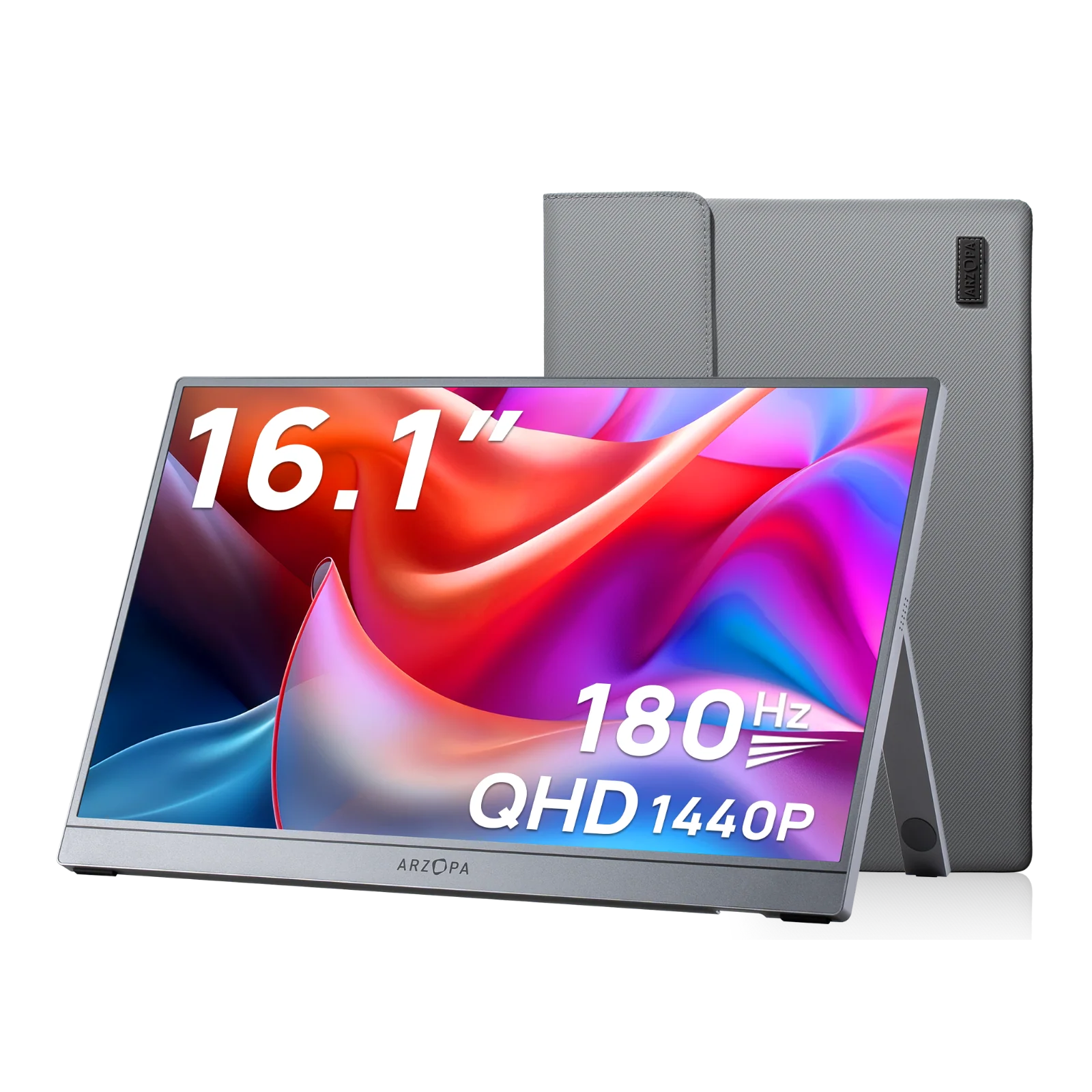
Serious gamers should aim for at least 144Hz, but the modern standard for competitive play has shifted higher. This is where advanced portable displays like the Arzopa Z3FC truly shine. Unlike standard portable monitors stuck at 60Hz, the Z3FC offers a blistering 180Hz refresh rate.
 The Arzopa Z3FC combines 180Hz speed with QHD resolution for elite portable gaming.
Setting your monitor to 180Hz, as supported by the Z3FC, significantly reduces input lag and motion blur, making fast-paced shooters and racing games feel incredibly fluid. Combined with its 2560x1440 QHD resolution, it provides a density of detail that standard 1080p monitors cannot match, creating the ideal balance of speed and fidelity.
 Ensure you verify your refresh rate in Windows Display Settings to avoid the '60Hz trap'.
Response Time and Overdrive Settings
Response time determines how quickly a pixel can change color, which affects ghosting (trails behind moving objects). To improve this, monitors use "Overdrive." However, the highest setting is rarely the best. Maxing out overdrive often introduces "overshoot" or inverse ghosting, where a bright halo appears around moving objects.
For the optimal balance, typically the "Normal" or "Fast" setting (usually the middle option) provides the cleanest motion. Avoid "Fastest" or "Extreme" unless you have verified it doesn't cause artifacts. Test this by moving a window rapidly across your desktop and looking for trailing artifacts.
Color Saturation and Vibrance
While color temperature controls the tint of the white point, saturation controls the intensity of the colors themselves. Most monitors include a saturation slider, and graphics card drivers (like NVIDIA Control Panel) offer "Digital Vibrance."
For accurate content creation or movie watching, these should be left at their default (usually 50%). Increasing saturation artificially can cause "color clipping," where details in a bright red flower, for example, merge into a single blob of red.
However, for the best monitor settings in competitive gaming, many players prefer to boost Digital Vibrance to 55-65%. This makes enemies stand out more distinctly against the terrain. Just be aware that this is a departure from accuracy in favor of visibility.
Sharpness and Image Enhancement
Modern monitors often come with artificial sharpening filters enabled. While this might make text look crisper initially, it creates unnatural halos around objects and can mess with anti-aliasing in games. The best practice is usually to leave Sharpness at the default neutral setting (often 50% or 0, depending on the brand).
Similarly, avoid features labeled "Super Resolution," "Vivid Pixel," or "Dynamic Contrast" for general use. These post-processing effects alter the source signal and can introduce input lag or visual noise. For the cleanest image, trust the raw signal from your graphics card rather than the monitor's post-processing.
HDR Settings
High Dynamic Range (HDR) can transform your viewing experience, but only if your monitor hardware supports it properly. If you have a monitor with HDR400 certification or no local dimming, enabling HDR in Windows can often make the image look washed out and worse than SDR. This is a common point of confusion.
 Only enable HDR for supported content like movies or specific games; leave it off for desktop use.
For true HDR experiences, you generally need a monitor with HDR600 or HDR1000 certification. If your monitor supports it, ensure "Use HDR" is toggled on in Windows Display Settings only when you are about to watch HDR content or play an HDR-compatible game. Leaving it on permanently for desktop usage can distort colors and text clarity.
Low Blue Light and Eye Care Mode
Extended exposure to high-energy visible (HEV) blue light, especially at night, can disrupt sleep patterns and cause digital eye strain. Most modern monitors include a "Low Blue Light" or "Eye Saver" mode. Enabling this physically reduces the blue spectrum emission by shifting the color temperature to a much warmer, amber tone.
While excellent for reading documents late at night, this setting ruins color accuracy for gaming or media consumption. A better approach for the best monitor settings is to use Windows' built-in "Night Light" feature, which can be scheduled to turn on automatically at sunset, rather than manually toggling the monitor's OSD every evening.
Input Lag and Game Mode Settings
Input lag is the delay between pressing a button on your mouse and seeing the action on screen. Monitors perform various processing tasks on the image before displaying it, which adds milliseconds of delay. To minimize this, most displays offer a "Game Mode" or "Instant Mode."
Ensure this feature is enabled for gaming. Furthermore, disable any unnecessary post-processing features like "Noise Reduction," "Motion Smoothing," or "Dynamic Contrast," as these require frame buffering and significantly increase input latency. The goal is to have the cleanest, most direct path from the GPU to the panel.
Best Monitor Settings for Different Scenarios
Your ideal configuration changes depending on your task. Here is a comprehensive reference guide to the best monitor settings for common scenarios:
| Scenario | Recommended Settings |
|---|---|
| Competitive Gaming | Max Refresh Rate (e.g., 180Hz on Z3FC), Response Time: Fast, Brightness: 250-300 nits, Black Equalizer: Medium, Vibrance: 60%. |
| Immersive / Story Gaming | Max Refresh Rate, Gamma 2.2, Contrast 70%, Vibrance 50%, Black Equalizer: 0 (Off), HDR: On (if supported). |
| Office / Productivity | Refresh Rate: 60Hz+, Brightness: 120 nits, Color Temp: Warm (6500K), Blue Light Filter: Low/Medium. |
| Movies / Cinema | Gamma: 2.4 (Dark Room), Brightness: 100 nits, Color Temp: 6500K, Sharpness: 0, Dynamic Contrast: Off. |
| Photo Editing | Mode: sRGB / DCI-P3, Gamma: 2.2, Contrast: Default, Color Temp: 6500K (Calibrated), Uniformity Comp: On. |
For users who need a dedicated display specifically for productivity without breaking the bank, the Arzopa Z1C is an excellent choice. It offers 100% sRGB coverage, ensuring accurate colors for work, in a lightweight and affordable package that doesn't require complex configuration to look great for spreadsheets and presentations.
Quick Calibration Checklist
Ready to optimize? Follow this 5-minute checklist to achieve the best monitor settings right now:
- Step 1: Warm Up. Let your monitor run for at least 30 minutes to reach stable brightness and color temperature.
- Step 2: Factory Reset. Clear any weird settings by performing a "Reset All" in the OSD.
- Step 3: Mode Selection. Switch to "User," "Custom," or "Standard" mode to unlock controls. Avoid "Gaming" or "Vivid" presets.
- Step 4: Brightness Match. Hold a piece of white paper next to your screen. Adjust monitor brightness until the screen white matches the paper white under your room's lighting.
- Step 5: Windows Settings. Ensure resolution is set to "Native" (e.g., 2560x1440) and Refresh Rate is set to the maximum available Hz in Windows Advanced Display settings.
Frequently Asked Questions (FAQ)
Q1: What are the best monitor settings for gaming?
For competitive gaming, prioritize maximum refresh rate (144Hz-180Hz+), fast response time (1-4ms), and brightness around 250-300 nits. Set your monitor to "Game Mode" to reduce input lag, and consider enabling Black Equalizer at a medium level (10-15) to spot enemies in dark corners. For competitive shooters, boosting Digital Vibrance to 55-65% can improve visibility, though this sacrifices color accuracy. Always ensure Windows is set to your monitor's native resolution and maximum refresh rate—many users unknowingly leave high-refresh monitors stuck at 60Hz, losing the performance they paid for.
Q2: Should I keep HDR on all the time?
No, you should not leave HDR enabled permanently on your Windows desktop. HDR should only be activated when viewing HDR content like HDR-compatible games or movies. For everyday desktop use, emails, and web browsing, HDR can make colors look washed out and text less sharp, especially on monitors with lower HDR certifications like HDR400. True HDR benefits require at least HDR600 or HDR1000 certification with local dimming zones. Toggle HDR on in Windows Display Settings only when you're about to consume HDR media, then turn it off afterward for optimal desktop clarity.
Q3: How do I reduce eye strain from my monitor?
To minimize eye strain, start by adjusting brightness to match your room's ambient lighting—overly bright screens are a primary cause of fatigue. Set your color temperature to 6500K (Warm) rather than the cooler blue presets many gaming modes use. Enable Windows' "Night Light" feature to automatically warm the display after sunset, reducing blue light exposure that disrupts sleep. Keep your monitor at least 20-30 inches from your eyes, and follow the 20-20-20 rule: every 20 minutes, look at something 20 feet away for 20 seconds. For extended work sessions, consider activating your monitor's Low Blue Light mode at a low-to-medium setting, though this will shift colors toward amber tones.
Conclusion
Optimizing your display is a balance between hardware capabilities and environmental factors. By taking the time to adjust your brightness, color temperature, gamma, and refresh rates, you ensure you are getting the visual fidelity you paid for. The best monitor settings are ultimately the ones that look natural to you while preserving the integrity of the source image.
Whether you are gaming at 180Hz on a high-performance portable monitor or working late on a color-accurate display, these adjustments will elevate your experience. For more innovative display solutions that adapt to your lifestyle, visit the Arzopa homepage to explore our full range of portable monitors designed for every user.