
Are you spending hours staring at your computer monitor every day? Have you ever wondered if you're sitting too close or too far away from your screen? Finding the ideal viewing distance for your monitor is crucial for maintaining good eye health and preventing discomfort or vision problems. But what exactly is the ideal viewing distance for a monitor?
In this post, we'll explore the factors that determine the perfect distance, provide some general guidelines, and help you find the best viewing distance for your specific setup. So, let's dive in and discover how to optimize your monitor viewing experience!
Find Your Ideal Viewing Distance in 2 Minutes
When it comes to setting up your monitor, finding the ideal viewing distance is crucial for maintaining eye health, reducing strain, and optimizing your overall viewing experience. While the general recommendation is to position your monitor 20-30 inches away from your eyes, several factors can influence this distance, such as screen size, resolution, and personal preferences. Here's a quick guide to help you find your ideal viewing distance:
- Arm's length rule: The ideal viewing distance for a monitor is 20–30 inches (50–76 cm) from your eyes — about arm's length. Extend your arm and adjust your distance until your palm touches the screen. A quick way to calculate it: multiply your screen size (in inches) by 1.6. That gives you the minimum comfortable distance.For height, the ideal computer screen height is with the top one-third of the screen at eye level. Your gaze should naturally fall slightly downward — between 10–20° below the horizontal.
- Resolution matters: If you have a high-resolution monitor (e.g., 4K), you can sit closer to the screen without noticing individual pixels. For lower resolutions, a slightly farther distance may be more appropriate to avoid eye strain.
- Adjust for comfort: Everyone's eyes are different, so it's essential to find the distance that feels most comfortable for you. If you experience eye fatigue, headaches, or blurred vision, try adjusting your distance slightly until you find the sweet spot.

Why Viewing Distance Matters: Avoiding Eye Strain and Improving Posture
Sitting too close to your screen causes your eyes to work harder to focus. According to the 20-20-20 rule by the American Optometric Association, every 20 minutes you should look 20 feet away for 20 seconds. But that only helps if your baseline distance is correct to begin with.

Poor distance isn't just an eye problem. It leads to:
- Forward head posture — for every inch your head juts forward, it adds ~10 lbs of strain on your spine
- Neck and shoulder tension
- Reduced blink rate, causing dry eyes
- Digital eye strain affecting 65% of U.S. adults (Vision Council, 2024)
By finding the ideal viewing distance, you can:
- Reduce eye strain: Maintaining a proper distance from your monitor allows your eyes to focus more easily, reducing the risk of eye fatigue and associated symptoms.
- Improve posture: Sitting at the correct distance encourages a more ergonomic posture, with your back straight, shoulders relaxed, and feet flat on the floor.
- Enhance productivity: When you're comfortable and free from eye strain and pain, you can focus better on your work, leading to increased productivity and better overall well-being.
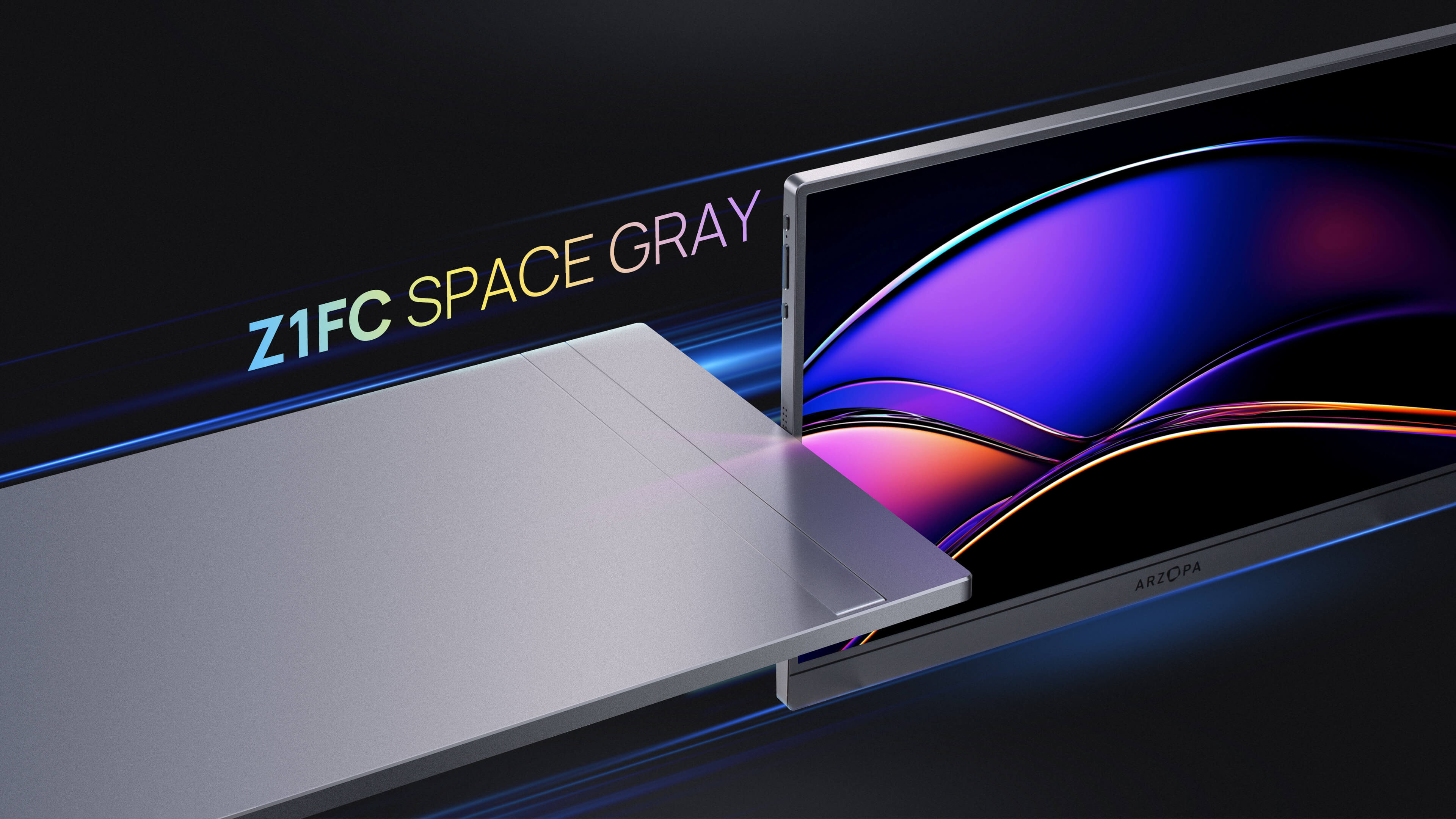
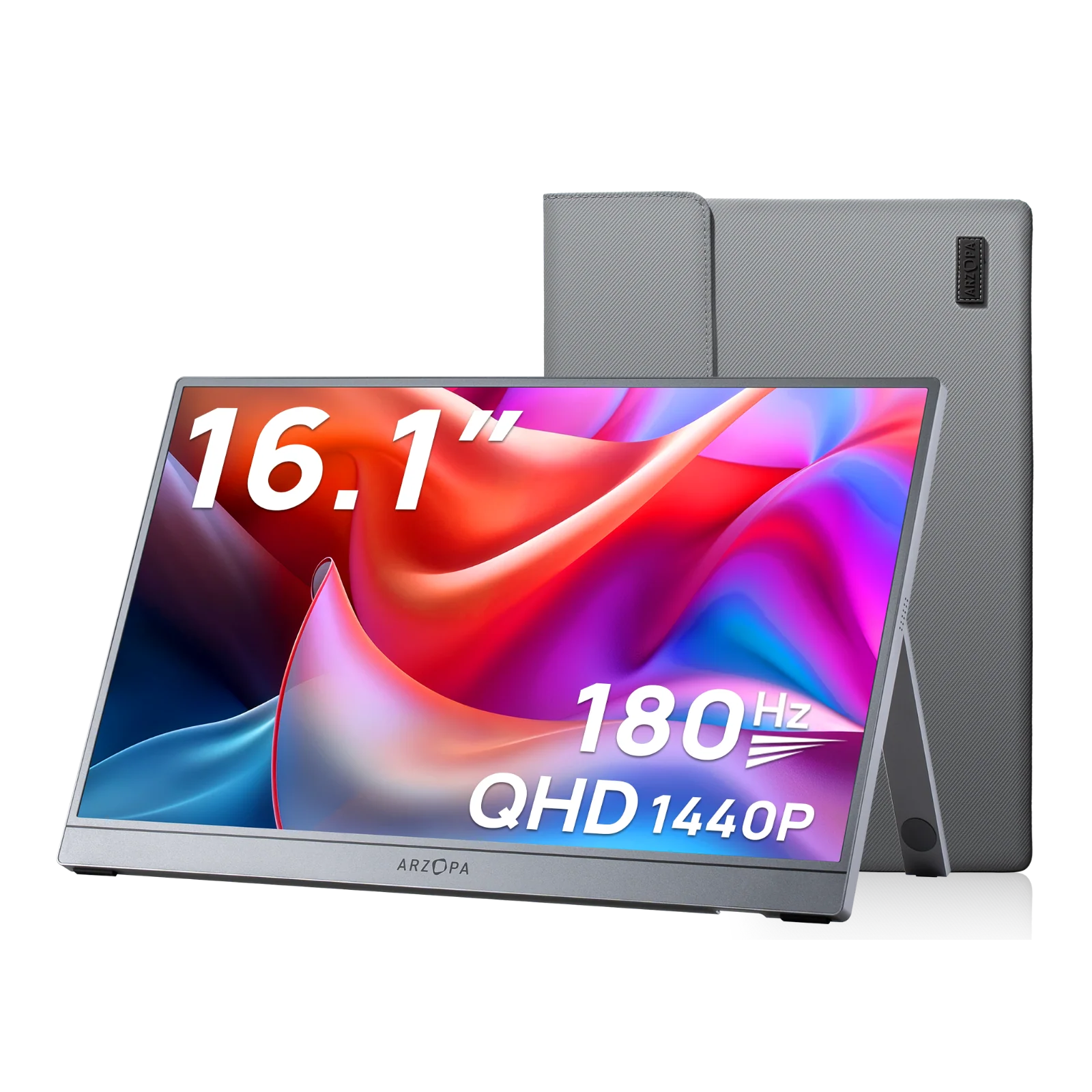
If your current desk setup makes it hard to hit these targets, a portable monitor is an underrated solution. The Arzopa Z3FC gives you a 16.1" QHD display with a built-in adjustable stand, so you can position it exactly where ergonomics demand — whether you're at your office desk, a coffee shop, or a client's site.
Factors That Affect Ideal Viewing Distance
Several factors can influence the ideal viewing distance for your monitor, including:
1. Monitor Size
Larger monitors generally require a greater viewing distance to maintain a comfortable field of view. Here are some guidelines for common monitor sizes:
- 24-inch monitors: 2.0-3.5 feet (60-107 cm)
- 27-inch monitors: 3.0-4.5 feet (91-137 cm)
- 32-inch monitors: 4.0-6.0 feet (122-183 cm)

2. Screen Resolution and Pixel Density
Higher screen resolutions and pixel densities allow for closer viewing distances without sacrificing image quality. For example, a 24-inch monitor with a 4K resolution (3840 x 2160 pixels) has a higher pixel density than the same size monitor with a Full HD resolution (1920 x 1080 pixels). The higher pixel density of the 4K monitor means you can sit closer without noticing individual pixels.

3. Personal Preferences and Visual Acuity
Individuals with different visual acuities may prefer different viewing distances. Those with higher visual acuity can comfortably view the screen from a greater distance, while those with lower visual acuity may need to sit closer. Age also plays a role, as visual acuity tends to decline with age, necessitating a closer viewing distance for older individuals.
Calculating Your Ideal Viewing Distance: The 1.6x Rule
One popular method for calculating the ideal viewing distance is the 1.6x rule, which suggests that the optimal distance is approximately 1.6 times the diagonal length of your monitor. Here's how to calculate your ideal viewing distance using this rule:
- Measure your screen: Determine the diagonal length of your monitor in inches. For example, a 24-inch monitor has a diagonal length of 24 inches.
- Apply the formula: Ideal Distance (inches) = Screen Size (inches) × 1.6
| Screen Size | Minimum Distance | Comfortable Range |
|---|---|---|
| 21" | ~34 in (86 cm) | 20–28 in |
| 24" | ~38 in (97 cm) | 20–30 in |
| 27" | ~43 in (109 cm) | 22–33 in |
| 32" | ~51 in (130 cm) | 25–40 in |
| 34" Ultrawide | ~54 in (137 cm) | 28–42 in |
For 1440p and 4K displays, you can reduce the multiplier slightly to 1.2x — the extra pixel density compensates for closer viewing.
While the 1.6x rule provides a helpful baseline, it's essential to remember that individual preferences and needs may vary. Use the calculated distance as a starting point and fine-tune it based on your personal comfort level. If you experience eye strain or discomfort, adjust your distance slightly until you find the most comfortable position.
How Far Should You Sit from Different Monitors?
This is one of the most searched questions about monitor ergonomics: how far should monitor be from face for your specific screen size?
Here's a quick reference:
- 24-inch monitor: 20–28 inches (50–70 cm). Most office desks naturally place users within this range.
- 27-inch monitor: 22–33 inches (55–85 cm). Ideal for the sweet spot of both productivity and gaming.
- 32-inch monitor: 25–40 inches (63–100 cm). Step back if you're doing general browsing or watching content.
- Ultrawide (34"+): 28–42 inches (70–105 cm). Curved ultrawides help here — the curved panel keeps all edges equidistant from your eyes.
💡 Pro Tip: Extend your arm toward your screen. If your fingertips barely touch the display, you're at a good starting point.
What Is The Ideal Viewing Distance for Other Monitors?
- Portable Monitors (15–16 inch) Portable monitors like the Arzopa Z3FC (16.1") are typically used at desk setups or alongside a laptop. The ideal range is 18–24 inches (45–60 cm). Because the screen is smaller, you naturally sit closer — and that's fine, especially at 2.5K QHD resolution where pixels are crisp and dense.
- TV Used as a Monitor (40–55 inch) Sitting at a TV from 3–5 feet is acceptable, but eye strain from refresh rate and pixel density remains a concern for prolonged PC use.
- Dual Monitor Setups Place both screens at the same distance. If one is closer, you'll constantly refocus your eyes, causing fatigue faster.
How High Should I Put My Monitor? (Ideal Computer Screen Height)
The ideal computer screen height follows one golden rule: the top one-third of the screen should align with your eye level when seated upright.
According to OSHA ergonomics guidelines, the center of the monitor should be 15–20 degrees below horizontal eye level. This slight downward angle reduces strain on the neck extensor muscles.
Step-by-step to set the ideal computer screen height:
- Sit in your normal working posture — back straight, feet flat.
- Look straight ahead with a neutral neck.
- Mark where your eye line hits the wall.
- Position the top of your screen 1–2 inches below that mark.
- Tilt the screen back 10–20° if needed.
If you're using a laptop stand or portable monitor, this adjustment is simple. The Arzopa Z3FC's built-in stand supports multiple tilt angles, making it easy to hit this position without additional equipment.
What's the Best Way to Sit in Front of Your Monitor?
Good distance and height only work when combined with correct posture. Here's the full ergonomic checklist:
✅ Distance: 20–30 inches from eyes (use 1.6x rule for your specific size)
✅ Height: Top third of screen at eye level — remember: ideal computer screen height keeps your neck neutral
✅ Angle: Screen tilted 10–20° backward, screen center 15–20° below horizontal
✅ Chair: Hips at 90°+, lumbar support, feet flat on floor
✅ Lighting: Avoid placing monitor directly in front of or behind a window (causes glare)
✅ Adjust screen size to fit monitor: In Windows, go to Settings → System → Display → Resolution and select the Recommended setting. This ensures you're not straining to read scaled content.
If you're unsure what is my monitor screen size, check the product label on the back of your display, or right-click the desktop → Display Settings to see the resolution (which helps estimate the size).
Real-World Scenarios and Exceptions
Gaming Monitors: Closer for Immersion
Gaming monitors often have higher refresh rates and lower input lag, allowing for a more immersive experience when sitting closer to the screen. Many gamers prefer a viewing distance of 1-2 feet to maximize their field of view and reaction times. However, it's still important to take breaks and adjust your distance if you experience eye strain or discomfort.
TVs and Projectors: Farther for Cinematic Viewing
When watching television or movies on a larger screen, a greater viewing distance is typically recommended to create a more cinematic experience. For a 40-inch TV, a viewing distance of 5-8 feet is generally comfortable, while a 65-inch TV may require a distance of 8-13 feet. Projectors, which can create even larger images, may necessitate a viewing distance of 10-20 feet or more, depending on the screen size.

Special Considerations for Vision Impairments and Disabilities
Individuals with vision impairments or disabilities may require specific accommodations when determining their ideal viewing distance. For example:
- Low vision: Those with visual acuity between 20/60 and 20/200 may need to sit closer to the screen, typically 15-20 inches, to better distinguish details.
- Color vision deficiencies: Individuals with color vision deficiencies may benefit from using color correction software or high-contrast themes to improve their viewing experience.
- Ergonomic needs: People with mobility impairments may require adjustable monitor arms or customizable display settings to ensure optimal comfort and accessibility.
It's essential for individuals with vision impairments or disabilities to consult with a healthcare professional and experiment with different viewing distances and display settings to find the most comfortable and accessible setup.
Conclusion: Find Your Ideal Viewing Distance for Better Eye Health and Productivity
Determining the ideal viewing distance for your monitor is essential for maintaining eye health, reducing strain, and optimizing your overall viewing experience. By considering factors such as screen size, resolution, and personal preferences, you can find the perfect distance that works best for you.
Remember to:
- Start with the arm's length rule: Use this as a baseline and adjust as needed.
- Consider your monitor's size and resolution: Larger screens and higher resolutions may require different viewing distances.
- Listen to your body: If you experience eye strain, headaches, or discomfort, adjust your distance until you find the most comfortable position.
- Take regular breaks: Regardless of your viewing distance, it's crucial to take frequent breaks to rest your eyes and stretch your body.
By following these guidelines and finding your ideal viewing distance, you can create a more comfortable and productive workspace that promotes better eye health and overall well-being.
FAQs
1. What is the 20-20-20 rule, and how can it help reduce eye strain?
The 20-20-20 rule is a simple guideline to help reduce eye strain when working on a computer or viewing a digital screen. The rule suggests that every 20 minutes, you should take a 20-second break and focus on an object at least 20 feet away. This exercise helps relax your eye muscles and reduces the risk of eye fatigue and strain. By incorporating the 20-20-20 rule into your routine, along with maintaining a proper viewing distance, you can significantly improve your eye health and comfort while working on a monitor.
2. Can using a curved monitor affect the ideal viewing distance?
Yes, curved monitors can affect the ideal viewing distance. Curved monitors are designed to provide a more immersive viewing experience by creating a wider field of view and reducing distortion at the edges of the screen. As a result, you may find that sitting slightly closer to a curved monitor feels more comfortable compared to a flat monitor of the same size. However, it's still important to find the distance that works best for your eyes and to adjust your position if you experience any discomfort or strain.
3. How can I optimize my workspace ergonomics for better viewing comfort?
To create an ergonomic workspace that promotes better viewing comfort, consider the following tips:
- Adjust your monitor height: Your monitor should be positioned so that the top of the screen is at or slightly below eye level. This helps maintain a neutral neck position and reduces strain.
- Use an adjustable chair: Invest in a chair with adjustable height, armrests, and backrest to ensure proper support and alignment.
- Maintain good posture: Sit with your back straight, shoulders relaxed, and feet flat on the floor or on a footrest.
- Minimize glare: Position your monitor away from windows and light sources to reduce glare and eye strain. Use an anti-glare screen filter if necessary.
- Adjust display settings: Customize your monitor's brightness, contrast, and text size to create a comfortable viewing experience.
4. How do I know what is my monitor screen size?
Check the back of your monitor for a label. Alternatively, search your model number online or go to Display Settings on your PC — the resolution can help you confirm the panel size. To physically measure: use a tape measure diagonally from corner to corner of the screen (not the bezel). That's the official size.
5. How far should monitor be from face for gaming?
For competitive gaming (FPS), 20–24 inches on a 24" monitor gives you faster reaction time. For immersive gaming, move back to 27–33 inches. Always match distance to screen size using the 1.6x rule.
6. How do I adjust screen size to fit monitor in Windows?
Right-click the desktop → Display Settings → scroll to Display Resolution → select Recommended. This sets the native resolution for your panel. For scaling issues, adjust Scale settings (100%, 125%, 150%) to make text and UI elements appear the right size without distorting the display.
7. What is the ideal computer screen height for people who wear glasses?
The same rule applies — top third at eye level — but if you use progressive or bifocal lenses, you may need to lower the screen slightly so you can view it through the correct part of the lens without tilting your head back. Consult your optometrist for a personalized recommendation.