
How to Use Dual Monitors with Laptop: Complete Setup Guide for 2026
Want to boost your productivity instantly? Connecting two monitors to your laptop is the fastest way to expand your workspace. This guide walks you through every connection method, from HDMI to USB-C hubs, with practical solutions for common issues. Whether you're working from home, gaming, or creating content, you'll learn how to set up dual monitors with laptop in under 10 minutes—plus discover why Arzopa portable monitors offer the most flexible solution for professionals on the move.

Why Use Dual Monitors with Your Laptop?
Studies show dual monitor setups can increase productivity by up to 42%. With two screens, you can reference documents while writing, monitor social media while editing, or code on one screen while testing on another. For professionals who connect two monitors to a laptop, the benefits are immediate: less window switching, better multitasking, and reduced eye strain from cramped single-screen work.
The Modern Solution: Portable Monitors
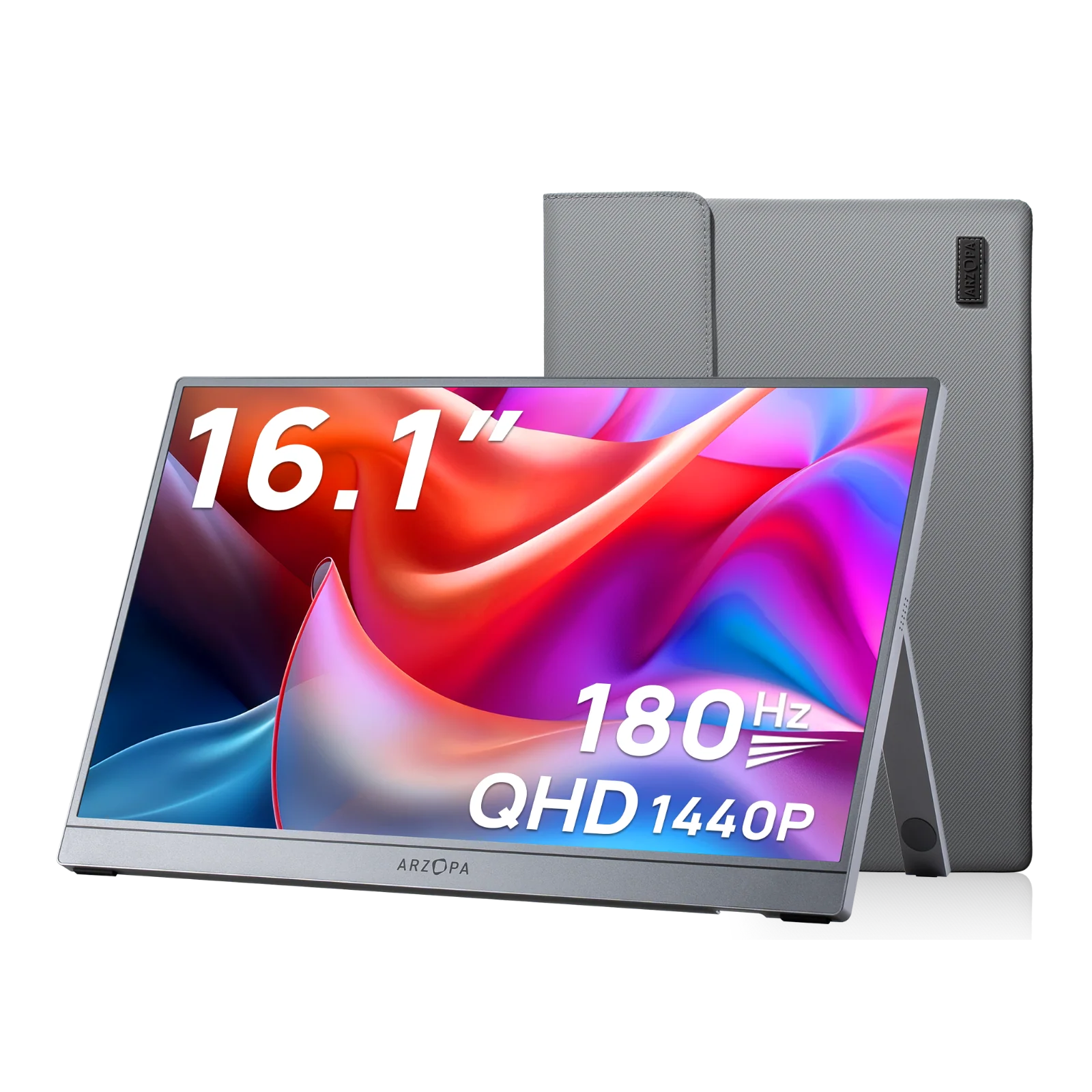
Before diving into traditional setups, consider portable monitors like the Arzopa Z3FC 16.1" 180Hz QHD Gaming Monitor. This compact display delivers 2560x1440 resolution with a lightning-fast 180Hz refresh rate—perfect for gamers and creative professionals. Unlike bulky desktop monitors, Arzopa portable monitors connect via a single USB-C cable, require no external power, and fold flat for travel. It's the easiest way to use dual monitors with laptop anywhere you work.

Check Your Laptop's Compatibility First
Before you connect two monitors to a laptop, verify what ports your laptop has. Modern laptops typically include:
Common Video Output Ports:
- HDMI: Most universal, found on 90% of laptops (trapezoidal shape, labeled "HDMI")
- USB-C/Thunderbolt 3/4: Newer laptops, supports video + charging (oval reversible port)
- DisplayPort: High-performance option, common on gaming/business laptops (rectangular with one cut corner)
- VGA: Older laptops only, blue 15-pin port (being phased out)
Quick Compatibility Test:
Check your laptop's specifications or physically inspect the sides. If you only see one video port, don't worry—you can still use 2 monitors with laptop using USB-C hubs or docking stations (explained below).

Method 1: Direct Connection (Two Video Ports)
If your laptop has two separate video outputs, this is the simplest approach to connect two monitors to a laptop.
Step-by-Step Instructions:
- Power off everything - Turn off laptop and both monitors to prevent detection issues
- Connect Monitor 1 - Plug HDMI/DisplayPort cable from laptop's first port to Monitor 1
- Connect Monitor 2 - Use second port (HDMI/DisplayPort/USB-C) for Monitor 2
- Power on - Turn on monitors first, then boot laptop
- Configure displays - Right-click desktop → Display Settings → Arrange monitors
Cable Requirements:
- Two HDMI cables (if both monitors support HDMI)
- Or one HDMI + one DisplayPort cable
- Match cable types to your monitor inputs
Pro Tip: If monitors have different inputs (one HDMI, one DisplayPort), check which cable came with each monitor before buying extras.
Method 2: USB-C Hub or Docking Station (One Port Solution)
Most laptops have only one HDMI port. Here's how to connect two monitors with HDMI using a USB-C hub—the most popular solution for modern laptops.
What You Need:
A USB-C hub with dual HDMI/DisplayPort outputs. Look for hubs labeled "dual monitor support" or "MST (Multi-Stream Transport)".

Setup Process:
- Connect hub to laptop's USB-C port (Thunderbolt 3/4 preferred for best performance)
- Plug HDMI cables from hub's two HDMI ports to both monitors
- Connect hub's power adapter if included (required for 4K monitors)
- Windows will auto-detect - If not, press Windows + P to force detection
- Extend displays in Display Settings (detailed in Configuration section below)
Best USB-C Hubs for Dual Monitors (2026):
- Anker PowerExpand 12-in-1 (supports 4K@60Hz on both displays)
- CalDigit TS4 Thunderbolt 4 Dock (premium option, 18 ports)
- Plugable UD-ULTC4K (budget-friendly, reliable dual 4K)
Why This Works: USB-C ports on newer laptops support DisplayPort Alternate Mode, which allows video output through the same port used for data and charging.
Method 3: HDMI Splitter (Mirror Mode Only)
Important Warning: HDMI splitters duplicate your screen—they don't extend your workspace. Only use this if you want identical content on both monitors (presentations, digital signage).
When to Use:
- Presenting to two projectors simultaneously
- Retail displays showing same content
- Teaching scenarios with multiple screens
Setup:
- Connect HDMI splitter to laptop's HDMI port
- Plug two HDMI cables from splitter to monitors
- Both screens will show identical content
For Extended Desktop: Use Method 1 or 2 instead. Splitters cannot create independent workspaces.
Method 4: Wireless Display Connection
How to use dual monitors with laptop without cables? Modern laptops support wireless display protocols, though with some limitations.
Miracast Setup (Windows 10/11):
- Ensure monitors support Miracast (check manual or settings menu)
- On laptop: Settings → System → Display → Connect to wireless display
- Select your monitor from the list
- Repeat for second monitor
Limitations:
- Slight lag (not suitable for gaming or video editing)
- Requires Miracast-enabled displays or adapters
- May compress video quality
- Bandwidth limits restrict to 1080p on both screens
Wireless Display Adapters: Plug Microsoft Wireless Display Adapter or similar into monitor's HDMI port, then connect wirelessly from laptop. Budget: $30-60 per adapter.
Configuring Your Dual Monitor Setup (Windows & Mac)
After physically connecting monitors, you need to set up dual monitors with laptop software settings correctly.
Windows 11/10 Configuration
Extend Displays (Recommended for Productivity):
- Right-click desktop → Display settings
- Scroll to Multiple displays section
- Select "Extend these displays" from dropdown
- Arrange monitors by dragging numbered boxes to match physical layout
- Click Apply → Keep changes
Key Settings to Adjust:
- Resolution: Set each monitor to native resolution (usually 1920x1080 or 2560x1440)
- Scale: Adjust text size if monitors have different pixel densities (100%, 125%, 150%)
- Orientation: Portrait vs. Landscape (useful for coding/reading documents)
- Primary display: Choose which monitor shows taskbar and Start menu
Mirror Displays (Duplicate Content):
- Display settings → Multiple displays
- Choose "Duplicate these displays"
- Both screens show identical content
Keyboard Shortcuts:
- Windows + P: Quick display mode switcher
- Windows + Shift + Left/Right Arrow: Move windows between monitors
macOS Configuration
Extend Displays:
- Apple menu → System Settings → Displays
- Click Arrangement tab
- Uncheck "Mirror Displays"
- Drag blue display rectangles to match physical setup
- Drag white menu bar to preferred monitor (sets primary display)
Mirror Displays:
System Settings → Displays → Check "Mirror Displays" box
Mac-Specific Tips:
- Drag menu bar between displays to change primary monitor
- Use Mission Control to assign apps to specific monitors
- Enable "Displays have separate Spaces" for independent fullscreen apps

Video Tutorial: How to Connect Two Monitors to Laptop
Watch this step-by-step visual guide for connecting two external monitors to laptop:
Kevin Stratvert's comprehensive tutorial covers Windows setup, cable connections, and troubleshooting tips.
Troubleshooting Common Dual Monitor Issues
Problem 1: Second Monitor Not Detected
Solutions:
- Check physical connections - Reseat all cables firmly
- Force detection - Display Settings → Detect button (scroll down to find it)
- Update graphics drivers - Device Manager → Display adapters → Update driver
- Try different cable - HDMI cables fail more often than you'd think
- Test monitor separately - Connect only second monitor to verify it works
- Restart graphics driver - Press Windows + Ctrl + Shift + B (screen flashes briefly)
Still Not Working? Check if laptop's BIOS/UEFI has multi-monitor options disabled. Reboot → Press F2/Delete → Look for "Multi-Monitor Support" setting.
Problem 2: Both Monitors Show Same Content
Quick Fix: You're in Mirror mode. Change to Extend mode:
- Windows: Display Settings → Multiple displays → Extend these displays
- Mac: System Settings → Displays → Uncheck Mirror Displays
Problem 3: Wrong Resolution or Blurry Display
Solutions:
- Set each monitor to native resolution (check monitor manual or specs)
- Common resolutions: 1920x1080 (1080p), 2560x1440 (1440p), 3840x2160 (4K)
- Adjust scaling percentage if text too small (Display Settings → Scale)
- Enable ClearType on Windows (search "ClearType" in Start menu)
Problem 4: Monitor Keeps Disconnecting
Causes & Fixes:
- Loose cable: Use cable ties or secure connections
- Power saving mode: Disable USB selective suspend (Power Options → Advanced)
- HDMI-CEC interference: Turn off HDMI-CEC in monitor settings
- USB-C hub overload: Use powered hub for 4K displays
Problem 5: Flickering or Artifacts
Solutions:
- Lower refresh rate - Display Settings → Advanced display → Refresh rate (try 60Hz)
- Check cable quality - Cheap cables cause signal degradation
- Update GPU drivers - Download latest from manufacturer (NVIDIA/AMD/Intel)
- Disable hardware acceleration in browsers (Chrome → Settings → System)
Optimizing Your Dual Monitor Workspace
Physical Setup Tips
Ergonomic Positioning:
- Place monitors at arm's length (20-40 inches away)
- Top of screen at or slightly below eye level
- Angle monitors 10-20 degrees inward (toward you)
- Match brightness levels between monitors to reduce eye strain
Productivity Layouts:
- Primary + Secondary: Main work on center, reference materials on side
- Side-by-Side: Equal monitors for balanced workload (coding + testing)
- Portrait + Landscape: One vertical for documents/code, one horizontal for design

Software Optimization
Window Management Tools:
- Windows 11 Snap Layouts: Hover over maximize button for preset layouts
- PowerToys FancyZones: Custom window zones across multiple monitors
- DisplayFusion: Advanced multi-monitor control (taskbars on each screen)
- macOS Rectangle: Free window snapping for Mac users
Taskbar Configuration:
- Windows: Taskbar settings → Show taskbar on all displays (or main only)
- Set different wallpapers per monitor for visual distinction
Best Monitors for Laptop Dual Setup (2026)
Budget Option: Standard Desktop Monitors
Pros: Large screen real estate, affordable, wide selection
Cons: Bulky, not portable, require desk space and separate power
Recommended:
- Dell P2423DE (24", 1440p, USB-C, $300)
- ASUS VA24EHE (23.8", 1080p, budget, $120)
Premium Choice: Arzopa Portable Monitors
Why Choose Portable Monitors for Dual Setup?
The Arzopa Z3FC offers unmatched versatility:
- Single Cable Connection: USB-C carries video + power—no extra adapters
- True Portability: 0.9 lbs, fits in backpack alongside laptop
- No External Power: Bus-powered from laptop (under 10W draw)
- Premium Display: 2560x1440 QHD resolution, 180Hz refresh rate, 100% sRGB color
- Travel-Ready: Built-in kickstand, protective case included
Perfect For:
- Digital nomads working from cafes/airports
- Professionals with hot-desking arrangements
- Gamers at LAN parties
- Students in dorm rooms with limited space
Setup Time: Under 60 seconds—plug USB-C cable, adjust angle, done. No fiddling with separate power bricks or multiple cables. Check current pricing at Arzopa.com.

Video Tutorial: Complete Dual Monitor Setup
For a detailed walkthrough of how to set up dual monitors with laptop, including cable management and software configuration:
This tutorial covers both Windows and Mac setups with real-world examples.
Frequently Asked Questions
Can I connect 2 monitors to my laptop with only one HDMI port?
Yes! Use a USB-C hub with dual HDMI outputs, or connect one monitor via HDMI and the second via USB-C/DisplayPort (if available). USB-C docking stations support two 4K monitors from a single laptop port. Alternatively, use a USB-to-HDMI adapter for the second monitor (requires DisplayLink software).
How to connect two monitors to a laptop for gaming?
For gaming across dual monitors, you need identical monitors with matching refresh rates and resolutions. Connect both via HDMI or DisplayPort (not USB adapters—too much latency). In game settings, enable "Surround" (NVIDIA) or "Eyefinity" (AMD). However, most gamers prefer a single high-refresh monitor for gaming and a second for Discord/guides.
What's better: USB-C hub or docking station?
USB-C Hubs ($50-150): Portable, plug-and-play, sufficient for 1080p-1440p dual monitors. Choose these for flexibility and travel.
Docking Stations ($200-400): Permanent desk solution, more ports (Ethernet, audio, USB-A), better power delivery (85W+), supports dual 4K@60Hz reliably. Choose for fixed workstation setups.
Will dual monitors slow down my laptop?
Minimal impact. Modern laptops handle dual 1080p displays easily. GPU usage increases 10-15% for desktop rendering, but CPU-intensive tasks (Office, browsing) see no performance hit. For 4K displays or gaming, ensure laptop has dedicated graphics (NVIDIA/AMD GPU, not integrated Intel).
Can I use 3 monitors with a laptop?
Yes, but requires either:
- Laptop with multiple video outputs (HDMI + 2x USB-C/Thunderbolt)
- Thunderbolt 3/4 docking station with triple display support
- DisplayPort MST hub (daisy-chain compatible monitors)
- Mix of USB-C adapter + native ports
Performance Note: Three 1080p monitors need at least 6GB VRAM (GTX 1660 or better). Integrated graphics struggle with triple displays.
Conclusion
Setting up dual monitors with your laptop transforms productivity, whether you're connecting two monitors to a laptop for work, gaming, or creative projects. The direct connection method works best for laptops with multiple ports, while USB-C hubs solve the one-port limitation elegantly. For maximum flexibility, Arzopa portable monitors offer the perfect balance: desktop-quality displays that travel anywhere, with plug-and-play USB-C connectivity that makes how to use dual monitors with laptop effortless.
Key Takeaways:
- ✓ Check laptop ports before buying cables or adapters
- ✓ USB-C hubs enable dual monitors from single port
- ✓ Always extend displays (not mirror) for productivity
- ✓ Position monitors ergonomically to prevent neck strain
- ✓ Portable monitors like Arzopa Z3FC eliminate cable clutter
Ready to expand your workspace? Start with the connection method matching your laptop's ports, then optimize your layout for your workflow. With dual monitors, you'll never want to go back to a cramped single screen again.
Shop the ultimate portable dual monitor solution: Arzopa Z3FC 16.1" QHD Gaming Monitor – Perfect for professionals who need dual screens anywhere.

![Use iPad as a External Monitor for Any Device [Mac/PC/Consoles]](http://www.arzopa.com/cdn/shop/articles/Use_iPad_as_a_External_Monitor_for_Any_Device_MacPCConsoles_6155fe86-87bb-4ce8-8ea0-7a16c2c21959.webp?v=1770711556&width=1)


![Miracast iPhone to Any Screen: Windows/TV/Monitor/Mac [Full Guide 2026]](http://www.arzopa.com/cdn/shop/articles/Miracast_iPhone_to_Any_Screen_WindowsTVMonitorMac_Full_Guide_2025_ad460ad7-6f8b-4bce-90cd-54d0fcb5bb6f.webp?v=1767508426&width=1)