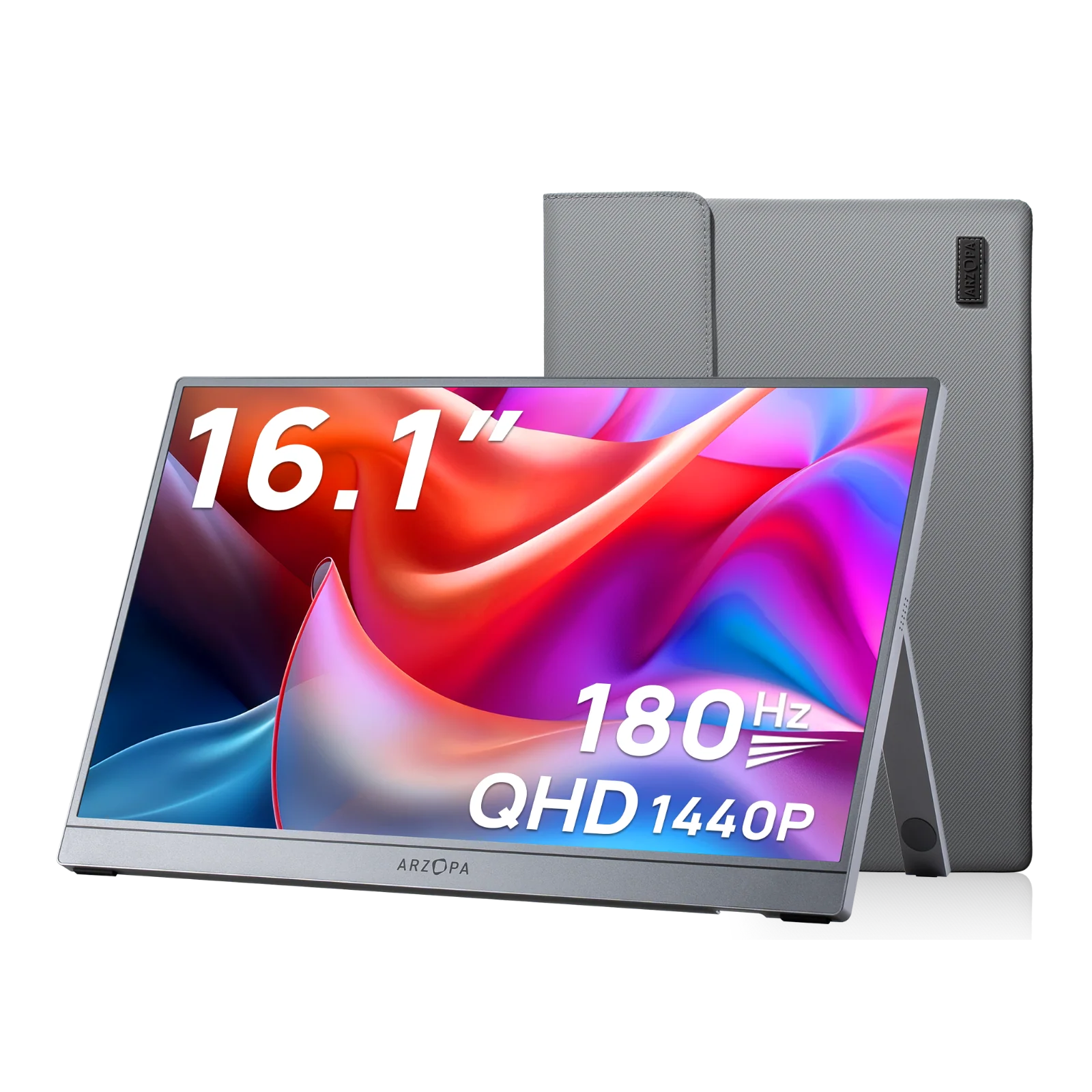
Whether you're working remotely, gaming on the go, or just want a bigger screen — this guide walks you through every connection option, step by step.
Quick answer: The fastest option is a USB-C to USB-C cable — one cable, done. For wireless, Android users can use Miracast (built into Settings), while iPhone users can use AirPlay or a third-party app like AirDroid Cast.
1. What You Need Before You Start
Before plugging anything in, it helps to know what your phone actually supports. Not every USB-C port is the same — some can output video, others can't.
Does Your Phone Support Video Output?
The key thing to check is whether your Android phone supports DisplayPort Alt Mode (DP Alt Mode). This is what allows a USB-C port to send video to an external display. Most flagship phones from Samsung, Google Pixel, and OnePlus do. Budget phones often don't — in that case, you'll need an adapter or the wireless route.
For iPhones: the iPhone 15 series switched to USB-C and supports video output. All older models use Lightning, which requires Apple's official Lightning to Digital AV Adapter.
Arzopa Monitor Ports
Arzopa portable monitors come with two video input ports: a full-function USB-C port and a Mini HDMI port. The USB-C port handles both power and video in a single cable when connected to a compatible device.
Quick Compatibility Reference
Phone Type
Recommended Method
What You Need
Android, USB-C, supports DP Alt Mode
USB-C to USB-C
One USB-C cable
Android, USB-C, no DP Alt Mode
USB-C to HDMI adapter
Adapter + HDMI cable
iPhone 15 / 15 Pro (USB-C)
USB-C to USB-C
One USB-C cable
iPhone 14 and older (Lightning)
Lightning to HDMI adapter
Apple adapter + HDMI cable
Any Android
Miracast (wireless)
Nothing extra needed
Any iPhone
AirPlay or third-party app
Depends on method
💡 Not sure if your Android supports DP Alt Mode? Search your phone model + "DP Alt Mode" — or simply try plugging in a USB-C cable and see if the display detects a signal.
2. Wired Connection: Step-by-Step by Phone Type
Wired is always the better choice when you need reliability — no lag, no dropped signal, and full resolution output.
Method 1 — Fastest
USB-C to USB-C (No Adapter Needed)
Best for: Android phones with DP Alt Mode support, and iPhone 15 / 15 Pro
1
Plug one end into your phone's USB-C port and the other into the Arzopa's USB-C input.
2
Turn on the Arzopa monitor. It should detect the signal within a few seconds.
3
Your phone screen appears on the monitor. Some Android phones let you switch to extended mode under Settings → Display.
✅ If the Arzopa is connected to power, it can charge your phone through the same USB-C cable — no separate charger needed.
Method 2 — Android Universal
USB-C to HDMI Adapter
Best for: Android phones that don't support DP Alt Mode
1
Connect the USB-C end of the adapter to your phone.
2
Run an HDMI cable from the adapter to the Arzopa's Mini HDMI port.
3
Power on the monitor and switch the input to HDMI using the side buttons if needed.
💡 Some adapters include a USB-C pass-through port so you can charge your phone at the same time.
Method 3 — Older iPhone
Lightning to HDMI Adapter
Best for: iPhone 14, 13, 12, and all older Lightning models
1
Plug Apple's Lightning Digital AV Adapter into your iPhone. Use the official Apple adapter — third-party ones often cause issues.
2
Connect an HDMI cable from the adapter to the Arzopa's Mini HDMI port.
3
Your iPhone screen mirrors to the Arzopa automatically. Note: iOS supports mirroring only, not extended desktop.
3. Wireless Connection: Screen Mirror Without a Cable
Wireless mirroring works well for video and casual browsing. The tradeoff is a small amount of latency (usually 100–300ms) — noticeable in fast-paced games, fine for everything else.
Method — External Adapter
Wireless Display Dongle
Universal Solution: Works for all Arzopa models without built-in wireless
1
Connect: Plug the wireless receiver into the monitor's Mini HDMI port (usually requires a Mini HDMI to HDMI adapter).
2
Power Up: Connect the USB power cable to the dongle. Ensure your Arzopa monitor is also connected to a power source.
3
Pairing: On your phone, open "Wireless Projection," "Screen Mirroring," or "Smart View" and select the dongle's name to connect.
💡 Important Note: Since most Arzopa monitors lack a built-in battery, you still need to connect the monitor to a power source (power bank or adapter) even when using wireless video.
4. Wired vs. Wireless: Which Should You Choose?
🔌 Wired
📶 Wireless
Latency
Near zero
Slight (100–300ms)
Stability
Very stable
Depends on Wi-Fi
Image Quality
Full 2.5K / 4K output
Compressed, slightly reduced
Best For
Gaming, presentations, file work
Video, casual browsing, mobility
Accessories
May need adapter
Usually none
If you're presenting slides, editing documents, or gaming — go wired. If you're watching a movie on the couch or just want a cable-free setup — wireless is perfectly fine.
5. Recommended Arzopa Portable Monitors for Phone Use
My phone doesn't support DP Alt Mode. Can I still connect it?
Yes — use the USB-C to HDMI adapter method. This routes the signal through a standard HDMI connection, so DP Alt Mode isn't required. Any of the wireless options also work regardless of DP Alt Mode.
Will the monitor charge my phone when connected via USB-C?
If the Arzopa is plugged into a power source, it can pass power back to your phone through the same USB-C cable. Check your model's spec sheet for power delivery specs.
Does wireless connection affect image quality?
Yes, slightly. Wireless protocols compress the video stream, which can make fine text look a little softer. For video and casual browsing the difference is minimal, but for precision work wired is noticeably better.
Can iPhone connect directly to an Arzopa monitor?
Yes. iPhone 15 and later (USB-C) connect directly with a USB-C cable. Older iPhones need Apple's Lightning to Digital AV Adapter plus an HDMI cable. Wirelessly, AirPlay works with a compatible receiver, and third-party apps like AirDroid Cast are also an option.
Why does my phone only mirror instead of extending the display?
iPhones always mirror — iOS doesn't support extended desktop mode. On Android, extended mode is available on select phones (Samsung DeX, some Motorola and Pixel models). Check if your phone has a "Desktop mode" or "Extended display" setting.
Have questions about a specific phone model? Drop a comment below.