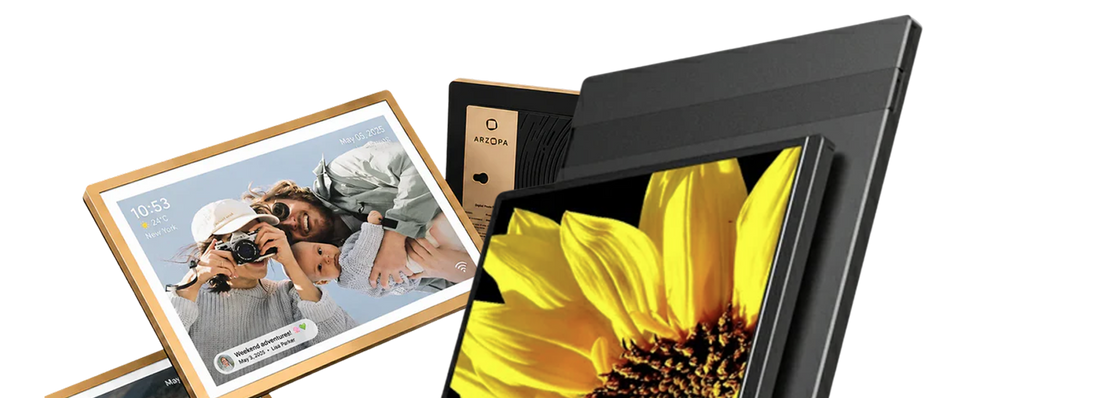
![Ultimate Guide to Find the Best Monitors for Programmers [2026] - Arzopa](http://www.arzopa.com/cdn/shop/articles/ultimate-guide-to-find-the-best-monitors-for-programmers-2026-7043775.png?v=1788849102&width=1800)
For most programmers building a desk setup, a 27-inch 1440p or 4K IPS monitor is a sensible place to start. Text should look clean at the scaling setting you use, the stand should put the screen at a comfortable height, and the ports should match your computer. That last detail is easy to ignore until a USB-C cable charges the laptop but refuses to carry a picture.
There are good reasons to choose something else. A 32-inch 4K screen gives dense projects more room. An ultrawide can hold an editor, browser, and developer tools without a bezel down the middle. A vertical side screen is handy for logs and documentation. And if your desk changes every week, a portable monitor may be far more useful than another permanent display.
Quick recommendations for different coding setups
No monitor wins every version of this question. These are the screen types and current models that make sense for distinct jobs. The desktop recommendations draw on current specifications and independent testing from RTINGS. The ARZOPA recommendations use the specifications on our current US product pages. We have not presented them as a single lab-tested ranking.
| Programming setup | What to look for | Current option | Watch out for |
|---|---|---|---|
| Large primary display | 32-inch, very high resolution, strong connectivity | ASUS ProArt Display 6K PA32QCV | A 32-inch screen needs desk depth, and the matte coating may soften text slightly |
| 27-inch 4K desk setup | High pixel density, USB-C or Thunderbolt, ergonomic stand | Dell U2725QE | Reflections can be distracting in a sunny room |
| Straightforward 4K productivity | Sharp text, USB-C power delivery, useful adjustment | ASUS ProArt Display PA279CRV | No Thunderbolt or KVM, and dark-room contrast is limited |
| Travel, hybrid work, or portable coding | 16:10 workspace, 2.5K resolution, portrait support | ARZOPA Z1RC | A portable screen sits lower than a full desktop monitor unless you add a stand |
| Programming plus gaming or game development | 2.5K resolution and high refresh rate | ARZOPA Z3FC | Its 16:9 shape gives less vertical room than the Z1RC |
Start with the windows you keep open
A spec sheet cannot tell you whether a screen fits your workday. Open a normal project and count what you actually use. A front-end developer may want the editor, live preview, and browser tools visible together. Backend work often means an editor beside a terminal, logs, and documentation. Data work can swallow horizontal space with tables, then demand vertical space as soon as a notebook gets long.
This is why “27-inch is the sweet spot” is too neat an answer. It is common, yes. It is also just one answer.
For an IDE, browser, and terminal
A 27-inch 1440p screen can handle this layout if you are comfortable with moderately sized windows. Moving to 4K makes text sharper and gives the operating system more pixels to work with, but scaling decides how much of that space you can actually use. Set scaling too high and the extra resolution mostly buys smoother edges. Set it too low and you end up squinting at a beautiful wall of tiny code.
For front-end and app development
Width helps when the preview needs to stay beside the editor. An ultrawide handles that without a center bezel, while two monitors let you rotate or replace one screen independently. Screen sharing is the annoying wrinkle: coworkers on ordinary laptops may see an ultrawide share as a thin strip. Sharing one application window usually fixes the problem.
For logs, documentation, and long files
A vertical side screen can be genuinely useful here. It shows more lines at once and keeps reference material away from the main editor. But portrait mode is not magic. Put a wide terminal or a dense web app on it and the narrow layout gets old fast. Many developers end up using portrait for docs and logs, then keeping the main monitor in landscape.
For game development
Game development changes the priorities. Refresh rate, adaptive sync, motion handling, and input response matter when you are testing animation or gameplay. A 60Hz screen remains perfectly usable for writing code. It simply cannot show motion as smoothly as a 120Hz, 144Hz, or 180Hz panel. Remember that the computer, cable, port, and chosen resolution must all support the target refresh rate.
Resolution matters, but PPI tells you more
Resolution counts pixels. Pixel density, measured in pixels per inch, tells you how tightly those pixels are packed. That distinction explains why 4K looks much sharper on a 27-inch display than 1080p does at the same size.
Three common desktop combinations illustrate the tradeoff:
- A 27-inch 1440p screen gives useful workspace without demanding aggressive scaling.
- A 27-inch 4K screen produces much finer text, though many people increase interface scaling.
- A 32-inch 4K screen makes interface elements physically larger at the same scaling and gives a roomier view, but it takes up more desk space.
If you are comparing lower and higher resolution options, our guide to 2K resolution versus 1080p explains what changes beyond the pixel count.
Is 4K worth it for coding?
Usually, if sharp text is high on your list and your computer handles the display comfortably. 4K is especially convincing on a 27-inch screen because code, icons, and small UI details look cleaner. It does not automatically create more usable room. Your scaling choice still controls that.
1440p remains a practical resolution for a 27-inch monitor. It can be easier on the GPU, often costs less than a similarly equipped 4K model, and avoids some scaling friction. For game development, that lighter graphics load may also make a high refresh rate easier to reach.
Screen size: your desk gets a vote
A 24-inch monitor works on a shallow desk and makes a useful side screen. At 27 inches, 1440p and 4K are both common. A 32-inch 4K display gives large codebases and multi-window layouts room to breathe, provided you can sit far enough back to see the corners without constantly turning your head.
Measure the desk before shopping. A big screen pushed against your face is not an upgrade. Neither is an ultrawide whose stand leaves nowhere for the keyboard.
16:9, 16:10, and 3:2
Extra height is easy to appreciate in an editor. A 16:10 or 3:2 display shows more lines than a similarly sized 16:9 screen, which can reduce scrolling through code, notebooks, and documentation. The gain is modest, not mystical. Window layout, font size, and scaling still matter more than the ratio printed on the box.
One big screen, an ultrawide, or two monitors?
| Layout | Where it works well | What can become annoying |
|---|---|---|
| One 27 to 32-inch display | Focused work and a clean desk | More window switching when the project gets busy |
| Ultrawide | Editor, preview, and tools on one continuous canvas | Wide screen sharing and a large physical footprint |
| Two monitors | Separating code from docs, chat, or preview | Extra cables, bezels, and alignment |
| Vertical side screen | Logs, documentation, and long files | Wide applications feel cramped |
| Portable second screen | Travel, hybrid work, and temporary desks | Lower viewing position and less screen area |
If your main problem is a laptop that changes locations, read our iPad versus portable monitor comparison. It separates occasional wireless second-screen use from a wired display that works across more devices.
The screen surface and room matter after sunset
Bright offices and dark rooms ask for different things. In daylight, enough brightness and good reflection handling keep a window or overhead light from washing out the display. At night, maximum brightness matters far less than whether the screen can dim comfortably and hold dark tones without turning black backgrounds gray.
IPS panels are common for programming because they offer stable viewing angles and clear desktop images. VA panels often provide stronger native contrast, while OLED can produce deep blacks and quick motion. OLED also deserves extra thought for a workstation that shows static toolbars and editor panels for hours. Panel type is a tradeoff, not a trophy.
Be careful with “eye-care” promises. A matte surface, adjustable brightness, flicker behavior, sensible room lighting, readable font size, and regular breaks can all affect comfort. A monitor cannot guarantee that long sessions will be strain-free.
Ports developers tend to notice after buying
USB-C is a connector, not a promise
Two USB-C ports can look identical and do completely different jobs. For video, the computer and monitor need compatible DisplayPort Alt Mode or Thunderbolt support. One-cable use also depends on power delivery. A monitor that supplies 65W may be fine for an ultralight laptop but insufficient for a larger mobile workstation under load.
KVM, hubs, and daisy chaining
A KVM switch is useful when the same keyboard, mouse, and monitor serve a work laptop and a personal computer. A USB hub reduces the number of cables running to the laptop. DisplayPort or Thunderbolt daisy chaining can connect another screen through the first monitor, although support varies by computer and operating system. Check the exact hardware instead of assuming every USB-C setup can do it.
Adjustment beats a fashionable stand
Height, tilt, swivel, and pivot affect the screen every day. A display that looks tidy in a product photo can still sit far too low. If the included stand has limited adjustment, check for VESA mounting. Our guide to monitor ergonomics covers placement and viewing position in more detail.
Two ARZOPA options for coding away from a fixed desk
ARZOPA Z1RC for portable programming
The ARZOPA Z1RC portable monitor fits developers who want more vertical room beside a laptop. Its 16-inch IPS panel uses a 2560 x 1600 resolution and a 16:10 aspect ratio. The built-in stand supports landscape and portrait placement, so the screen can hold a browser preview one day and a long document or log window the next. The listed weight is about 1.7 pounds.
It is still a portable monitor. On a hotel desk, that is the point. At home, a riser or separate stand may be needed to bring it closer to eye level. USB-C video also depends on a compatible source port; otherwise, use the supported HDMI and power arrangement.
ARZOPA Z3FC for code and high-refresh testing
The Z3FC has a different job. Its 16.1-inch IPS panel has a 2560 x 1440 resolution and supports up to 180Hz through DisplayPort over USB-C. HDMI supports up to 144Hz. That makes it the more relevant ARZOPA option for game development, motion-heavy previews, or a work setup that becomes a gaming setup after hours.
The tradeoff is shape. Its 16:9 panel has less vertical room than the Z1RC, and the higher refresh rate only appears when the source, connection, cable, resolution, and settings support it.
A short checklist before you order
- Open a normal project and count the windows you need at once.
- Measure desk width and depth, not just the empty spot in the middle.
- Choose between sharper text, more physical space, and smoother motion.
- Check whether your USB-C port carries video and how much charging power the laptop needs.
- Confirm scaling behavior and connection support for your Mac or Windows computer.
- Think about the room: reflections by day, minimum brightness at night.
- If the setup travels, count the stand, sleeve, charger, and cables too.
So, what is the best monitor for programming?
For a permanent desk, a 27-inch 1440p or 4K IPS monitor with a fully adjustable stand remains the safest general recommendation. Choose 4K when text sharpness matters most. Move to a 32-inch 4K or ultrawide display when several windows must stay visible. Add a vertical side screen if documentation and logs are constantly fighting the editor for space.
Game developers should give refresh rate and motion performance more weight. Developers who move between an office, home, and client sites have a different problem entirely. For them, a 16:10 portable display such as the Z1RC can be more useful than another large screen bolted to one desk.
Frequently asked questions
Is a 27-inch or 32-inch monitor better for programming?
A 27-inch monitor fits more desks and works well at 1440p or 4K. A 32-inch 4K display provides a larger physical workspace, but it needs more viewing distance. The better size depends on desk depth, scaling preference, and how many windows you keep visible.
Is 4K worth it for coding?
4K is worth considering when you value sharp text and small interface details. It is especially noticeable at 27 inches. Operating-system scaling determines how much usable workspace you gain, so 4K does not automatically mean more visible code.
Is 1440p enough for programming?
Yes. A 27-inch 1440p monitor provides a practical mix of readable text and usable space. It also places less graphics load on the computer than 4K, which can help when high refresh rates or GPU-heavy development tools matter.
Is a vertical monitor good for coding?
A vertical monitor works well for documentation, logs, and long files. It is less convenient for wide tables, browser tools, and applications designed around landscape layouts. Many programmers use it as a secondary display rather than the only screen.
Is an ultrawide better than two monitors for programming?
An ultrawide provides one continuous workspace and avoids a center bezel. Two monitors offer more flexible placement and make it easier to dedicate one screen to reference material. Think about desk width, screen sharing, and whether you want one display in portrait mode.
Does refresh rate matter for programming?
A higher refresh rate makes scrolling, window movement, and animation look smoother, but 60Hz remains usable for writing code. Refresh rate becomes more important for game development, motion design, and a monitor shared between work and gaming.
What should MacBook users check before buying a monitor?
Check the MacBook model's supported number of external displays, maximum resolution and refresh rate, available ports, scaling behavior, and required charging wattage. A USB-C-shaped port or cable does not guarantee video output or full charging power.
Can a portable monitor work as a second screen for coding?
Yes. A portable monitor can hold documentation, a browser preview, terminal, or communication window beside a laptop. A 16:10 model gives extra vertical space, while a higher-refresh 16:9 model may be more useful for game development. Check video compatibility and plan for a comfortable screen height.

![How Much Brightness & Contrast Is Good for Eyes? [2026] - Arzopa](http://www.arzopa.com/cdn/shop/articles/how-much-brightness-contrast-is-good-for-eyes-2026-3024228.jpg?v=1788850861&width=1200)