In today's fast-paced digital world, having the right monitor is essential for maximizing productivity and enjoying an immersive viewing experience. With the advent of USB-C technology, connecting your devices has never been easier or more efficient. This comprehensive guide will help you navigate the world of USB-C monitors and find the best USB-C monitor to suit your needs.
Key Factors to Consider When Choosing a USB-C Monitor
Display Quality: Resolution, Color Accuracy, and Refresh Rate
Display quality is a critical aspect that can significantly impact your viewing experience. When selecting a USB-C monitor, consider the following factors:
-
Resolution: 4K resolution offers incredibly detailed and crisp images, ideal for professionals who require precise color representation. FHD resolution is more suitable for general use and is often more affordable.

- Color Accuracy: For professionals who rely on accurate color representation, look for monitors with a wide color gamut, built-in color calibration tools, and low Delta-E values.
- Refresh Rate: Gamers should prioritize monitors with high refresh rates, such as 144Hz or 240Hz, for a smoother and more responsive gaming experience.
USB-C Connectivity and Power Delivery
USB-C connectivity is a crucial feature in modern monitors, offering both data transfer and power delivery capabilities. When choosing a USB-C monitor, ensure it has at least one USB-C port that supports both functions. Consider the power delivery requirements of your devices and select a monitor that can deliver sufficient power, such as 60W or 100W.

DisplayPort Alt Mode Support and Multiple USB-C Inputs
DisplayPort Alt Mode support is essential for transmitting video signals over the USB-C connection. Ensure your chosen monitor supports this technology for seamless video transmission. Additionally, multiple USB-C inputs provide flexibility, allowing you to connect multiple devices simultaneously.
Built-in Speakers, Adjustable Stands, and HDR Support
While not essential, built-in speakers can enhance your audio experience without the need for external speakers. Focus on the quality of the speakers rather than the quantity. An adjustable stand is crucial for ergonomics, allowing you to position the monitor at a comfortable height and angle. HDR support enhances the visual experience by providing a wider color gamut, higher contrast ratios, and increased brightness levels.

The Best USB-C Monitors: Top Picks at a Glance
Nitro XV275K P3biipruzx: Best Overall with 90W Power Delivery
The Acer Nitro XV275K P3biipruzx stands out as the best overall USB-C monitor, boasting a 27-inch 4K UHD display and 90W power delivery. This monitor is perfect for both gaming and professional applications, offering crisp visuals and the ability to charge your laptop while transmitting data simultaneously.

Arzopa Z3FC: A Balanced Dual-Screen Solution for Portability and Productivity
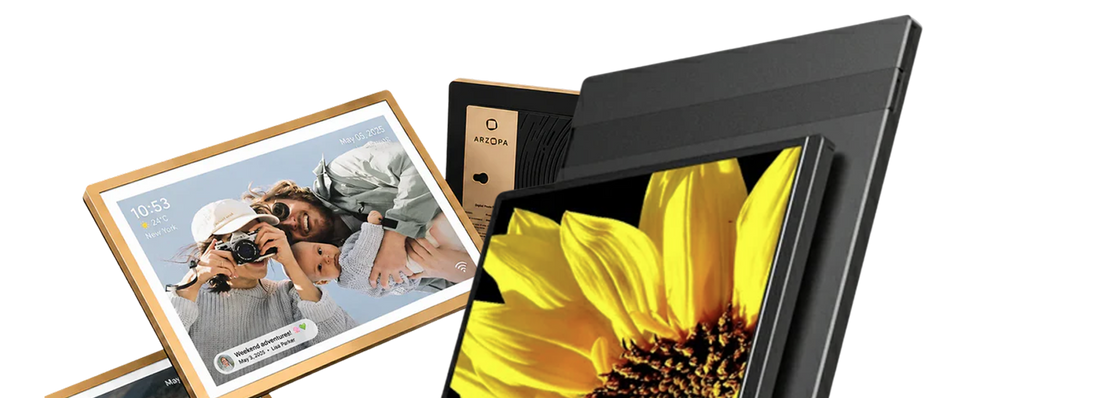
The Arzopa Z3FC offers a compelling portable expansion for users who are constantly on the move—whether for remote work, presentations, or simply seeking a larger canvas in tight spaces. Its 16.1-inch 2.5K display strikes a sweet spot between screen real estate and portability. With USB-C one-cable connectivity, it handles both video signal and power delivery seamlessly, making it an ideal second screen for everyday tasks like coding, document editing, or managing complex spreadsheets.
Beyond the basics, the high refresh rate ensures smoother scrolling and fluid UI animations, which noticeably sharpens the overall workflow. Compared to traditional portable monitors, the Z3FC finds a natural equilibrium between form factor and daily utility. For anyone looking to boost their efficiency without cluttering their desk, this is a logical and high-value addition to any mobile setup.

BenQ EW3270U: Editor's Choice for 4K USB-C Monitors
For those seeking a top-tier 4K USB-C monitor, the BenQ EW3270U is an excellent choice. Its 32-inch 4K UHD display delivers stunning visuals, making it ideal for graphic designers, photographers, and videographers who require accurate color representation. With HDR10 support, this monitor enhances your overall viewing experience.

Uperfect UGame C2 Pro: A High-Refresh Portable Monitor
The UGame C2 Pro is a 16-inch, 16:10 portable USB-C monitor that stands out with its high-refresh-rate 144Hz. Compared to standard 1080p portable screens, its 2K resolution offers a significant edge in screen real estate, delivering crisp text and sharper visuals for gaming.
Equipped with a versatile port selection—including dual full-featured USB-C and Mini HDMI—it handles both power delivery and video signal with ease, making it a breeze to connect laptops, handhelds, or consoles. While it’s positioned as a "hybrid" solution for mobile gaming and remote work, it’s best utilized as a flexible secondary screen or a travel companion, rather than a permanent replacement for a full-sized desktop setup.

Dell Ultrasharp U2724DE: Best USB-C Monitor for Versatility
The Dell Ultrasharp U2724DE is a versatile USB-C monitor suitable for a wide range of users. Its 27-inch QHD display offers excellent visuals, and its USB-C port supports up to 100W power delivery. With multiple USB ports and an HDMI port, this monitor allows you to connect multiple devices effortlessly.

ASUS ProArt PA278CV: Budget-Friendly Option with USB-C
If you're on a budget, the ASUS ProArt PA278CV is an excellent choice. This 27-inch QHD monitor offers excellent color accuracy and a wide color gamut, making it suitable for professionals who require precise color representation. Its USB-C port supports up to 60W power delivery, and it also features multiple USB ports and an HDMI port.

LG 40WP95C-W: Ultrawide Excellence for Multitasking
For those who need an immersive viewing experience and the ability to multitask efficiently, the LG 40WP95C-W is the perfect ultrawide USB-C monitor. Its 40-inch 5K2K display provides ample screen real estate, while its USB-C port with up to 100W power delivery ensures you can connect all your devices with ease.

How to Choose the Best Type-C Monitor for Your Setup
Matching Your Laptop's USB-C Capabilities
Ensure your USB-C monitor is compatible with your laptop's USB-C capabilities. Check your laptop's specifications to determine the type of USB-C port it has (e.g., DisplayPort Alternate Mode or Power Delivery) and verify that the monitor supports the same type of USB-C connection.
Power Considerations for Laptop Charging
If you plan to use your USB-C monitor to charge your laptop, check your laptop's power requirements and ensure the monitor can deliver enough power. Look for monitors that support USB-C Power Delivery (PD) and can deliver the required power to your laptop.
Resolution and Size: Finding the Sweet Spot
Determine the ideal resolution based on your usage. For general office work, a Full HD monitor may suffice, while gaming or video editing may require a 4K or higher resolution monitor. Consider the monitor's size based on your available space and personal preference. A 24-inch monitor is a good starting point for most users.
Conclusion
Choosing the best USB-C monitor for your needs requires careful consideration of various factors, including display quality, USB-C connectivity, power delivery, and specialized features. By understanding your requirements and following the guidance provided in this ultimate guide, you can make an informed decision and find the perfect USB-C monitor to enhance your productivity and viewing experience.
Don't hesitate to share your thoughts and experiences with USB-C monitors in the comments section below. Your insights and questions can help others in their search for the ideal monitor. If you found this guide helpful, please consider sharing it with your friends and colleagues who may also benefit from this information.
FAQ
Q: Do I Need Thunderbolt 3 or Thunderbolt 4 for My USB-C Monitor?
A: Thunderbolt 3 and Thunderbolt 4 offer faster data transfer and display capabilities compared to traditional USB-C. Thunderbolt 3 supports speeds of up to 40 Gbps and can handle two 4K displays or one 5K display at 60 Hz. Thunderbolt 4 supports the same speeds but can handle two 4K displays or one 8K display at 60 Hz, with additional features like USB4 support and improved power delivery. Consider your bandwidth requirements and device compatibility when choosing between the two.
Q: Is DisplayPort over USB-C Better Than HDMI?
A: DisplayPort over USB-C (DP Alt Mode) supports higher resolutions (up to 5K at 60 Hz) and refresh rates, and can carry data and power over the same cable. However, it requires a USB-C port with DisplayPort Alt Mode support on both the computer and monitor. HDMI is widely supported by most devices, easier to set up, and can transmit audio signals, but is limited to lower resolutions (up to 4K at 60 Hz) and refresh rates compared to DisplayPort. Choose based on your specific requirements and device capabilities.
Q: How to Optimize Monitor Settings for Eye Comfort?
A: To optimize your monitor settings for eye comfort, adjust brightness and contrast to comfortable levels, switch to a warmer color temperature to reduce blue light emission, ensure the resolution and refresh rate are set to comfortable levels, position the monitor at a comfortable distance and viewing angle, and enable blue light filtering features. Regularly calibrate your monitor, utilize eye care software, and maintain an ergonomic workspace to further reduce eye strain.

![How Much Brightness & Contrast Is Good for Eyes? [2026] - Arzopa](http://www.arzopa.com/cdn/shop/articles/how-much-brightness-contrast-is-good-for-eyes-2026-3024228.jpg?v=1788850861&width=1200)