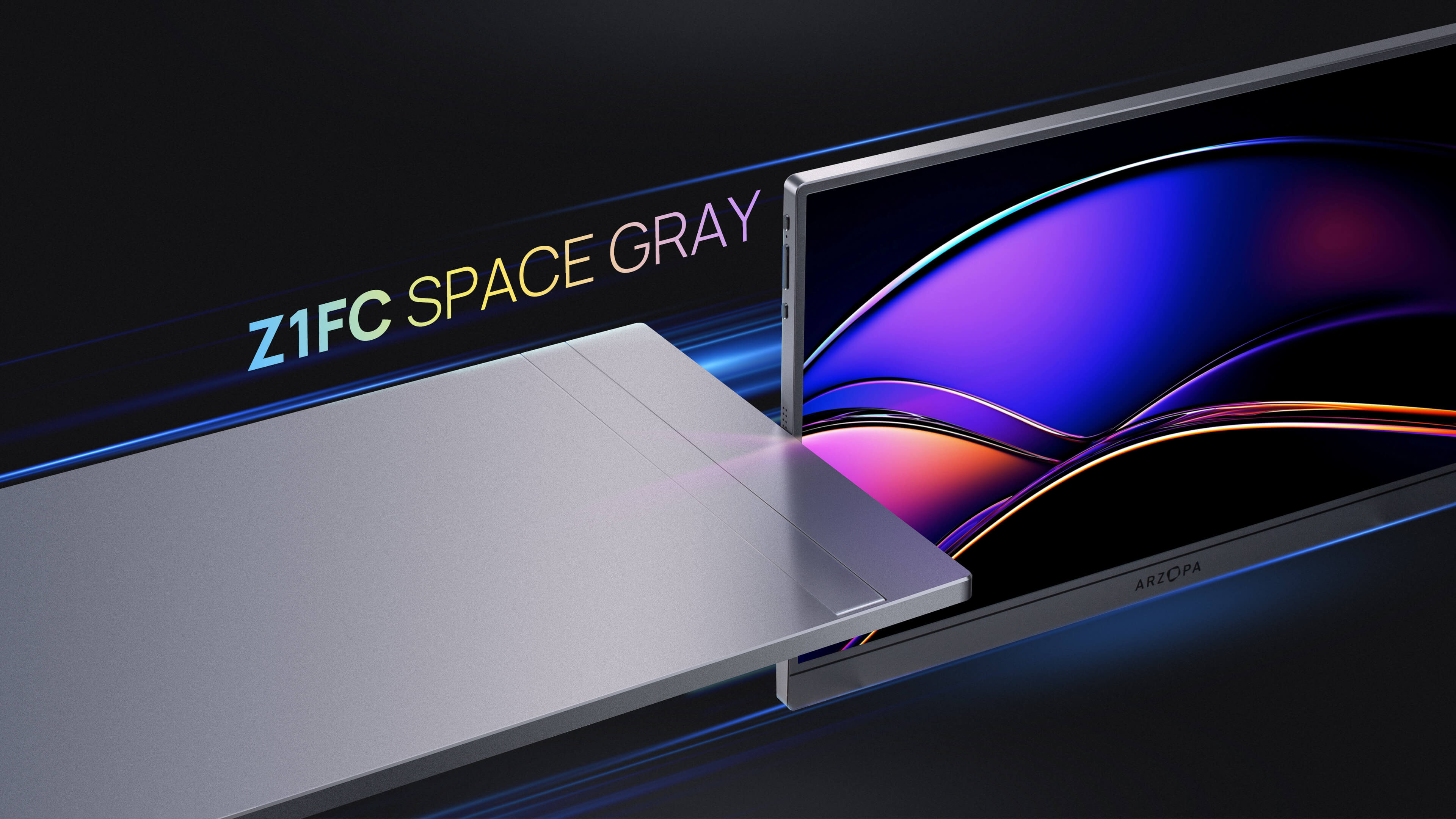

Do Portable Monitors Require External Power Sources? Yes — most portable monitors do require an external power source. But that source doesn't have to be a wall outlet. Modern portable monitors are designed to be powered in three convenient ways: through a USB-C cable from your laptop, from a power bank, or from a wall adapter using a standard power cord for monitor use.
The key technology behind this flexibility is USB-C Power Delivery (PD). If your laptop or phone supports USB-C PD, a single cable handles both video signal and power — no extra power cord for the monitor needed.
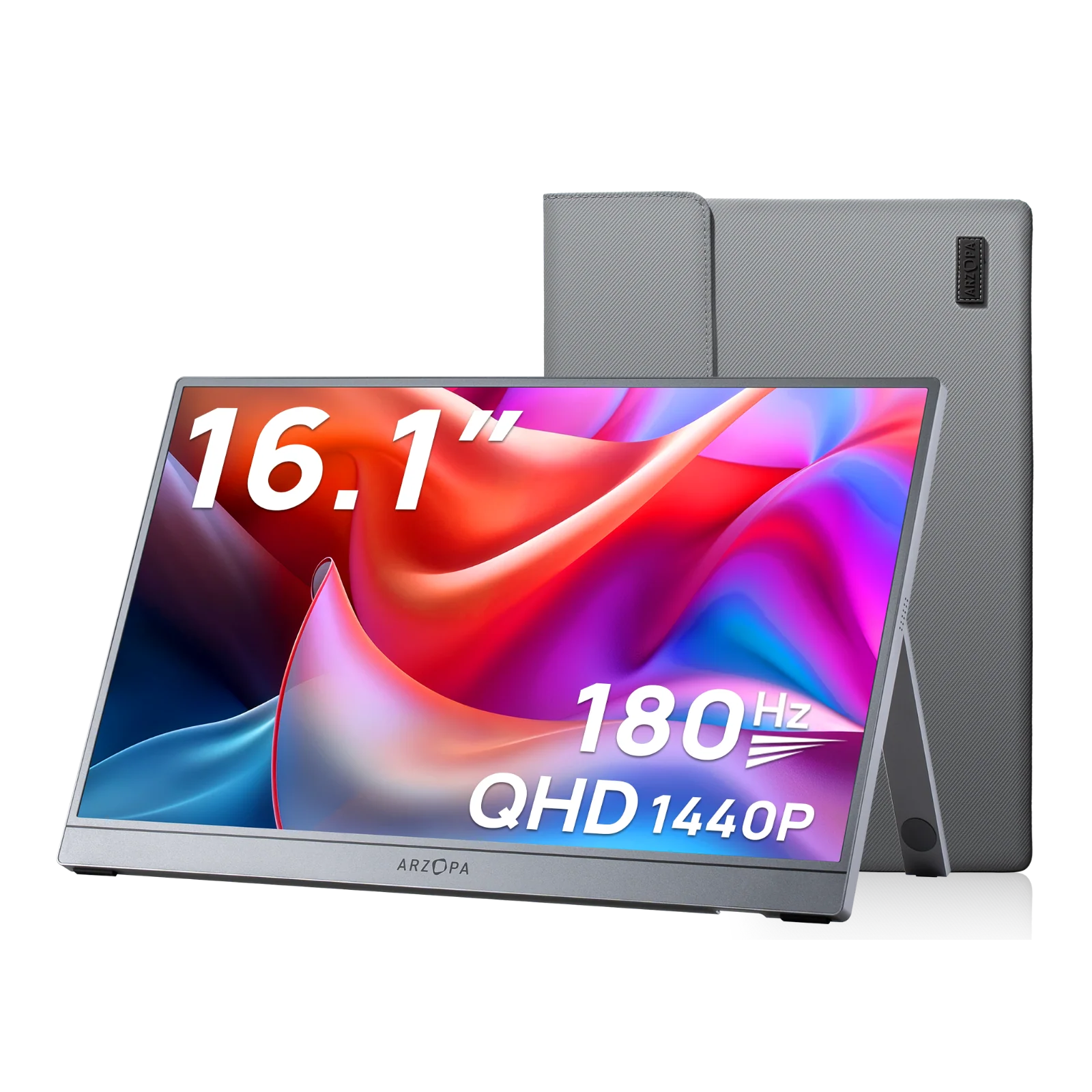
The Arzopa Z3FC 16.1" 180Hz QHD Portable Monitor is a perfect example: two full-function USB-C ports let you plug directly into your MacBook, PC, gaming console, or a power bank. Clean, cable-free, genuinely portable.
How Do Portable Monitors Get Power?
Unlike a desktop monitor that plugs into the wall with a dedicated power cord for monitor use, portable monitors are engineered to draw power from multiple sources. There are four main ways to power them:
- 🔌 Wall adapter — via USB-A or USB-C charger and cable
- 💻 Host device — via USB-C from your laptop or phone
- 🔋 Power bank — via USB-C PD power bank
- 🎮 Gaming console or hub — via USB-C from PS5, Xbox, Switch dock
Each method has different wattage requirements and use cases. Let's break them down.
| Power Method | Best For | Wattage Needed | Cable-Free? |
|---|---|---|---|
| Wall adapter | Desk, gaming, max brightness | 15W–45W+ | ❌ Wall cable required |
| Laptop USB-C (single cable) | Work, travel, minimal setup | 15W+ | ✅ One cable only |
| Power bank | Outdoor, café, travel | 18W–45W PD | ✅ Fully wireless |
| Phone USB-C | DeX / presentation | 15W+ | ✅ One cable only |
Method 1 — Wall Adapter (Power Cord for Monitor)

The most reliable and brightest-output method is connecting your portable monitor to a wall outlet. You use a standard USB-A or USB-C charger — the power cord for monitor setup here is simply a USB cable between the charger and your display.
For most portable monitors, a 15W–45W USB-C charger covers everyday use. For gaming devices like PS5 or Xbox, Arzopa recommends at least 45W to ensure full performance at maximum brightness.
This method is ideal when you're at a desk or hotel room and want the most stable, unrestricted display performance.
Method 2 — How to Power a Monitor Through a Port (USB-C)
How to power a monitor through a port is one of the most-searched questions about portable displays — and the answer is simpler than most people think.
If your device has a USB-C port that supports DisplayPort Alt Mode and Power Delivery, a single USB-C cable carries both the video signal and the power needed to run the monitor. No separate power cord for the monitor required.
Requirements for single-cable USB-C power:
- Your laptop/phone must support USB-C DP Alt Mode (video output)
- The port must deliver at least 15W (5V/3A or 9V/2A)
- Use a full-function USB-C cable (not a charge-only cable)
Most modern MacBooks, Dell XPS, and Thunderbolt-equipped laptops support this. Older USB-A ports do not carry video signal, so those can only supply power — you'd also need a separate HDMI cable for display.
Method 3 — Power Bank
A USB-C PD power bank is the most portable power solution. Plug it into your monitor's USB-C input, and your portable display becomes completely untethered from any wall outlet.
What to look for in a power bank:
- At least 20,000mAh capacity for extended sessions
- Supports USB-C PD output at 18W–45W
- Has a dedicated USB-C PD port (not just USB-A)
With a quality 20,000mAh power bank, most portable monitors can run for 4–8 hours continuously. This setup is ideal for travel, outdoor use, or working from a café.
Note: Not all power banks output enough wattage. A 5W phone charger-style power bank will not reliably power a portable monitor. Look for PD-enabled banks with at least 18W output.
Method 4 — Host Device (Laptop or Phone)
Many laptops — especially MacBooks, Surface devices, and Thunderbolt-equipped Windows laptops — can supply both video and power over USB-C simultaneously. Your laptop becomes both the signal source and the power cord for monitor duty.
This is the cleanest setup: one cable, zero adapters, full display functionality. However, it will slightly drain your laptop battery faster. If your laptop battery is already low, consider adding a secondary power source to the monitor instead.
Smartphones with USB-C DP Alt Mode (Samsung DeX, select Android flagships) can also power and drive a portable monitor from a single cable — though the experience varies by device.
Do Portable Monitors Have a Built-In Monitor Battery?

This is a common point of confusion. Most portable monitors do NOT have a built-in monitor battery. They are powered externally through one of the methods above.
A smaller category — battery-powered portable monitors — does exist. These have an internal monitor battery that provides 2–6 hours of standalone runtime. They're completely cable-free when running on battery alone.
| Type | Built-in Monitor Battery | Power Source | Typical Price |
|---|---|---|---|
| USB-powered portable monitor | ❌ No | USB-C / wall / power bank | $100–$250 |
| Battery portable monitor | ✅ Yes (2–6 hrs) | Built-in + USB-C fallback | $200–$500 |
For most users, a USB-powered portable monitor (like Arzopa) paired with a power bank gives the same freedom as a built-in battery model — at a lower cost and without the risk of the internal battery degrading over years of use.
Arzopa specifically chose not to include internal batteries to keep monitors thinner, lighter, and longer-lasting. The Arzopa Z3FC weighs just 780g and is only 9.3mm thin — dimensions that would be impossible with a built-in monitor battery pack.
How Arzopa Portable Monitors Get Power
Arzopa portable monitors do not include built-in batteries. Instead, they are designed to be powered in three official ways:
1. Wall Power Supply Plug into any wall outlet using a USB-A or USB-C charger and the included cable. This is the most stable method and recommended for gaming setups (PS5, Xbox, Switch).
2. Power Bank Connect a USB-C PD power bank to either USB-C port. The monitor will run as long as the power bank has charge — ideal for travel and outdoor use.
3. Host Device (Laptop / Phone) Connect your laptop or phone via USB-C. If your device supports USB-C Power Delivery + DP Alt Mode, a single cable handles both power and display signal.
⚡ Minimum recommended power: 15W for basic use. 45W or more for gaming consoles and maximum brightness performance.
Once powered on, the Arzopa logo appears and the indicator light on the left side glows red — confirming the monitor is active and receiving power.
5 Tips to Avoid Portable Monitor Power Failures
Even with the right power source, things can go wrong. Here are five practical tips to keep your portable monitor running reliably:
💡 Tip 1 — Always Use a Full-Function USB-C Cable
Not all USB-C cables carry video signal. Cheap charge-only cables will power the monitor but show no image. Always use a full-function (USB 3.1+) USB-C cable that supports both data and video. The cable included with your Arzopa monitor is full-function — don't swap it for a basic phone charger cable.
💡 Tip 2 — Confirm Your Power Source Delivers Enough Wattage
The most common cause of a portable monitor flickering, dimming, or not turning on is insufficient power. Check that your power source delivers:
- Minimum 15W for standard use
- 45W or more for gaming devices or maximum brightness
A USB-A port on an older laptop typically outputs only 5W — not enough for stable operation. Switch to USB-C PD if possible.
💡 Tip 3 — Check Your USB-C Port Supports DP Alt Mode
Not every USB-C port outputs video. Many USB-C ports are data/charge only and cannot drive a display. Check your laptop's specifications to confirm which ports support DisplayPort Alt Mode or Thunderbolt. These are the ports that can power and display through a single cable.
💡 Tip 4 — Use a Quality PD Power Bank for Travel

Avoid generic power banks with USB-A outputs for this use case. Look for a power bank with a dedicated USB-C PD port rated at 18W minimum (20W+ preferred). Brands like Anker, Baseus, and Ugreen offer reliable PD power banks starting at $25–$40. This is the most cost-effective way to replicate monitor battery freedom without buying a battery-integrated model.
💡 Tip 5 — Reseat Cables and Restart If the Monitor Doesn't Turn On
If your portable monitor powers on but shows no image — or doesn't power on at all — try these steps in order:
- Unplug and re-plug both ends of all cables firmly
- Try a different USB-C cable (the original included cable is best)
- Switch to a different power source (wall adapter instead of laptop)
- Hold the power button for 5–10 seconds to force restart
- Try a different USB-C port on your laptop or hub
Most portable monitor power issues are cable or insufficient-wattage problems — not hardware failures.
Conclusion
In summary, whether a portable monitor requires an external power source depends largely on its design and connectivity options. While many modern models can operate solely through USB-C connections that provide both data and power, others may necessitate traditional power adapters. Understanding these differences is crucial for choosing the right portable monitor for your needs.
FAQ
Q1: Do all portable monitors need an external power source?
No. Many portable monitors can be powered directly through a USB-C connection if the connected device supports video and power delivery. Others may require an external power source depending on their design and connection type.
Q2: Can a single USB-C cable power a portable monitor?
Yes. If both the monitor and the source device support USB-C DisplayPort Alt Mode and USB Power Delivery, a single cable can transmit both video and power.
Q3: Why do some portable monitors require external power when using HDMI?
HDMI transmits video and audio only and provides very limited power. When using HDMI, most portable monitors need a separate USB power source or adapter to function properly.
Q4: Can I power a portable monitor with a power bank?
Yes. Many portable monitors can be powered by a power bank as long as it provides sufficient output, typically 5V/2A or higher. This is useful for mobile or travel setups.