
Encountering a "PC monitor no signal detected" message can be frustrating, especially when you're in the middle of important work. Whether you're dealing with a traditional desktop monitor or a portable monitor, this comprehensive guide will help you diagnose and fix the issue quickly. With over 70% of monitor connectivity problems stemming from simple cable or settings issues, most cases can be resolved without professional help.
Understanding the "No Signal Detected" Error
When your monitor not being detected, it means the display is powered on but isn't receiving video input from your computer. This error appears across various scenarios, from desktop setups to portable monitor no signal situations. The root cause typically falls into one of these categories: cable connectivity, port compatibility, driver issues, or hardware malfunctions.

Quick Diagnostic Checklist on PC No Signal Detected
Before diving into detailed troubleshooting, run through this 60-second checklist:
✓ Is the monitor powered on? (Check indicator light)
✓ Are cables firmly connected at both ends?
✓ Is the correct input source selected on the monitor?
✓ Does your computer show signs of booting up?
✓ Have you tried a different cable or port?
If all checks pass but the issue persists, proceed to the detailed troubleshooting steps below.
Common Causes of PC Monitor No Signal Detected
1. Cable and Connection Issues
Loose or damaged cables account for 40% of "portable monitor not working" cases. HDMI, DisplayPort, and USB-C cables can become worn, bent, or partially disconnected, interrupting the signal transmission.
2. Wrong Input Source Selected
Modern monitors have multiple input options (HDMI1, HDMI2, DisplayPort, USB-C). If your monitor is set to HDMI1 but your cable connects to HDMI2, you'll see the no signal error.
3. Graphics Driver Problems
Outdated or corrupted graphics drivers prevent proper communication between your PC and monitor. This is particularly common after Windows updates or when connecting a new display.
4. USB-C Port Compatibility
Not all USB-C ports support video output. Many USB-C display not being detected issues stem from connecting to data-only or charging-only USB-C ports rather than those with DisplayPort Alt Mode.
Step-by-Step Troubleshooting Guide on PC Monitor No Signal Detected
Step 1: Verify Physical Connections
- Start with the basics. Power off both your computer and monitor, then:
- Disconnect all video cables
- Inspect cables for visible damage (bent pins, frayed wires)
- Firmly reconnect cables, ensuring they click into place
- Power on your devices
If using a portable monitor, ensure any required power cable is also connected, as many portable displays need external power when using HDMI input.
Step 2: Test Different Ports and Cables

Systematically test different configurations:
- Try alternate ports on your graphics card (if available)
- Swap HDMI/DisplayPort cables with known working ones
- For portable monitor no signal issues, test with another device (laptop, tablet)
- Connect your PC to a different monitor to isolate the problem source
Step 3: Adjust Display Settings
- Press Windows + P to open display projection options:
- Select "Extend" or "Duplicate" mode
- Wait 5-10 seconds for detection
- Try "Detect" button in Display Settings (Settings > System > Display)
- On Mac, navigate to System Preferences > Displays and click "Detect Displays."
Step 4: Update Graphics Drivers
For Windows:
- Right-click Start menu > Device Manager
- Expand "Display adapters"
- Right-click your graphics card > Update driver
- Select "Search automatically for drivers"
For NVIDIA/AMD Users: Download latest drivers from manufacturer websites for optimal compatibility.
Preventing Future "What to Do When Monitor Is Not Detected" Issues
Maintenance Tips:
- Keep graphics drivers updated quarterly
- Use high-quality certified cables (look for HDMI 2.0+, DP 1.4+ certifications)
- Avoid forcing cable connections that don't fit easily
- For portable monitors, store cables properly to prevent damage
- Clean ports periodically with compressed air
For Arzopa Portable Monitor Users:
- Create a reliable setup routine:
- Connect power cable first (if required)
- Then connect video cable (USB-C or HDMI)
- Power on monitor before PC for better detection
- Select correct input source via OSD menu
Why Choose Arzopa Portable Monitors for Reliability
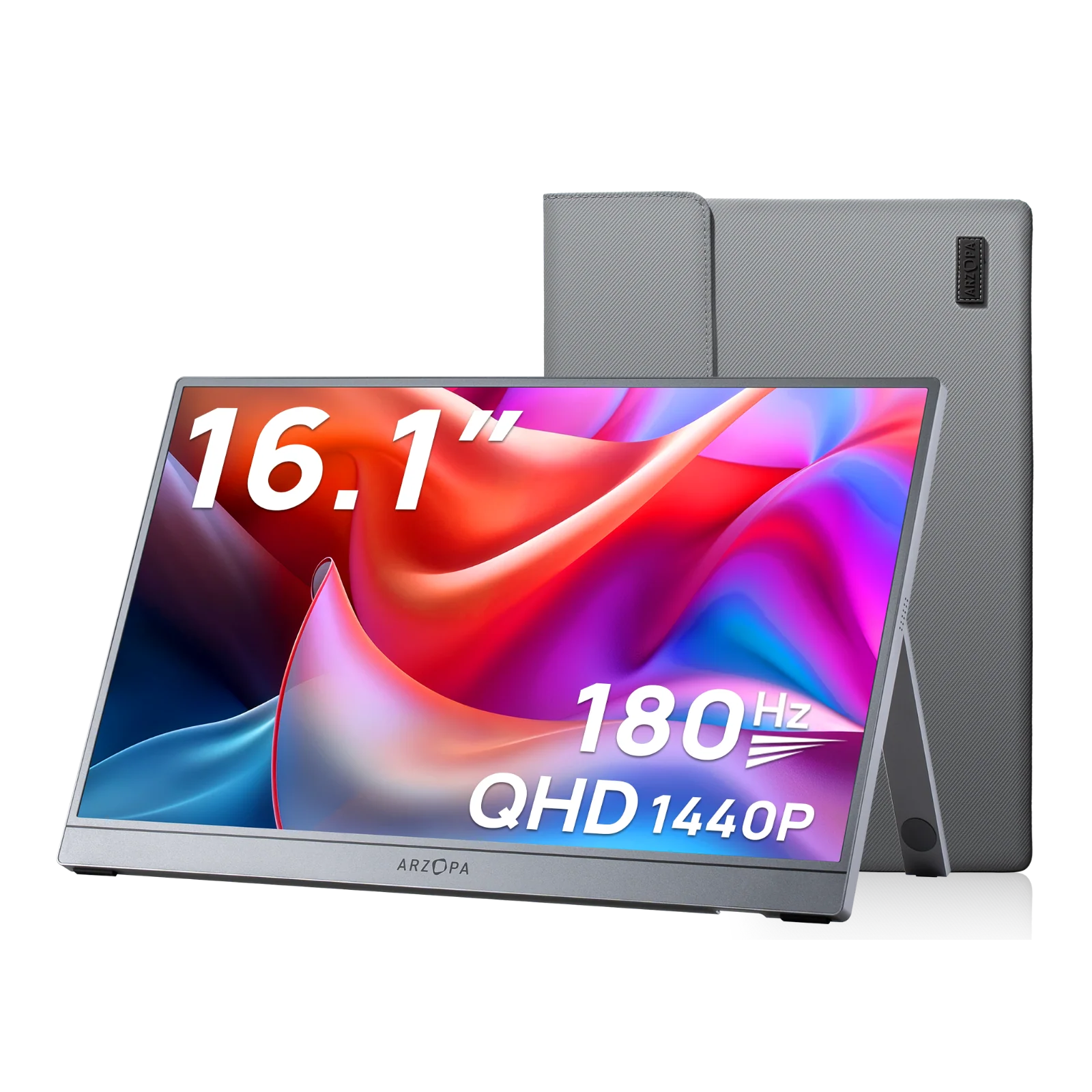
When upgrading or replacing a problematic display, consider the Arzopa Z3FC 16.1" 180Hz Portable Gaming Monitor. This premium portable monitor eliminates common "arzopa portable monitor not being detected" frustrations through:
Key Advantages:
- Dual Connectivity: Both USB-C (full-featured) and Mini HDMI inputs ensure compatibility with any device
- Plug-and-Play Design: No driver installation required, automatic signal detection
- 180Hz Refresh Rate: Professional-grade performance for gaming and content creation
- 2560x1440 QHD Resolution: Crystal-clear image quality
- Built-in Speakers: Complete multimedia experience
- Auto-Rotation: Seamless portrait/landscape switching
The Z3FC's universal compatibility means fewer "portable monitor no signal" headaches. Its Type-C port supports both video and power delivery, while the HDMI option provides a reliable backup connection method.
Bonus: Portable Monitor Specific Solutions
Why is my portable monitor saying no signal? Portable monitors present unique challenges due to their reliance on USB-C connectivity and power delivery protocols.
USB-C Connection Troubleshooting
When dealing with USB-C display not being detected:
- 1. Verify Port Capability: Your USB-C port must support DisplayPort Alt Mode (DP Alt Mode). Check your device specifications or try different USB-C ports.

- 2. Check Cable Quality: Use USB-C cables rated for video transmission. Standard charging cables lack necessary pins for video signals.
- 3. Power Delivery Issues: Some portable monitors require 15W-45W power delivery. If your device provides insufficient power, the monitor won't function. Consider using the included power adapter.
- 4. Try HDMI Alternative: If USB-C fails, connect via Mini HDMI or HDMI using appropriate cables and ensure monitor receives power from wall adapter.
HP Portable Monitor Not Detected
HP portable monitor not detected issues often relate to HP-specific driver requirements:
- Install HP Display Control software
- Update USB-C/Thunderbolt drivers from HP Support
- Ensure laptop BIOS is current (HP BIOS updates can affect external display support)
Advanced Troubleshooting: Graphics Card and Hardware Issues
Way 1: Reset Display Output
Boot your PC into Safe Mode to reset graphics settings:
Way 2: Windows Safe Mode:
- 1. Restart PC, press F8 repeatedly during boot
- 2. Select "Safe Mode"
- 3. Right-click desktop > Display settings
- 4. Reset resolution and refresh rate to defaults
Way 3: Check Graphics Card Seating (Desktop PC)
If you're comfortable opening your PC case:
- 1. Power off and unplug PC
- 2. Remove graphics card
- 3. Clean PCIe slot and card contacts with compressed air
- 4. Firmly reseat graphics card until it clicks
- 5. Reconnect power cables to GPU
Test with Integrated Graphics
For desktop PCs with integrated graphics:
- 1. Connect monitor to motherboard video port (not GPU)
- 2. If display works, your dedicated graphics card may be faulty
- 3. This indicates GPU troubleshooting or replacement is needed
Conclusion
A "PC monitor no signal detected" error is usually resolvable through systematic troubleshooting. Start with simple cable checks, progress through software solutions like driver updates, and only consider hardware issues if basic fixes fail. For portable monitor users, understanding USB-C requirements and having quality cables makes all the difference.
Remember: 85% of monitor detection issues are software or cable-related, not hardware failures. By following this guide, you should have your display working within minutes.
Q: Why does my monitor say no signal when HDMI is plugged in?
A: Check that your HDMI cable is fully inserted, select the correct HDMI input on your monitor, ensure your PC is outputting to the correct display (Windows + P), and verify the cable isn't damaged.
Q: How do I fix USB-C monitor not detected?
A: Verify your USB-C port supports DisplayPort Alt Mode, try different USB-C ports on your device, use a certified USB-C video cable, update USB and graphics drivers, and ensure adequate power delivery (15W minimum).
Q: Can outdated drivers cause no signal issues?
A: Yes, absolutely. Outdated graphics drivers are among the top three causes of monitor detection problems. Always keep your graphics drivers current, especially after operating system updates.
Q: Why is my second monitor not detected?
A: Open Display Settings (Windows + P), click "Detect," ensure the monitor is powered on and cables are secure, try different ports, update graphics drivers, and verify the monitor works with another computer to rule out hardware failure.