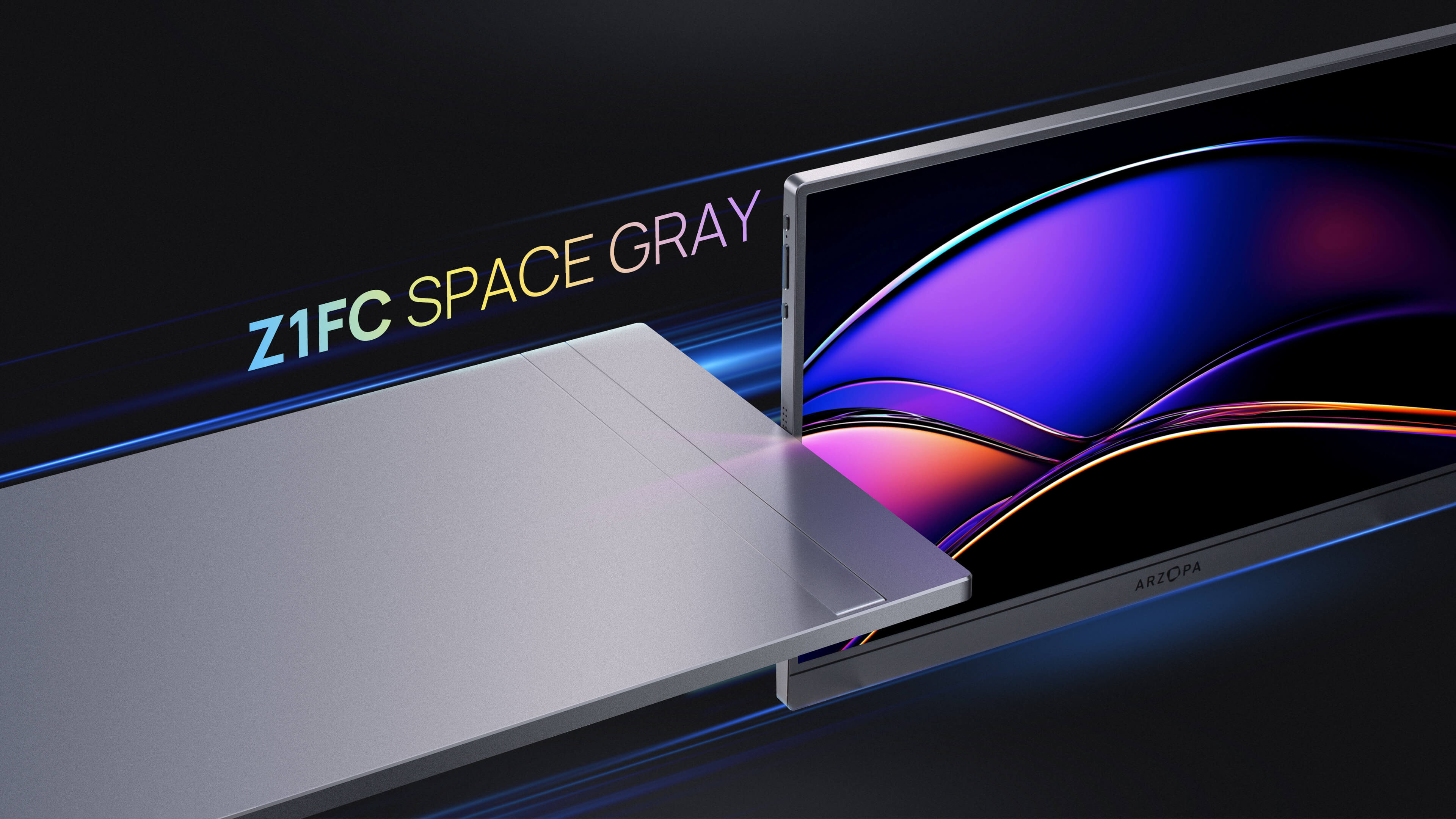
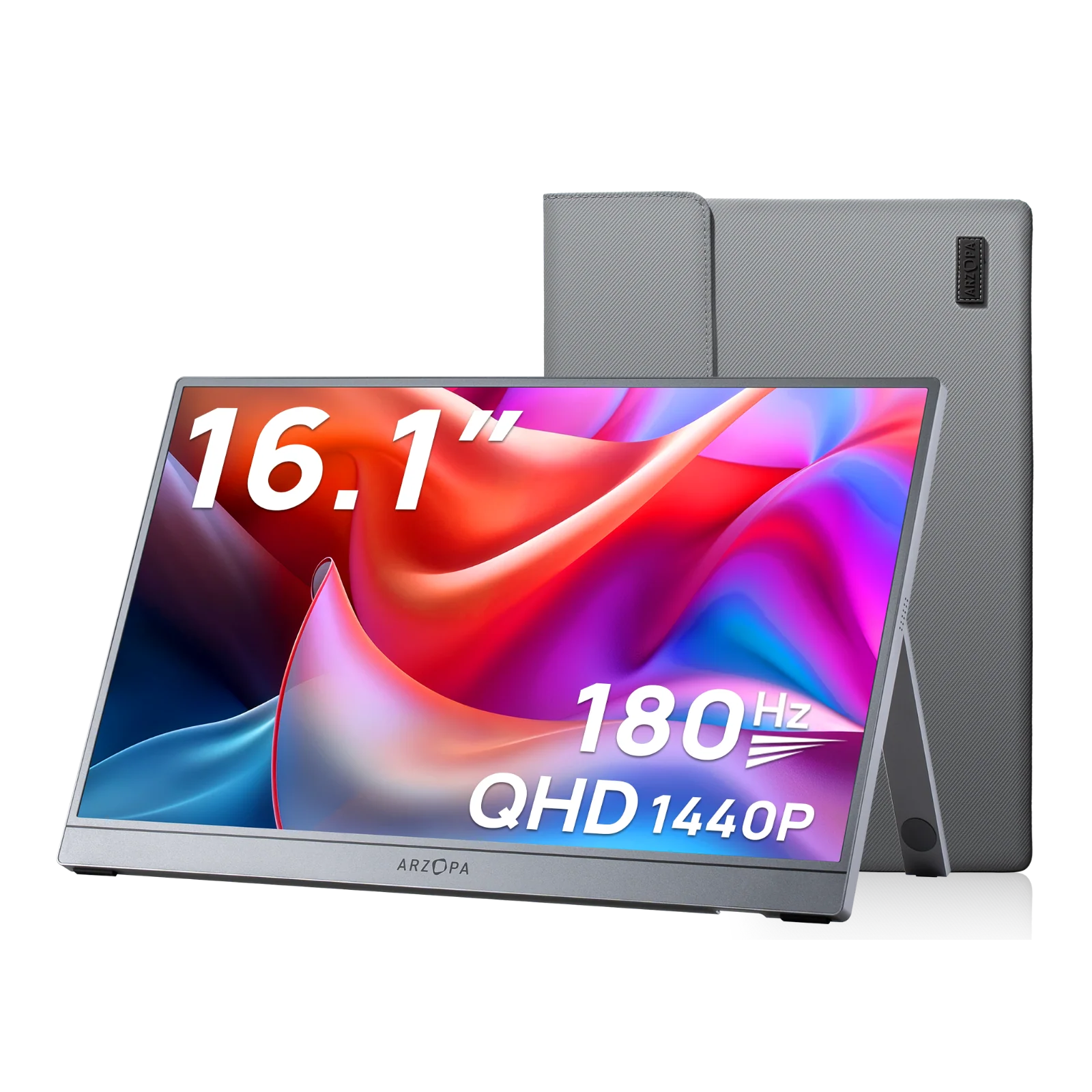

Connecting an external monitor to a laptop is one of the easiest and most effective ways to improve productivity, multitasking, and screen comfort. The fastest and most reliable solution today is using a portable external monitor, especially a plug-and-play option like an Arzopa portable monitor, which works instantly with most modern laptops.
In most cases, learning how to connect external monitor to laptop takes only a few minutes. Whether you are working remotely, gaming, or traveling, adding a monitor to your laptop is a simple upgrade that delivers immediate benefits.
Why Add an External Monitor to Your Laptop?
Adding an external monitor to a laptop significantly improves how you work and use your device. With more screen space, you can open multiple windows at once, reduce constant tab switching, and stay focused for longer periods.
For professionals, a dual-screen setup increases efficiency. For gamers, an external screen delivers smoother visuals and better immersion. For travelers, portable monitors make external monitor laptop setup possible anywhere.

What You Need Before Connecting an External Monitor to a Laptop
Before you attach an external monitor to a laptop, make sure you check the basics. You will need a laptop with USB-C, HDMI, DisplayPort, or Thunderbolt, a compatible cable, and an external monitor that supports your laptop’s resolution and refresh rate.
Most modern laptops support how to hook up an external monitor to a laptop without installing extra drivers.
How to Connect External Monitor to Laptop (Step-by-Step Guide)
To connect an external monitor to a laptop, follow these steps:
- Check which ports your laptop supports, such as USB-C or HDMI.
- Connect the external monitor using the appropriate cable.
- Turn on the monitor and select the correct input source.
- Open display settings and choose to extend or duplicate the display.
Understanding how to connect external monitor to laptop is simple when you follow the correct steps based on your available ports.
Step 1: Check Your Laptop Ports
Inspect your laptop for USB-C, HDMI, DisplayPort, or Thunderbolt. This determines how you will attach an external monitor to a laptop.
USB-C and Thunderbolt are the most convenient options, especially for portable monitors.

Step 2: Choose the Right Connection Method
USB-C Connection (Best Option)
USB-C is the easiest way to hook up an external monitor to a laptop. One cable carries both power and display signal.
Steps:
- Plug the USB-C cable into your laptop
- Connect the other end to the monitor
- The screen turns on automatically
This method is ideal for users learning how to use additional monitor with laptop setups for work or travel.

HDMI Connection
HDMI is a common solution for external monitor laptop setup, especially on older laptops.
Steps:
- Connect the HDMI cable
- Select HDMI input on the monitor
- Wait for the laptop to detect the screen
HDMI is reliable when adding monitor to laptop in home or office environments.

Step 3: Confirm the Monitor Is Detected
Once connected, your laptop should recognize the external display automatically. If not, display settings can be adjusted manually in the next section.
External Monitor Laptop Setup (Windows & Mac)
After you connect an external monitor to a laptop, proper configuration is essential.
Windows Setup
Right-click the desktop, open Display Settings, and select Extend these displays. Adjust resolution and scaling for best results when adding monitor to laptop.
Mac Setup
Open System Settings, go to Displays, select Extended Display, and arrange screens to match your physical setup. macOS automatically optimizes resolution, making it easy to attach an external monitor to a laptop.
How to Use an Additional Monitor with a Laptop Efficiently
To use an additional monitor with a laptop efficiently, always choose extended display mode instead of duplicating screens. Extended mode gives you more usable screen space and is the most effective way to improve multitasking when adding a monitor to a laptop.
A practical setup is to assign different roles to each screen:
- Laptop screen: email, chat apps, calendars, or reference materials
- External monitor: main work tasks such as document editing, coding, design, or gaming
This workflow helps users focus better and is one of the easiest ways to get value from an external monitor laptop setup.
To reduce eye strain during long sessions, adjust brightness, contrast, and color temperature so both screens look similar. This step is especially important when you frequently connect an external monitor to a laptop in different lighting environments.
Portable monitors make these adjustments fast and convenient. Their on-screen controls and lightweight design allow users to maintain the same efficient dual-screen setup whether working at home, in the office, or while traveling.
Why Arzopa Portable Monitor Is a Smart Choice
An Arzopa portable monitor is designed for laptop users who need flexibility and performance. It features a slim, lightweight design, plug-and-play USB-C connectivity, and wide compatibility with Windows and macOS.
For gamers, the Arzopa Z3FC portable gaming monitor offers a 180Hz refresh rate and QHD resolution, delivering smooth visuals with minimal setup.
Common Problems When Connecting an External Monitor to a Laptop
When learning how to connect external monitor to laptop, users may encounter issues.
If the external monitor is not detected, reconnect the cable, try a different port, or restart the laptop. If the monitor shows no signal, check the input source and ensure the cable supports video output.
Blurry displays are usually caused by incorrect resolution settings. Flickering can result from low-quality cables or outdated drivers.
FAQ
How do I connect an external monitor to a laptop?
Use USB-C, HDMI, or DisplayPort to connect the monitor. Most laptops detect the external screen automatically, allowing you to extend or duplicate the display.
Why is my laptop not detecting the external monitor?
Check cable connections, input source, ports, and update display drivers. Restarting the laptop often solves the problem.
How do I use an additional monitor with a laptop efficiently?
Extend the displays and assign different tasks to each screen to improve productivity and workflow.
What is the easiest way to add a second monitor to a laptop?
Using a USB-C portable monitor is the easiest and fastest way to add a second screen to a laptop.
Conclusion
The simplest way to connect external monitor to laptop is using a portable monitor with USB-C support. Arzopa portable monitors provide ease of use, portability, and strong performance for work, gaming, and travel.

![Use iPad as a External Monitor for Any Device [Mac/PC/Consoles]](http://www.arzopa.com/cdn/shop/articles/Use_iPad_as_a_External_Monitor_for_Any_Device_MacPCConsoles_6155fe86-87bb-4ce8-8ea0-7a16c2c21959.webp?v=1770711556&width=1)


![Miracast iPhone to Any Screen: Windows/TV/Monitor/Mac [Full Guide 2026]](http://www.arzopa.com/cdn/shop/articles/Miracast_iPhone_to_Any_Screen_WindowsTVMonitorMac_Full_Guide_2025_ad460ad7-6f8b-4bce-90cd-54d0fcb5bb6f.webp?v=1767508426&width=1)