
How to set up your dual monitor for a home office? You’ve landed on the right page!
With so many types of monitors, features, and setup combinations available, finding the right configuration can make a huge difference in how you work every day.
This guide covers everything you need to know— from the basics and benefits of dual monitors to setup combinations. You’ll also find recommendations for both portable and desktop monitors, along with solutions designed for smaller desks.
Quick Answer
The best dual monitor setups for home office are pairing devices based on your workspace and workflow: laptop + portable monitor for flexibility (best pick: Arzopa Z3FC), laptop + desktop monitor for larger screen productivity (best pick: ViewSonic VP3268), desktop monitor + portable monitor for balanced setups, and dual desktop monitors for maximum workspace (best pick: Dell U2725QE).
1. What Is a Dual Monitor Setup?

A dual monitor setup refers to connecting two independent displays to a single desktop PC or adding a second screen to your laptop. It lets users run multiple independent windows and apps at once, instead of squeezing all tasks into a single display.
2. Benefits of Dual Monitors for Home Office
Dual monitor setups expand desktop visual space to optimize daily workflows.
- Higher Overall Productivity: Dual monitor setups boost work efficiency by eliminating frequent window adjustments and reducing unnecessary repetitive operating steps.
- Seamless Multitasking: Splitting core and auxiliary content across two screens enables uninterrupted and smooth multitasking for various office scenarios.
- Reduced Eye Strain and Ergonomics: A standard dual-monitor layout relieves long-term eye fatigue and corrects unhealthy sitting postures to reduce cervical pressure during prolonged office work.
- Neater Workspace and Clear Task Division: Reasonable task division on dual screens avoids cluttered desktop windows, reduces visual distractions and maintains a neat, orderly office workflow.
3. Features to Consider When Choosing Dual Monitors for Home Office
-
Monitor Size
Screen size defines display space & desk layout. Standard 24-inch/27-inch suits fixed workspaces; compact 16/17.3-inch portable monitors fit limited desks. Same-sized pairs deliver uniform visuals, while mixing sizes works for coding, design & document editing.
-
Display Technology
Display technology directly affects clarity, smoothness, and color performance.
Resolutions range from 1080p, 1440p to 4K; higher specs sharpen text and expand multitasking room.
Refresh rate: 60Hz covers daily office tasks; 75Hz–144Hz+ ensures smooth gaming & dynamic content.
Panel type: IPS for consistent color & wide viewing angles; VA for high contrast; TN for fast response speed.
Color gamut: Wide sRGB/DCI-P3 coverage guarantees precise colors for design & editing work.
-
Connectivity Options
Flexible dual-screen setup relies on compatible ports. HDMI, DisplayPort, USB-C support easy multi-device hookup; USB-C consolidates video, data, power delivery in one cable to tidy wiring. Match monitor interfaces with host outputs to skip extra adapters.
-
Extra Features
Extra specs optimize comfort & desk layout. Slimmer bezel thickness narrows gaps for seamless dual-screen view; Built-in speakers cut extra audio gear to save space. Adjustable stands, VESA mount and ergonomic height/tilt tuning are also practical perks.
For more setup tips, check out this guide: Dual Monitor Setup.
4. Recommended Dual Monitor Combinations
Choosing the right dual monitor setup depends on how and where you work. Different combinations offer different levels of flexibility, screen space, and performance balance. Below are some common setups and who they are best suited for.
Laptop + Portable Monitor
This setup is ideal for working anywhere at home or on the go. The portable monitor acts as a quick extension of your laptop screen, making it easy to set up a productive workspace on a kitchen counter, living room desk, or even a hotel room during business trips.
Setup Methods: Set Up Dual Monitors with Laptop
Suitable for: frequent mobile workers, renters, those with compact home office spaces, and budget-conscious users
Laptop + Desktop Monitor

This setup pairs a laptop with a desktop monitor to expand screen space while keeping the laptop portable. Ideal for home users who need a larger display for coding or multitasking.
Suitable for: users who mostly work at home, need larger display area and rarely carry screens outside
Two Monitors Connected to One PC
Desktop Monitor + Portable Monitor

A setup that uses a portable monitor as a secondary display for supporting tasks, which can be freely positioned beside, below, or above the main screen depending on workflow needs.
Dual Desktop Monitors

A more traditional high-productivity configuration, this setup pairs two full-sized desktop monitors to create a wide, continuous visual workspace. It is ideal for users who prioritize screen real estate and prefer a consistent, stationary workstation with maximum visual alignment.
Suitable for: designers, programmers and office workers with ample desk space pursuing superior visual experience
5. Recommended Portable Monitors
Comparison of Portable Monitors
| Product | Screen Size | Resolution | Refresh Rate | Panel Type | Price When Reviewed | Best For |
|---|---|---|---|---|---|---|
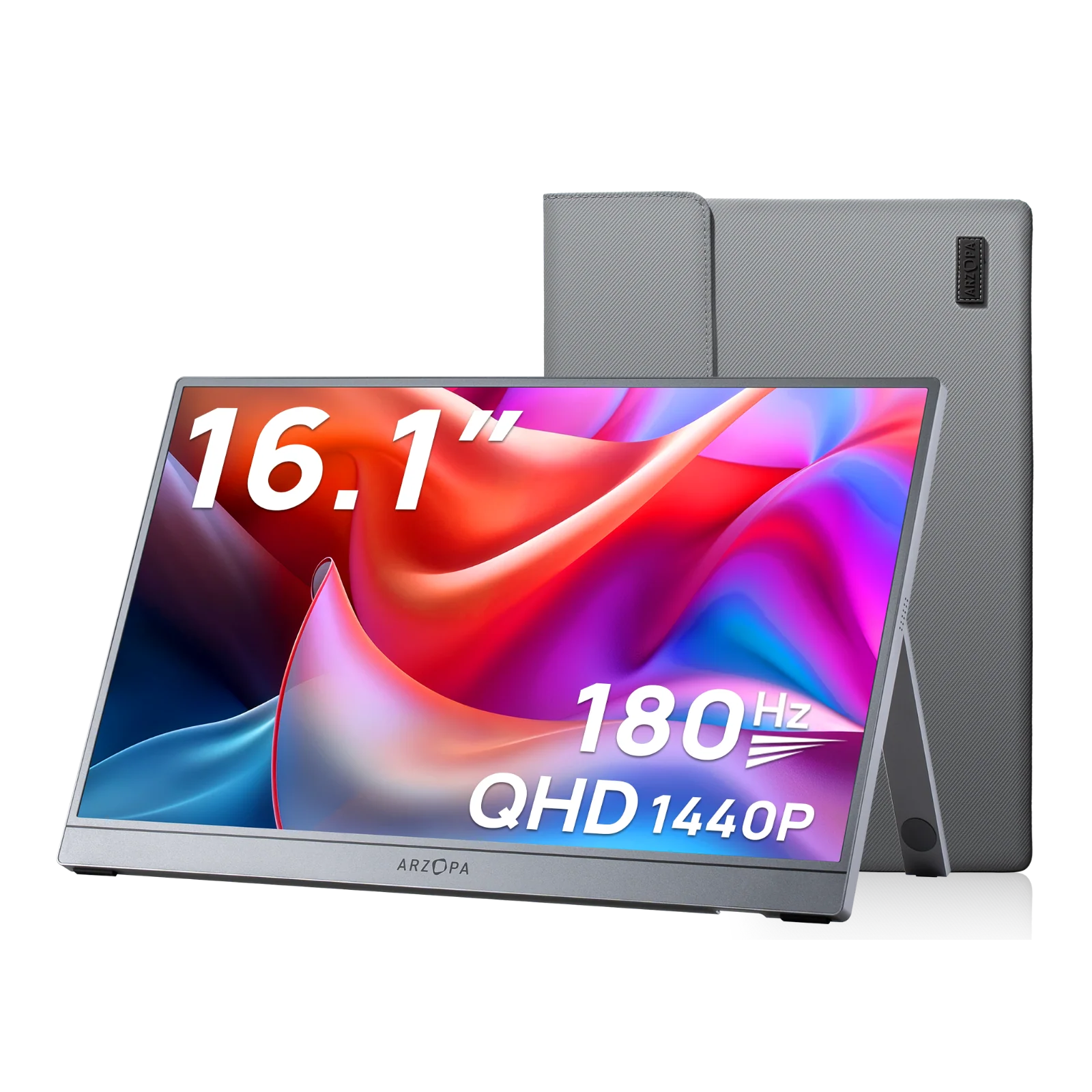
| Arzopa Z3FC | 16.1" | 2560x1600 | 180Hz | IPS | $144.99 | Versatile Use |
| Asus ZenScreen MB249C | 24'' | 1920×1080 | 75Hz | IPS | $349 | Balanced Main Monitor Size |
| Arzopa Z1RC | 16.0" | 2560x1600 | 60Hz | IPS | $124.99 | Design & Coding |
| Arzopa Z1C | 16.1" | 1920×1080 | 60Hz | IPS | $84.99 | Budget Daily Office |
| INNOCN 13A1F | 13.3'' | 1920×1080 | 60Hz | OLED | $216.99 | Photo Editing |
| KYY K3 | 15.6'' | 1920×1080 | 60Hz | IPS | $99.99 | Entry Level |
Detailed Reviews of Portable Monitors
1. Arzopa Z3FC
Rating: ★★★★★
This is the kind of monitor you pick when you want something flexible but still feel like a “real” main screen. The slim body keeps it easy to reposition, and the large, high-brightness anti-glare panel stays comfortable to use even in brighter spots like a balcony. It also connects easily with most computers, so you’re not stuck dealing with a complicated setup every time you switch devices.
For creative work, it feels surprisingly capable for its size. The 2.5K resolution keeps everything sharp and detailed, and the 107% sRGB coverage is enough to comfortably handle photo editing and color-related tasks with solid accuracy right out of the box. The 180Hz refresh rate is where it starts to feel more “all-round”—scrolling, browsing, and video work all feel very fluid, and the fast response time means it doesn’t just stay on the work side of things. It also works just as well for gaming, so it ends up being something that can switch between work mode and play mode without feeling like a compromise. It even includes built-in speakers for casual use like calls or videos, though the sound is fairly basic.
Priced at just $144.99, it’s hard to argue with the value.
Pros:
- Top performance for the price
- Great for office & gaming
- Pre-calibrated out of box
Cons:
- Speakers need improvement
2. Asus ZenScreen MB249C
Rating: ★★★★☆
The ASUS ZenScreen MB249C is best understood as a movable large-screen workspace rather than a typical portable monitor. Its 23.8-inch display significantly improves multitasking, making it ideal as a secondary screen for desktop users who need more room for documents, spreadsheets, or light creative work.
It’s designed with comfort in mind for extended use, thanks to its anti-glare panel that remains easy on the eyes even in bright environments. USB-C connectivity and built-in speakers also help keep setups simple and uncluttered.
However, the larger size means it’s less portable than standard portable monitors, making it better for moving around the home rather than carrying on the go. At this price, its specs are also less competitive, focusing more on usability than high-end performance.

Pros:
- Large screen enhances multitasking
- Great as a secondary display for desktops
- Comfortable for extended use
Cons:
- Less portable due to its size
- Less competitive performance at this price point
3. Arzopa Z1RC
Rating: ★★★★★
The ARZOPA Z1RC focuses on improving vertical workspace and clarity, rather than just being another standard portable display. Its 16:10 aspect ratio gives you more vertical space than typical 16:9 screens, so when you're coding or reading, you can see more content at once and scroll less, which makes everyday tasks feel more efficient.
You’ll also appreciate the 2.5K resolution. It’s sharper than 1080p—which can look slightly soft at this size—but avoids the scaling issues of 4K, so text, code, and images all look clean and comfortable. On top of that, it delivers over 100% sRGB coverage, making it a solid option even for light design or color-sensitive work.
There are a couple of compromises, though. HDR doesn’t add much in practice, and the brightness is more on the average side, so it may struggle a bit in brighter environments.
Pros:
- 16:10 aspect ratio improves vertical workspace
- Wide color gamut for design tasks
- Sharp, high-resolution display
Cons:
- HDR performance is underwhelming
- Average brightness
4. Arzopa Z1C
Rating: ★★★★☆
The ARZOPA Z1C is a cost-effective portable monitor under $100 that focuses on delivering solid everyday usability at a very accessible price. It features a Full HD IPS panel with 100% sRGB coverage, which is surprisingly capable for this price range—offering decent color performance for basic design work, media viewing, and general office tasks.
In practice, it fits well into a simple dual-screen setup, especially for home office users who just need extra screen space for documents, browsing, or multitasking. The lightweight design and easy setup also make it convenient to move around and integrate into different work areas without much effort.
Of course, it’s built with clear priorities. It’s not suggested for gaming, with performance that focuses more on basic productivity, and the built-in audio is fairly average, so you’ll likely want external speakers for a better experience.
Pros:
- Very affordable price point
- Exceptional cost performance
- Lightweight and easy to set up
Cons:
- Not suitable for users with gaming demands
- Average audio performance
5. INNOCN 13A1F
Rating: ★★★☆☆
The INNOCN 13A1F is best seen as a premium ultra-portable OLED display focused on image quality above all else. The OLED panel stands out immediately—colors look more vivid and accurate than most portable monitors, and the deep true blacks create strong contrast that feels almost cinematic. It’s the kind of screen that shines most when watching content or doing visual work where image quality matters more than screen size.
In daily use, it’s simple to set up and works as a high-quality secondary screen, mainly for media, creative viewing, or light editing rather than heavy multitasking.
It does feel limited by its 13-inch size, so it’s not a replacement for a productivity monitor and works better as a focused companion screen. The glossy OLED finish can also reflect light in brighter environments, which may affect comfort depending on where it's used.

Pros:
- OLED panel with vivid and accurate colors
- True blacks
- Great setup experience
Cons:
- Small screen size for home office
- Severe screen reflections
- Only refurbished units available currently
6. KYY K3
Rating: ★★★☆☆
A basic entry-level portable monitor for users who need a simple and affordable second screen.Its biggest appeal is the affordable price, making it an easy entry point for users who just need a simple second screen without spending much. Despite the low cost, it comes with a complete accessory set, so you can get started right out of the box without extra purchases.
In everyday use, it offers reliable performance for basic tasks like documents, browsing, and simple screen extension—making it a solid fit for budget-focused users.
That said, there are some trade-offs. The color performance is average, it lacks portrait mode, and the one-year warranty is relatively limited.

Pros:
- Affordable price
- Complete accessory set
- Meets basic usage requirements
Cons:
- Average color performance
- Does not support portrait orientation
- Only one-year warranty
6. Recommended Desktop Monitors
Comparison of Desktop Monitors
| Product | Screen Size | Resolution | Refresh Rate | Panel Type | Price When Reviewed | Best For |
|---|---|---|---|---|---|---|
| Dell U2725QE | 27'' | 3840 x 2160 | 120Hz | IPS | $849.99 | Content Creators |
| Acer CB272 | 27'' | 1920 x 1080 | 100Hz | IPS | $169.99 | Entry Level |
| ASUS ProArt PA32UCX | 32'' | 3840 x 2160 | 60Hz | IPS | $1899 | Professional level |
| BenQ MA270U | 31.5'' | 3840 x 2160 | 60Hz | IPS | $649.99 | MacBook Compatibility |
| ViewSonic VP3268 | 32'' | 3840 x 2160 | 60Hz | IPS | $799.99 | Creative Workers |
| BenQ RD280U | 28.2'' | 3840 x 2560 | 60Hz | IPS | $549.99 | Coders & Programmers |
Detailed Reviews of Desktop Monitors
1. Dell U2725QE
Rating: ★★★★★
If you want a monitor that balances productivity and visual work well, the Dell U2725QE is an easy one to consider. It features a 27-inch 4K display, giving you plenty of workspace along with sharp, detailed visuals. It comes factory-calibrated with wide color gamut coverage, so right out of the box, you can trust it for design work, photo editing, or anything color-sensitive. Compared to typical IPS displays, it also delivers stronger contrast and deeper blacks, which makes everyday content look more refined.
Another thing you’ll notice is the 120Hz refresh rate. It’s not just for gaming—it makes scrolling and daily interactions feel smoother, while still being capable of light gaming. Plus, it’s designed for long hours, with an eye-friendly viewing experience that suits extended use.
There are a couple of trade-offs, though. It doesn’t include built-in speakers or a webcam, so you’ll need external gear for a complete setup. Also, while overall image quality is strong, panel uniformity isn’t perfect, which might matter if you’re sensitive to screen consistency.

Pros:
- Eye-friendly with precise color accuracy
- High contrast for deep black tones
- High refresh rate for gaming
- Factory pre-calibrated colors
Cons:
- No built-in webcam or speakers
- Backlight and panel uniformity are poor
2. Acer CB272
Rating: ★★★☆☆
If you're setting up a budget-friendly dual monitor workspace, the Acer CB272 is an easy option to look at. It features a 27-inch 1080p display, giving you plenty of screen space at a lower cost—ideal if your priority is expanding your workspace rather than maximizing visual sharpness. The fully adjustable stand (height, tilt, swivel, pivot) also makes it much easier to line up two screens comfortably for long hours of use.
In practice, it works best for documents, spreadsheets, and everyday multitasking, where having more room across two screens makes a bigger difference than image quality. It’s a good fit if you’re building a simple, ergonomic home office setup without spending too much.
You’ll notice the trade-offs fairly quickly, though. The 1080p resolution on a 27-inch panel means lower pixel density, so text isn’t as crisp, and the contrast is fairly limited, which affects depth. It also lacks USB ports, so connectivity is more basic.

Pros:
- Affordable price
- Excellent appearance design
- Fully adjustable stand
Cons:
- Low pixel density
- No USB ports
- Subpar contrast ratio
3.ASUS ProArt PA32UCX
Rating: ★★★☆☆
The ASUS ProArt PA32UCX is best understood as a long-term reference display for color-critical and HDR-heavy workflows rather than a general-purpose monitor. Its key strength is the Mini-LED full-array local dimming system, which gives precise control over brightness and contrast, especially in HDR work. Combined with reference-level color accuracy and support for HDR10, HLG, and Dolby Vision, it’s built for color grading, film production, and high-end creative tasks where on-screen accuracy is essential.
In a dual monitor setup, it typically acts as the main reference screen, while a second display is used for timelines, tools, and multitasking, keeping creative precision work separate from everyday workflow.
The trade-offs are clear: it comes with a high price and large footprint, making it better suited for professional studios. For typical home office use, much of its capability will simply go unused.

Pros:
- Mini-LED backlight
- Reference-level color accuracy
- Supports HDR10, HLG, and Dolby Vision
Cons:
- Expensive for general office work
- Large and heavy desktop footprint
4. BenQ MA270U
Rating: ★★★★☆
The BenQ MA270U is a 27-inch 4K MacBook-focused monitor that feels more like a natural extension of macOS than a typical external display. The first thing you notice is how well it’s tuned for MacBook use—colors, scaling, and overall visual behavior all feel immediately familiar once you plug in a Mac. With good image quality and a nano matte anti-glare panel, it gives you sharp text and a softer, more comfortable viewing experience, especially in brighter rooms where reflections can otherwise become distracting.
In a real setup, it usually ends up becoming the “main desk screen” for a MacBook workflow. You’re handling documents, browsing, maybe some light creative work, and the 4K resolution gives you enough space to comfortably split windows side by side without everything feeling cramped. It’s the kind of setup where you stop thinking about the monitor and just focus on getting work done.
There are still a couple of things you notice over time. HDR performance is pretty basic, so it’s not really made for that kind of viewing, and panel uniformity is only average, which can show up a bit in darker scenes or full-screen backgrounds.

Pros:
- Optimized for MacBook
- Great image quality
- Nano matte panel
Cons:
- HDR could be better
- Average backlight and panel uniformity
5.ViewSonic VP3268
Rating: ★★★★☆
If you want a large, color-accurate display for creative work, the ViewSonic VP3268 is a solid option to look at. It features a 32-inch 4K panel, giving you plenty of room for multitasking while keeping visuals sharp and detailed. Right out of the box, it delivers excellent color accuracy, so you can rely on it for photo editing, design work, or other color-sensitive tasks without much calibration. It also maintains good uniformity across the panel, which helps ensure consistency when working on detailed visuals.
Another thing you might appreciate is the surprisingly decent built-in speakers, which are more usable than what you typically get from monitors, especially for casual media or quick audio needs.
It’s clearly designed with accuracy in mind rather than speed. The response time is on the slower side, so it’s not ideal for gaming or fast-paced content, and the OSD controls can feel a bit clunky, which may slow you down when making adjustments.

Pros:
- Excellent color accuracy outside of the box
- Good uniformity across the panel
- Excellent built-in speaker quality
Cons:
- Slow response time
- Poor OSD usability
6.BenQ RD280U
Rating: ★★★★☆
The BenQ RD280U is a developer-focused monitor designed around coding workflows rather than general use. It features a 28-inch 4K display with a 3:2 aspect ratio, giving you more vertical space than standard 16:9 screens—something you’ll immediately notice when working with long code files or multiple windows. It’s also optimized for multi-window coding, making it easier to keep editors, terminals, and documentation visible at the same time.
A big part of its appeal is the advanced eye-care features, which help reduce strain during long coding sessions. Combined with its layout and screen format, it feels purpose-built for developers who spend hours reading and writing text.
That focus also makes it less versatile. It comes at a relatively high price, which is easier to justify for professional use, but may feel excessive for general office work. And because of its aspect ratio and tuning, it’s not ideal for media consumption, especially compared to more standard displays.

Pros:
- Tailored for developers
- Advanced eye-care features
- Optimized for multi-window coding
Cons:
- Relatively high price
- Not ideal for media consumption
7. Ideas for a Dual Monitor Setup on a Small Desk
For compact home office desks, aside from pairing portable screens, optimized monitor placement is another viable fix to save desktop room for dual-monitor configuration.
-
Vertical Stacked Dual Monitor Layout
Stack two displays vertically via monitor arms to reduce horizontal desk footprint. Ideal for document scrolling and long-form spreadsheet work, it frees up precious desktop room for peripherals and accessories.

-
Angled Corner Dual Monitor Arrangement
Position screens inward along desk corners in a V-shape. This setup leverages unused corner space, delivers natural viewing angles and keeps the main desktop area unobstructed.

-
Vertical Secondary Monitor Setup
Place one main landscape screen paired with a vertically mounted auxiliary display. Perfect for coding and multi-window document browsing, vertical panel accommodates lengthy code or webpage content without frequent scrolling.

-
Floating Shelf Monitor Solution
Mount monitors on an elevated floating shelf above the desktop. It completely lifts screens off the table surface, leaving full desk space for keyboards, stationery and daily office supplies.

8. Conclusion
Building the optimal dual-monitor home office setup hinges entirely on your workspace size, daily workflow and device pairing needs. For most remote workers aiming to boost productivity without bulky space occupation, pairing a main desktop display with an Arzopa portable monitor strikes the ideal balance of flexible layout, affordable cost and outstanding usability. By adding a well-matched dual-screen combination to your workstation, you streamline multitasking across document editing, webpage browsing and video conferences.
FAQs
How to set up Dual Monitors on a Windows PC?
Connect both monitors to your PC, open Display settings, choose Extend these displays, then arrange the screens and adjust your main display and resolution as needed.
How to set up Dual Monitors on a Mac
Connect your monitors to your Mac using USB-C, HDMI, or adapters if needed, then open System Settings → Displays. Your Mac will automatically detect the external screens. Choose Arrange to position the displays to match your setup and select whether to extend or mirror your display.
Does using dual monitors affect my computer's energy consumption?
Using dual monitors can slightly increase power usage, since your system has to run two displays at the same time. However, the overall impact is usually minor, especially compared to components like the CPU or GPU.
Can I use dual monitors with a docking station or port replicator?
Yes, many docking stations and port replicators support dual monitors, as long as they offer multiple video outputs (such as HDMI or DisplayPort) and are compatible with your device.
How to Organize Cables for Dual Monitors?
Use cable clips, sleeves, or ties to bundle and route cables neatly, and consider a docking station or monitor arm to reduce clutter and keep your workspace organized.