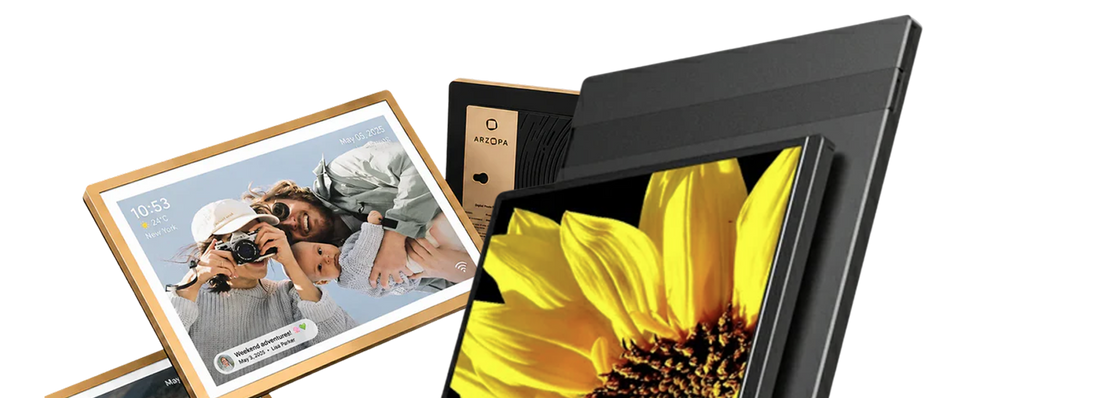
Arzopa portable monitors are renowned for their Full HD IPS displays, offering vivid colors and sharp details in a slim, lightweight design. With features like 4k/2k/1080p resolution and multiple connectivity options including Mini HDMI and USB-C, they provide a seamless extension of your digital workspace. Proper setup is key to leveraging these features to their fullest, enhancing both productivity and enjoyment.
This article will cover everything from unboxing your monitor to connecting it with various devices, ensuring you get the most out of your Arzopa portable monitor.
Initial Setup Unpacking Your Arzopa Portable Monitor
Upon opening the box, you will discover:
- The Arzopa portable monitor
- A stand designed for the monitor
- Power and HDMI cables
- A USB-C to USB-A cable (included with certain models
Begin by connecting your monitor to a power source and activating it with a simple button press.

Then, determine the type of stand that comes with your monitor. Adjust the stand to find the most comfortable viewing angle.
Adjust brightness on arzopa portable monitor:
A toggle button located on the right side provides the sole control options: flick upwards to increase brightness, or downwards to adjust the volume. Additionally, the power button doubles as a back button for easy navigation.
Arzopa Portable Monitor Setup with Laptop

Link the monitor to your laptop using a USB-C cable.

Or link the monitor to your PC/laptop using a HDMI Cable.
If your computer type-C port is a full-featured Type-C port, you can connect with the type-C port or HDMI port. If your computer has no full-featured Type C port, please use HDMI to Mini HDMI to connect.
Note: This portable monitor does not contain any battery. If the monitor appears to flicker or restart when adjusting the brightness or others, please check whether the power supply is sufficient for the monitor. It is recommended to use the power adapter that supports 5V/3A or above for power supply.
Arzopa Portable Monitor Setup with Phone
Requirements:
- A smartphone compatible with the monitor
- A USB-C or HDMI connection, depending on your phone’s specifications

Phone Connection Guide:
If your phone has a full-featured Type-C port, you can directly connect it to the monitor using a Type-C cable. For Apple models before iPhone 15, you'll need a lightning to HDMI adapter to facilitate the connection.
- Use the suitable cable to link your phone to the monitor.
- Follow any on-screen prompts to finalize the connection (if applicable).
- Refer to the provided tips to troubleshoot any connection issues.
- Optimization Suggestions: Modify the display settings on your phone to enhance the viewing experience on the larger screen.
Arzopa Portable Monitor Setup With PS5/Xbox/Nintendo Switch
Requirements:
- A HDMI to Mini HDMI cable for connection
- A USB-A to Type-C cable for external power supply (When connecting to a Nintendo Switch, it is necessary to supply power to the monitor with the switch's original adapter.)

First, you need to connect the monitor to your PS5, Xbox, or Nintendo Switch console. To do this, you will need an HDMI to Mini HDMI cable. Connect one end of the cable to the HDMI port on your console and the other end to the Mini HDMI port on the back of the portable monitor.
Next, you need to power the portable monitor using an external power source (you should use the original adapter for the Switch to power the portable monitor).
Once all connections are in place, you will be able to see your PS5, Xbox, or Nintendo Switch games on the portable monitor. You can adjust the settings on the monitor to optimize the display for specific games.
Arzopa Support Team
If you have any problems with the monitor, please free to contact Arzopa Support Team for quick response and professional techs support.

FAQs
What do I need to set up my Arzopa portable monitor?
Can I use my Arzopa monitor with my phone?
Yes, you can connect your Arzopa monitor to your smartphone if it has a compatible connection. For phones with a full-featured USB-C port, use a USB-C cable. If you have an older iPhone, you will need a lightning to HDMI adapter to connect it. Simply follow the on-screen prompts to complete the connection.
What to do if the monitor doesn’t turn on?
If your Arzopa Monitor isn't turning on, first ensure it's plugged into a power outlet properly. Check if the power cable is securely connected. If it still doesn’t work, try using a different outlet or power adapter. If there's still a problem, you may want to contact Arzopa's support team for assistance.
Does the Arzopa Monitor have a built-in battery?
No, the Arzopa Portable Monitor does not have a built-in battery. This means it needs to be connected to a power source to work. Make sure to plug it into the wall or a compatible power bank when using it on the go.

![How Much Brightness & Contrast Is Good for Eyes? [2026] - Arzopa](http://www.arzopa.com/cdn/shop/articles/how-much-brightness-contrast-is-good-for-eyes-2026-3024228.jpg?v=1788850861&width=1200)