
Can I Use My MacBook as a Monitor? Complete 2026 Guide
In this guide, we'll teach you how to use your MacBook or iMac not only as standalone computers but also as external monitors.
Quick Answer: Best Ways to Use Your MacBook as a Monitor (2026)
Looking to use your MacBook as a monitor? Here are your options ranked by effectiveness:
- Best for Gaming (PS5/Xbox/Switch): USB Video Capture Card - No lag, highest stability
- Best for Mac-to-Mac: AirPlay (Free, wireless, macOS Monterey+)
- Best for Windows PC to Mac: Third-party software (Duet Display/Spacedesk)
- For Old iMacs Only: Target Display Mode (2009-2014 models)
Jump to detailed setup guides for using Macbook as a monitor below.
Can I Use My MacBook as a Monitor?
Yes, you can use your MacBook as a monitor, but it's important to understand the limitations: MacBooks don't have HDMI input ports, meaning you can't simply plug in a cable like a traditional monitor.
Here's what actually works in 2026:
- Can you connect a Mac to a monitor? Yes - MacBooks can OUTPUT to external monitors
- Can I use my Mac as a monitor? Yes - through AirPlay, third-party apps, or capture devices
- How to connect Mac to PC monitor? Use USB-C to HDMI/DisplayPort cables for output
The key difference: Your MacBook can BE a monitor (with workarounds), but cannot accept direct video input like traditional displays.
Why Use Your MacBook as a Second Monitor?
- Gaming on bigger screens: Play Nintendo Switch, PS5, or Xbox on your MacBook display
- Extend your workspace: Use an old MacBook as a second screen for productivity
- Can you hook up a MacBook to a monitor? Absolutely - both as input source AND display
- Portable dual-screen setup: Perfect for travel or remote work without carrying extra monitors
Which Method Should You Choose?
Choose USB Video Capture Card if:
- You want to connect a gaming console (PS5/Xbox/Nintendo Switch)
- You need zero-lag performance for gaming or video editing
- You're connecting a Windows PC to your MacBook
- You want the most stable connection
Choose AirPlay if:
- Both devices are Macs (2018+ MacBook, 2019+ iMac)
- You prefer wireless convenience
- You're okay with slight latency (not ideal for gaming)
- You want a free solution within Apple ecosystem
Choose Third-party Software if:
- You need cross-platform compatibility (Windows ↔ Mac)
- You want flexible wireless OR wired options
- You're willing to pay for premium features
- You need multi-device support
Choose Target Display Mode if:
- You own an old iMac (2009-2014 models only)
- Both devices are older Macs with Thunderbolt ports
- You want a direct cable connection
Method 1: Use MacBook as Monitor with USB Video Capture Card (Most Stable Method)
Why this is the #1 recommended solution:
- Works with ANY device: PC, Mac, gaming consoles, streaming devices
- No software subscriptions or compatibility issues
- Lowest latency for real-time gaming and video work
- Doesn't rely on Wi-Fi speed or network stability
- One-time hardware purchase ($19-$60 on Amazon)

What You Need:
- A USB video capture card (HDMI input to USB-C output)
- An HDMI cable
- OBS Studio (free) or QuickTime Player (Mac built-in)
- Check if your MacBook has USB-C or USB-A ports
Step-by-Step Setup Guide:
Step 1: Connect Your Devices
- Plug the HDMI cable from your source device (PC/PS5/Switch) into the capture card's HDMI input port
- Connect the capture card's USB cable to your MacBook's USB-C or USB-A port
- Your MacBook will recognize the capture card as a "camera" device
Step 2: Configure Display Software
- For Mac: Open QuickTime Player → File → New Movie Recording → Click the dropdown next to the record button → Select your capture card
- For Advanced Users: Download OBS Studio → Add "Video Capture Device" source → Select your capture card → Adjust resolution to 1920x1080
Step 3: Optimize Settings
- In OBS: Right-click video source → Transform → Fit to Screen
- Adjust refresh rate to match your source device (60Hz for gaming)
- Enable "Low Latency Mode" if available
Step 4: Full-Screen Display
- Press the full-screen button in OBS or QuickTime
- Your MacBook now functions as a high-quality monitor
Best USB Capture Cards for MacBook (2026):
- Budget: Elgato HD60 S+ (~$150) - 1080p60fps, zero-lag passthrough
- Mid-range: AVerMedia Live Gamer Portable 2 Plus (~$100)
- Budget-friendly: Generic USB 3.0 capture cards (~$20-30) - Good for casual use
Pro Tips:
- For gaming, enable "Game Mode" in OBS to reduce latency
- Use a USB-C hub with power delivery to charge MacBook while using capture card
- Can you hook up a MacBook to a monitor? Yes - and you can ALSO use it as one!
Method 2: How to Use MacBook as a Monitor for Another Mac with AirPlay (Wireless)

Here are the steps to use your Macbook as a secondary monitor with AirPlay:
- Make sure both your Macbook and the primary Mac you want to use as the external display are on the same Wi-Fi network and signed into the same Apple ID account.
- On the primary Mac, go to System Preferences > Displays.
- Click "Add Display" and select your Macbook from the list of available AirPlay displays.
- By default, it will mirror your primary Mac's screen. To use the Macbook as an extended display instead, click "Display Settings".
- Select the AirPlay screen and under "Use As", choose "Stop Mirroring".
- Now select "Use as: Extended Display" to use the Macbook as a secondary extended monitor.
- For the best display quality, change the resolution to "Scaled" and select a lower resolution like 1920 x 1080.
- Arrange the displays to match the physical setup on your desk by dragging the display representations.
That's it! Your Macbook will now function as an extended wireless secondary monitor for the primary Mac. Keep in mind this feature requires a 2018 or later Macbook Pro/Air, 2019 or later iMac/Mac Pro, iMac Pro, or 2020 Mac mini running macOS Monterey or later. You can find more information on this method by referring to the guide available on Apple's official website.
Advantages:
- Simple and cost-effective
- No additional hardware required
Disadvantages:
- Limited to Apple devices
- Wireless connection can affect clarity and stability
Common AirPlay Issues & Fixes:
Problem: "AirPlay device not showing up"
- Solution: Ensure both devices are on the same Wi-Fi network (not guest networks)
- Go to System Preferences → Firewall → Uncheck "Block all incoming connections"
Problem: "Laggy or choppy performance"
- Solution: Close bandwidth-heavy apps (iCloud sync, backups)
- Use 5GHz Wi-Fi instead of 2.4GHz for better speed
Problem: "Can't extend display, only mirroring works"
- Solution: Update both devices to macOS Ventura (13.0) or later
- Restart both devices and try again
AirPlay vs. Traditional Monitor Connection:
Many users ask "can you connect a Mac to a monitor?" - yes, but AirPlay offers wireless freedom. For wired connections to external monitors, use USB-C to HDMI cables instead.
Credit: YouTube Channel - Badspade
Some troubleshooting tips:
- Restart both Macs
- Unplug and reconnect the cable
- Use the keyboard that came with the iMac, as some third-party keyboards don't support Target Display Mode
However, it's important to note that Target Display Mode only works with certain older iMac models and is not supported on newer Macs according to Apple. If your iMac is from 2015 or later, you'll need to use alternative solutions like Luna Display, Duet Display, or Sidecar to use it as an external monitor.
Method 3: How to Connect Mac to PC Monitor Using Third-Party Software
You can use third-party software or apps to turn your Macbook into a secondary monitor. There are many options available, such as SpaceDesk, Duet Display, and AirDisplay. Below are the proven steps for installing and setting up the software to make it work effectively.
Step by step guide on using Spacedesk to turn your Macbook as a secondary monitor

Spacedesk is a software that enables a device to function as an external monitor. It has received a lot of attention and recommendations on platforms like YouTube and Reddit. It offers both wired and wireless modes, but the wireless mode is considered to be more stable. The best part is, it is completely free of charge. However, some users have reported issues with uninstalling files.
Here are the steps to use Spacedesk to turn your Macbook into a secondary monitor for your Windows PC:
- Download and install the Spacedesk Driver software on your Windows PC from the Spacedesk website. Make sure to allow the firewall exception during installation.
- Open the Spacedesk Viewer app on your Macbook. It should automatically detect your Windows PC if both are on the same Wi-Fi network. Select your PC and launch second-screen mode.
- To optimize the display, go to Windows Settings > System > Display on your PC. Select the Spacedesk display, then adjust the resolution and scaling to your preference.
- Configure the monitor layout in Windows Settings > System > Display to match the physical positioning of your screens. This allows you to move your mouse seamlessly between them.
- In the Spacedesk Viewer app on your Macbook, click the gear icon and select Settings for additional options like resolution and quality.
Credit: YouTube Channel - Novaspirit Tech
Some key points:
- Spacedesk allows you to use a variety of devices, including Android tablets, iPads, and other PCs, as secondary monitors for your Windows PC
- The Spacedesk Driver runs on your PC and connects to the other screens, while the Viewer app launches on the secondary device
- The connection works over Wi-Fi, but Ethernet provides the best performance
- Spacedesk is a free and versatile solution for extending your desktop space when working on the go with just a laptop
With Spacedesk you can easily turn your Macbook into a wireless second monitor for your Windows PC, allowing you to multitask and reference information across multiple screens.
Method 4: How to Use Duet Display to make Macbook work as secondary monitor

To use your Macbook as a secondary monitor for another computer using Duet Display, follow these steps:
- Download and install Duet Display on both your primary computer and your Macbook. You can download it from the official Duet Display website.
- Make sure to log into Duet with the same account on both computers and sign up for Duet Air or Duet Pro.
- On your Macbook, click the Desktop tab in Duet and select Mirror or Extend once you see your primary computer.
- If both computers are on macOS 12.3 or later, you can also connect them using an official Apple Thunderbolt cable. The instructions are the same, but you'll need to ensure they recognize each other over the Thunderbolt bridge.
- Once connected, simply move your cursor to the edge of your primary display and it will automatically appear on your Macbook. You can then drag windows and applications between the displays.
Using Duet Display allows you to use your Macbook as a wireless or wired second monitor, increasing your productivity by providing extra screen real estate. Duet's proprietary technology ensures low latency and efficient use of system resources.
About the price
Duet Display is not a free software. The pricing for Duet Display is as follows:
- The base Duet Display app costs a one-time fee of $9.99. This allows you to use your iPad, iPhone, Android device, or Mac as a secondary display for your computer.
- There are additional in-app purchases for more advanced features:
- Duet Pro: $24.99 one-time purchase
- Duet Air (annual subscription): $19.99 per year
- Duet Pro (monthly subscription): $3.99 per month
- Duet Air (monthly subscription): $1.99 per month
The Duet Pro and Duet Air subscriptions unlock additional features like tailored algorithms for faster drawing response, pressure & tilt control, multi-touch gestures, zoom & pan, hover, line smoothing, color calibration, and Pixel Perfect image refresh.
Method 5: How to stream Nintendo Switch to your MacBook
In fact, this guide isn't limited to Nintendo Switch; it also applies to Xbox, PlayStation 5, Steamdeck, and more.
Here are the steps to stream Nintendo Switch gameplay to your MacBook:
- Connect the Nintendo Switch to a capture card using an HDMI cable. Connect the capture card to your MacBook using a USB-C or USB-A cable.
- Download streaming software like OBS Studio on your MacBook. Open OBS and add a new "Video Capture Device" source, selecting your capture card.
- Configure your streaming platform settings in OBS by going to Settings > Stream. Choose your streaming platform (e.g. Twitch, YouTube) and enter your stream key.
- Optionally, add an external microphone for better audio quality by selecting "Audio Input Capture" in OBS and choosing your mic.
- Resize and position the facecam window in OBS if you want to show your webcam along with the gameplay.
- Start streaming by clicking Start Streaming in OBS. Your Nintendo Switch gameplay will now be streamed live to your chosen platform.
The key requirements are a capture card, HDMI and USB cables, streaming software like OBS, and a MacBook running macOS Big Sur or later. With these, you can easily stream your Nintendo Switch to your MacBook.
Credit: YouTube Channel - Tech With Emilio
Use My Macbook as A Secondary Monitor for iMac with Target Display Mode
Are you looking to extend your desktop space by using your Macbook as a secondary monitor for your iMac? The "Target Display Mode" feature on older iMac models allows you to do just that.
Before you begin, ensure you have the following:
- An iMac model from 2009-2014 (for compatibility with Target Display Mode).
- A compatible MacBook.
- A Thunderbolt or Mini DisplayPort cable.
Steps to Connect Your Macbook to an iMac Using Target Display Mode:
- Prepare Your Devices: Ensure both your iMac and MacBook are turned off. Connect one end of the appropriate cable to your iMac and the other end to your MacBook.
- Power Up Your iMac: Turn on your iMac and wait for it to finish booting up.
- Activate Target Display Mode: On your iMac, press and hold the Command key while pressing the F2 key. Release both keys once the screen flashes indicating that Target Display Mode is activated.
- Connect Your MacBook: Now, connect your MacBook to the iMac using the cable.
- Configure Your MacBook: On your MacBook, open System Preferences > Displays. You should see your iMac listed as an available display. Click on the 'Detect Displays' button if it doesn't appear automatically.
- Select Your iMac as a Secondary Display: Once your iMac appears in the list of displays, click on it to make it the primary display. Then drag the white bar next to the iMac name to adjust the resolution and position of the secondary display.
- Finish Up: Click on 'Apply' to save your settings. Now, your MacBook should be mirroring its display on your iMac.
Alternative Method for Newer Models: If you own a newer iMac model, you can use AirPlay to wirelessly connect your MacBook as a secondary monitor. Simply select your MacBook from the AirPlay menu on your iMac and choose 'Mirror Built-in Retina Display' or 'Use as Separate Display' based on your preference.
A Comparison of Different Options to Use a MacBook as a Monitor

To sum it up, unlocking the full potential of your MacBook as a monitor can greatly enhance your productivity and overall experience. Here are some detailed options that not only add value but also make your setup more versatile and appealing:
- Game Console Integration: For seamless integration with your game console, consider using a USB capture card connection coupled with a portable monitor. This setup not only provides a high-quality display but also ensures smooth performance, making your gaming sessions more immersive and enjoyable.
- Apple Ecosystem Synergy: If you own multiple Apple devices like a MacBook or iMac, leverage the simplicity and convenience of AirPlay for wireless connectivity. This eliminates the hassle of cables and allows for effortless screen sharing, enhancing your workflow and multitasking capabilities.
- Reviving Old Devices: Give new life to your old devices by using software like Spacedesk for experimentation. This approach lets you test the waters of dual-screen setups and evaluate the benefits of having a second monitor. If you find it indispensable, buying a new portable monitor is always an option, ensuring you stay ahead with a more efficient workspace.
Advantages
- Get More Out of Your MacBook: Turn your MacBook into a second monitor without spending extra money.
- Enjoy a Bigger Screen: Play console games like the Nintendo Switch on a larger display.
- Boost Efficiency for Work: Use it to improve productivity when working.
- Saves Money: No need to buy a separate monitor.
Considerations
- Needs Extra Software: You'll have to install additional software.
- Dependent on Wi-Fi Speed: The wireless connection may be slower or unstable.
- Battery and Heat Concerns: Using it as a monitor can drain the MacBook's battery faster and make it hot.
- Some Apps Require Payment: Certain programs may need paid software to work properly.
Updated Comparison Table (2026)
| Method | Speed/Latency | Setup Difficulty | Cost | Best For | Limitations |
|---|---|---|---|---|---|
| USB Capture Card | Excellent (10-20ms) | Easy | $20-150 (one-time) | Gaming, PS5, Xbox, Switch, PC-to-Mac | Requires hardware purchase |
| AirPlay | Good (50-100ms) | Very Easy | Free | Mac-to-Mac, presentations, casual use | Apple ecosystem only, needs strong Wi-Fi |
| Duet Display | Very Good (30-50ms) | Easy | $30-70/year | Windows-to-Mac, professional work | Subscription cost, software dependency |
| Spacedesk | Good (60-120ms) | Moderate | Free | Budget Windows-to-Mac, testing dual screens | Higher latency, less stable |
| Target Display Mode | Excellent (no latency) | Easy | Free | Old iMac (2009-2014) only | Obsolete, not supported on new devices |
Winner for most users: USB Capture Card (best balance of performance and compatibility)
What's New in 2026: MacBook as Monitor Updates
Latest Compatibility Changes:
- macOS Sequoia (15.0) improved AirPlay stability and reduced latency by 30%
- M4 MacBook Pro models (2025) support faster USB4 for capture cards
- Apple discontinued Target Display Mode support entirely (last worked on macOS Mojave)
Hardware Recommendations for 2026:
- Best capture card: Elgato HD60 X (supports 4K60fps, HDR)
- Best software: Duet Display 3.0 (new "Zero Latency" mode for M-series chips)
- Budget option: Generic USB 3.2 capture cards now reliable at $25
New Use Cases:
- Can you hook up a MacBook to a monitor? Yes - and with Thunderbolt 5 (2025+), you can now daisy-chain up to 3x 4K displays
- Remote work setups: Use old MacBooks as secondary monitors via AirPlay while traveling
Discover the Superiority of Portable Monitors

While we've explored the idea of using your MacBook as a monitor, it's important to note that it wasn't originally designed for that purpose. On the other hand, portable monitors, also known as travel monitors, are specifically crafted to receive video signals, making them a far more suitable choice for various applications.
Enhanced Versatility: Portable monitors offer unparalleled versatility. Whether you're gaming, editing videos, working on creative projects, or engaged in copy editing, these monitors adapt seamlessly to your needs.
Effortless Setup: Unlike DIY solutions, portable monitors are incredibly easy to set up. With simple connectivity options and user-friendly interfaces, you can get them up and running in no time.
Superior Performance: Experience stability like never before with portable monitors. Enjoy better refresh rates and superior color performance, enhancing your overall viewing and working experience.
Ultimate Portability: Perhaps the most enticing feature is their portability. Compact and lightweight, these monitors are designed for on-the-go use, allowing you to work or play from virtually anywhere.
Compatibility Simplified: Most portable monitors require just a USB Type-C cable for seamless functionality. This simplicity adds to their appeal, making them a hassle-free addition to your tech arsenal.
Recommended portable monitor models from Arzopa
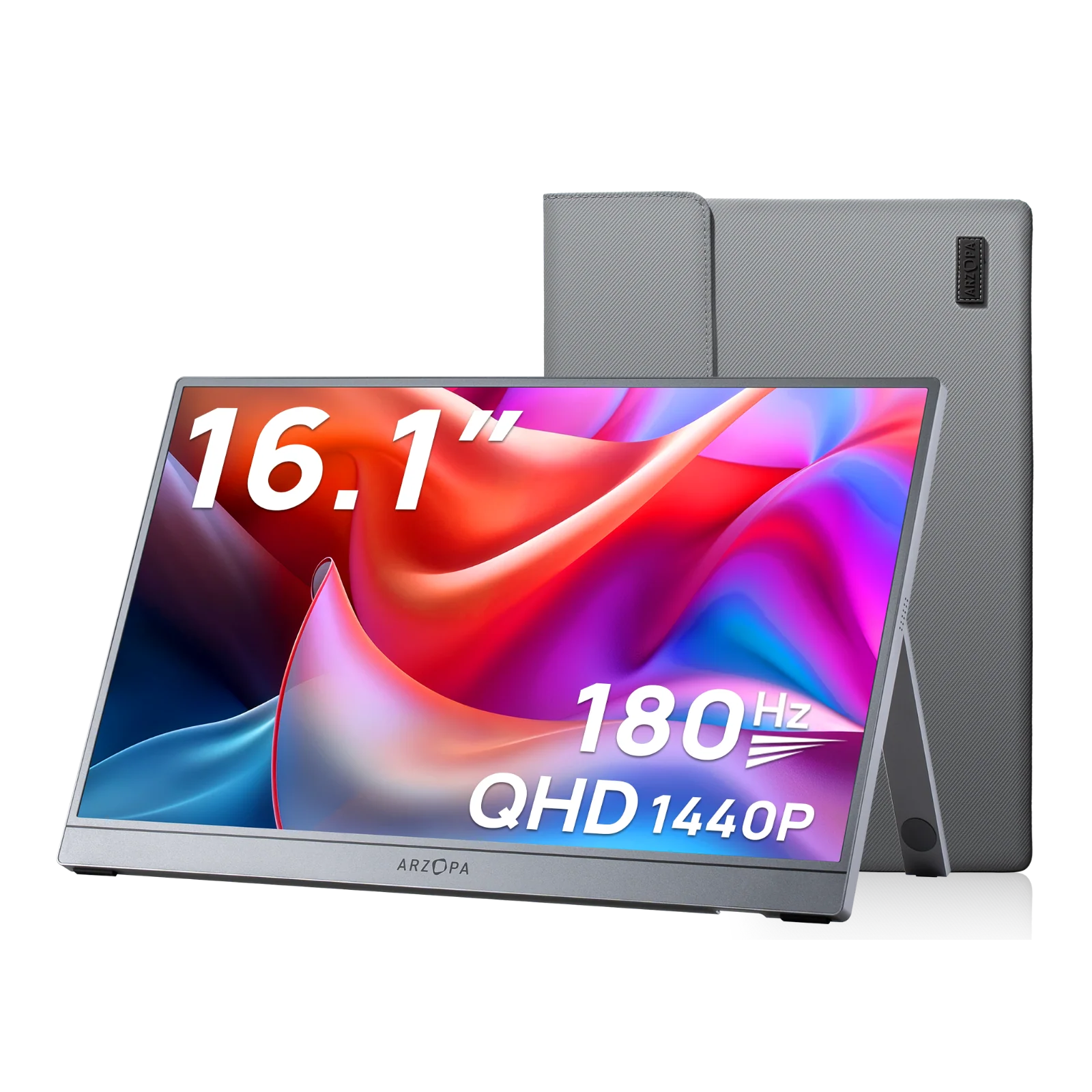
1. Z3FC - 16.1" FHD 180Hz Gaming Portable Monitor
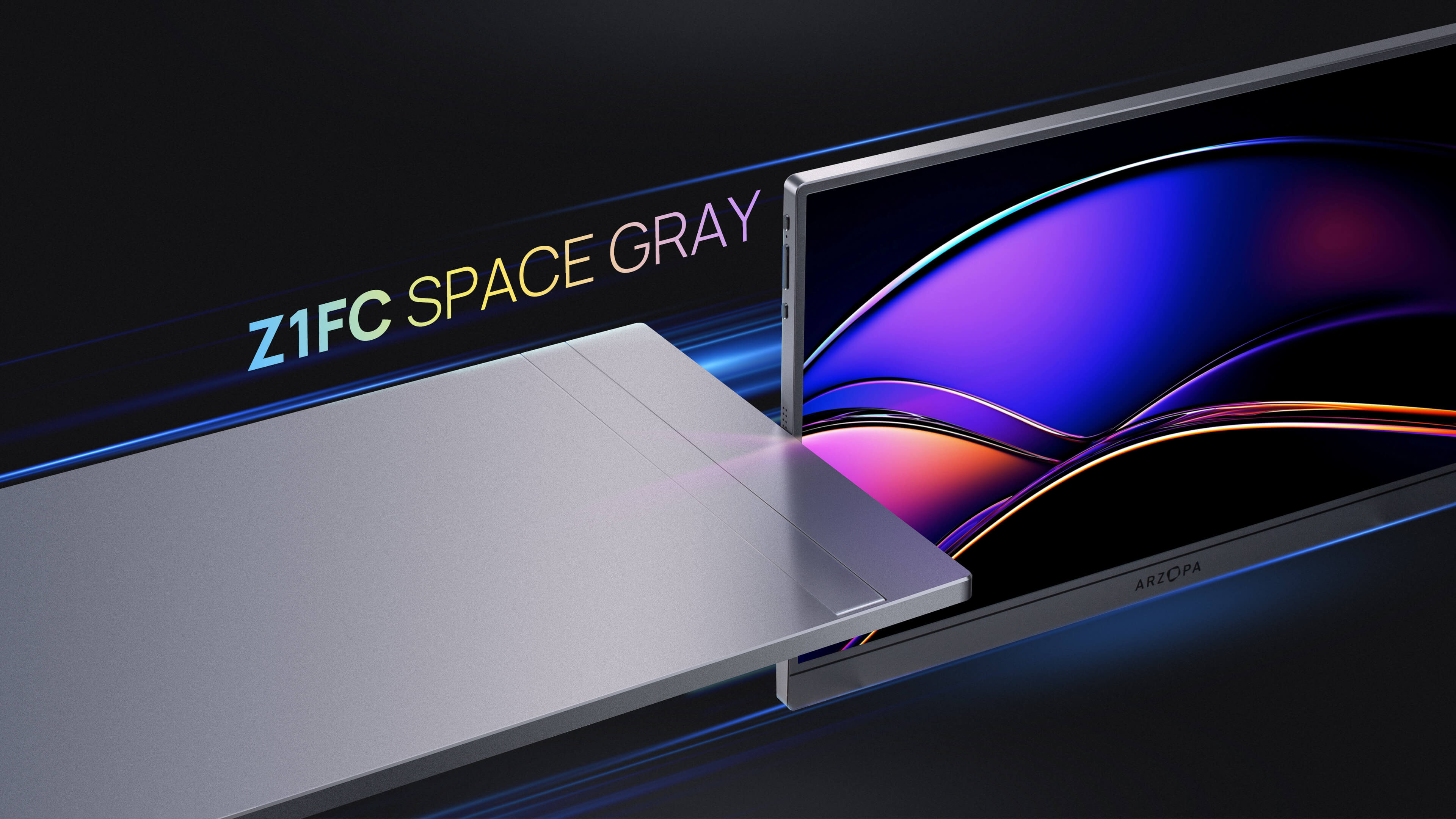
The Z1FC portable monitor is the latest upgraded portable monitor of the Arzopa brand. It owns a 180Hz high refesh rate, 107% sRGB, 2.5K QHD Display, and built-in stand. Slip this portable monitor for laptop into your bag and unlock dual-screen productivity anywhere. Multitask seamlessly. Create endlessly.
2. Z1FC - 16.1" FHD 144Hz Gaming Portable Monitor
The Z1FC portable monitor is currently the best-selling product of the Arzopa brand. It features a 144Hz refresh rate, providing unparalleled clarity and response speed for design, video editing, and daily use. Its 100% sRGB color gamut screen ensures professional-grade image quality. Also, this 16.1-inch IPS anti-glare screen has a 1080p FHD resolution, allowing you to immerse yourself in vivid colors and clear details. Just try to extend your screen at the office, at home or on the go with this convenient, compact display now!
3. Z1RC - 16" 2.5K FHD IPS Portable Monitor
The Z1RC portable monitor boasts a stunning 2.5K QHD resolution of 2560x1600 pixels, ensuring images are incredibly sharp and detailed, with individual pixels virtually invisible. This makes it an excellent choice for content creation or streaming media consumption. Its versatile design allows you to position the monitor to the left, right, or even behind your laptop for optimal viewing angles. Dual USB-C ports on each side enhance connectivity and improve portability, enabling seamless integration with various devices. Additionally, the 8-bit+FRC color scheme delivers smoother color transitions and supports a broader range of colors, enhancing visual experiences.
Conclusion
In conclusion, there are several viable solutions available if you want to utilize your MacBook as an external monitor or secondary display. From wireless methods like AirPlay to wired options involving third-party software, USB video capture cards, or even resurrecting older iMac models with Target Display Mode, each approach caters to different user needs and budgets.
We hope this comprehensive guide has provided you with valuable insights to make an informed decision. If you're still unsure about the best approach for your situation or have any further questions, please share them in the comments below. Our team of experts will be happy to provide personalized recommendations and assist you in finding the perfect solution to extend your workspace efficiently.
Frequently Asked Questions (2026 Updated)
Can you connect a Mac to a monitor?
Yes - MacBooks have video OUTPUT ports (USB-C/Thunderbolt). Use USB-C to HDMI/DisplayPort adapters to connect to external monitors. This is the standard way to extend your display.
Can I use my MacBook as a monitor for another device?
Yes, but MacBooks don't have video INPUT. You'll need:
- For gaming consoles: USB video capture card ($20-150)
- For other Macs: AirPlay (free, wireless)
- For Windows PCs: Duet Display or Spacedesk software
How to connect Mac to PC monitor as a display?
Two scenarios:
- Mac outputting to monitor: Use USB-C to HDMI cable - plug and play
- Mac receiving from PC: Install third-party software like Spacedesk on both devices
Can you hook up a MacBook to a monitor for output?
Absolutely - this is the primary use case. MacBooks support:
- Multiple 4K displays via Thunderbolt 4/USB-C
- Up to 6 displays on M3 Max models
- Use official Apple adapters for best compatibility
Can I use my Mac as a monitor for gaming consoles?
Yes - the USB capture card method works perfectly for:
- PlayStation 5 / PS4
- Xbox Series X/S / Xbox One
- Nintendo Switch / Steam Deck
Expect minimal latency (less than 20ms) with quality capture cards.
How to connect Mac to PC monitor wirelessly?
Use third-party apps like Duet Display Air or Spacedesk. Both devices must be on the same Wi-Fi network. Note: Wireless connections may have 50-200ms latency.
Can I use my MacBook as a monitor with HDMI?
Not directly - MacBooks lack HDMI input ports. However, a USB HDMI capture card converts the HDMI signal to USB, allowing your MacBook to display the feed through software like OBS Studio or QuickTime Player.
What's the difference between Target Display Mode and AirPlay?
- Target Display Mode: Hardware-based, only works on 2009-2014 iMacs, requires Thunderbolt cable
- AirPlay: Software-based, works on 2018+ Macs, wireless connection, more latency
Can I use my MacBook as a monitor for PS4?
Not directly. MacBooks don't have video input ports. You'll need an HDMI capture device and software like OBS to display PS4 output on a MacBook.
Can I use my MacBook as a monitor for my PS5?
Similar to PS4, MacBooks cannot directly serve as monitors for PS5 due to lack of HDMI input. Use a video capture card with USB-C or Thunderbolt compatibility as an alternative solution.

![Use iPad as a External Monitor for Any Device [Mac/PC/Consoles]](http://www.arzopa.com/cdn/shop/articles/Use_iPad_as_a_External_Monitor_for_Any_Device_MacPCConsoles_6155fe86-87bb-4ce8-8ea0-7a16c2c21959.webp?v=1770711556&width=1)


![Miracast iPhone to Any Screen: Windows/TV/Monitor/Mac [Full Guide 2026]](http://www.arzopa.com/cdn/shop/articles/Miracast_iPhone_to_Any_Screen_WindowsTVMonitorMac_Full_Guide_2025_ad460ad7-6f8b-4bce-90cd-54d0fcb5bb6f.webp?v=1767508426&width=1)