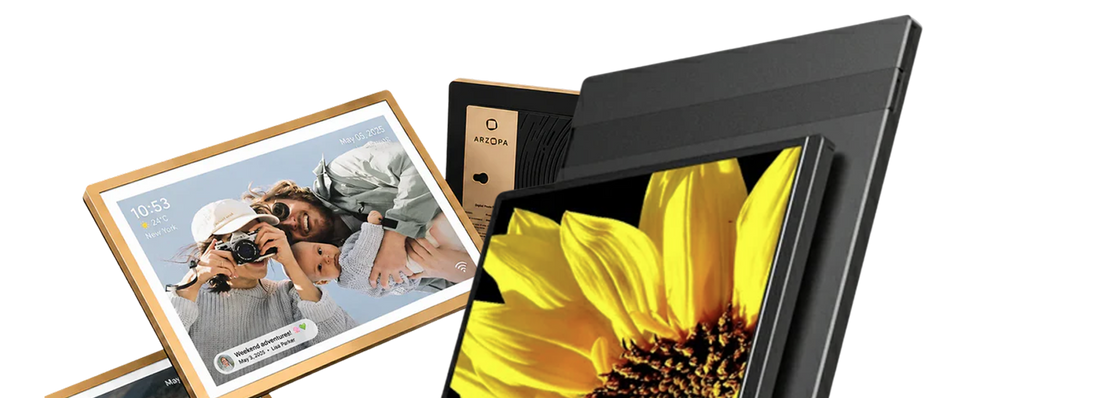
Are you wondering 'why is my monitor flickering' or 'why is my computer monitor flickering'? If your monitor keeps flashing on and off, you're experiencing one of the most common display issues that affects millions of users worldwide. You're not alone. Monitor flickering is a common issue that can be caused by various factors, from loose cables to outdated drivers. In this comprehensive guide, we'll walk you through the steps to diagnose and fix your flickering monitor, so you can get back to work or play without interruption.
Whether you're dealing with Dell monitor flickering, Arzopa screen flickering, or any other brand experiencing monitor blinking on and off, this comprehensive guide will help you identify and resolve the issue quickly.
Understanding Why Your Monitor Is Flickering
When you notice your monitor flickering or monitor flashing on and off, you're experiencing intermittent changes in screen brightness, color, or complete display interruptions that can significantly impact your productivity and eye comfort. It can be caused by display driver issues, incompatible software or apps, hardware problems, incorrect screen refresh rate and resolution settings, or electrical interference.
Common Causes of Monitor Flickering On and Off
-
Outdated or Corrupted Display Drivers: When drivers are not updated, they may not function properly, leading to flickering. Solution: Update the display drivers to the latest version from the manufacturer's website or through the device manager.
-
Incorrect Display Settings: Incorrect refresh rate or resolution can cause flickering. Solution: Ensure that the display settings are compatible with the monitor's capabilities.
-
Overheating: Overheating can cause the monitor to flicker. Solution: Ensure proper ventilation around the monitor and clean any dust or debris blocking airflow.
-
Loose or Faulty Connections: Loose or faulty connections between the monitor and computer can cause flickering. Solution: Check all connections, including cables, and ensure they are securely connected.
-
Monitor Hardware Issues: Hardware issues within the monitor itself, such as a failing backlight or inverter, can cause flickering. Solution: If the issue persists after checking other causes, it may be necessary to replace the monitor.
-
Graphics Card Issues: Outdated drivers or hardware failures can cause flickering. Solution: Update the graphics card drivers and ensure the graphics card is functioning properly.
Dell monitor flickering issues often stem from specific power management settings, while Arzopa portable monitor flickering problems are frequently related to USB-C power delivery inconsistencies or connection instability.
The Impact of Incompatible Software or Apps
Incompatible software or apps can cause monitor flickering by interfering with display settings or graphics drivers. For instance, if software is not optimized for the specific monitor model, it may lead to conflicts that result in flickering. Similarly, apps that are not designed to work with the specific monitor resolution or refresh rate may cause flickering.
Examples of incompatible software and apps include:
- Older versions of Adobe Photoshop that are not optimized for newer monitors.
- Browser extensions that are not optimized for the specific browser version or monitor settings.
- Resource-intensive games that are not optimized for the specific hardware configuration.
How to Fix Monitor Flickering: Step-by-Step Solutions
To identify the root cause of your flickering monitor, follow these troubleshooting steps:
Step 1: Diagnose Cable Issues Causing Monitor Flickering On and Off
- Identify the cables connected to your monitor (VGA, DVI, HDMI, or DisplayPort).
- Inspect each cable for damage, such as frays, cuts, bent or pinched pins, or corrosion.
- Ensure all cables are securely connected to both the monitor and the computer.
- Route cables properly to avoid pinching, bending, or tangling.
- Protect cables from environmental factors like moisture and heat.
If you have a spare cable, try swapping it with the current one to isolate the issue. You can also try using a different port on the monitor or computer.
Step 2: Test with Different Input Sources
Connect your monitor to a different input source, such as another computer or a gaming console, to determine if the issue is with the monitor or the original input source.
Step 3: Update Display Drivers
- Open the Device Manager (right-click on the Start menu and select "Device Manager").

- Expand the "Display adapters" section, right-click on your graphics card, and select "Update driver."

- Choose "Search automatically for updated driver software" to allow Windows to find and install the latest drivers.

Step 4: Check for Software Conflicts
- Boot your computer in Safe Mode to disable any third-party software that may be causing conflicts.
- If the flickering disappears in Safe Mode, it's likely a software issue. Uninstall recently installed programs or update them to the latest versions.
Step 5: Inspect Hardware
- Check the monitor's back for any loose components or visible damage.
- Ensure the monitor is properly ventilated and not overheating.
- Test the monitor with a different computer to rule out issues with the original system.
For Arzopa Portable Monitor Users:
- Check USB-C cable compatibility for Arzopa portable monitor flickering
- Verify power delivery specifications (ensure 65W+ for optimal performance)
- Test with different USB-C ports if your Arzopa screen flickering persists
For Dell Monitor Users:
- Access Dell Display Manager to check for Dell monitor flickering settings
- Disable Dell's adaptive brightness feature
- Update Dell monitor firmware through Dell Support Assist
How to Fix Monitor Flickering: Software-Based Solutions
If you've determined that software issues are causing your monitor to flicker, try these solutions:
Windows Troubleshooter for Screen Flickering
- Open the Start menu and search for "troubleshoot."
- Select "Troubleshoot settings" and scroll down to the "Get up and running" section.

- Click on "Display" under "Additional troubleshooters" and run the troubleshooter.
Adjusting Display Settings
- Right-click on an empty area of the desktop and select "Display settings."

- Ensure the display resolution is set to the recommended setting for your monitor.
- Adjust the refresh rate to the recommended setting (a higher refresh rate can sometimes cause flickering).
- Ensure the monitor is set to use the correct input, especially if you have a multiple-monitor setup.
Disabling or Rolling Back Display Drivers
If updating your display drivers didn't resolve the flickering, try disabling or rolling back to a previous version:
- Open the Device Manager, expand the "Display adapters" section, and right-click on your graphics card.

- Select "Properties" and navigate to the "Driver" tab.
- Click "Roll Back Driver" if the option is available, or select "Disable Device" to temporarily disable the graphics card.
Windows 11 Solutions for Monitor Flickering
- Navigate to Settings > System > Display > Advanced display
- Adjust the refresh rate to resolve monitor screen flickering
- Enable or disable Hardware-accelerated GPU scheduling
- Check Windows Update for display driver updates
Hardware Fixes and Adjustments
If hardware issues are causing your monitor to flicker, consider these fixes and adjustments:
Replacing Faulty Cables
Replace any damaged or faulty cables with high-quality ones that are compatible with your monitor and computer.
Adjusting Monitor Settings
- Use the monitor's built-in menu to adjust settings like brightness, contrast, and color temperature.
- Ensure the refresh rate and resolution are set to the recommended values for your monitor.
Testing with an Alternate Monitor or Computer
Connect your monitor to a different computer or try using a different monitor with your current setup to isolate the issue.
Professional Repair for Hardware Issues
If you've tried all the above steps and the flickering persists, it may be a hardware issue within the monitor itself. In this case, seek professional repair or consider replacing the monitor.
Advanced Troubleshooting and Prevention
To further troubleshoot and prevent monitor flickering, consider these advanced tips:
Understanding and Addressing Electrical Interference
Electrical interference from nearby devices, radio frequency interference, or power supply issues can cause monitor flickering. To mitigate this:
- Use shielding materials or devices to block electrical signals from interfering with the monitor.
- Implement filters to remove electrical noise from the power supply or video signals.
- Position the monitor and potential interference sources at a safe distance from each other.
- Ensure all devices, including the monitor and computer, are properly grounded.
Using Anti-Flicker Features
Some monitors come with built-in anti-flicker features that can help reduce eye strain and flickering:
- Low Blue Light Emission: Monitors with low blue light emission or built-in blue light filters can reduce eye strain and flickering.
- Flicker-Free Technology: This technology maintains a constant backlight, eliminating the flickering effect.
- Adjustable Refresh Rate: Allows users to customize the screen refresh rate to ensure smooth and consistent performance.
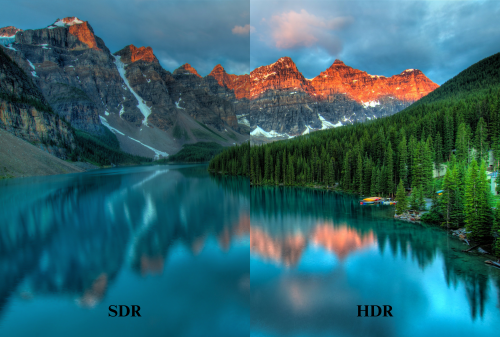
- High Dynamic Range (HDR): Enhances the contrast ratio and color accuracy, which can help reduce flickering.
Long-Term Maintenance Tips
Proper long-term maintenance can help prevent future flickering issues:
- Regularly clean the monitor screen with a soft cloth and gentle cleaning solution to remove dust accumulation.
- Ensure the monitor is placed in a well-ventilated area away from direct sunlight and extreme temperatures.
- Periodically check for any physical damage or wear and tear.
- Keep your display drivers and software up to date.
Conclusion
Monitor flickering can be a frustrating issue, but by following the steps outlined in this guide, you can diagnose and fix the problem effectively. Remember to check and secure your cables, update your display drivers, adjust your display settings, and consider the impact of incompatible software or apps. If the issue persists, don't hesitate to seek professional help or consider replacing your monitor.
By understanding the causes of monitor flickering and implementing proper long-term maintenance and anti-flicker features, you can minimize the occurrence of this issue and enjoy a comfortable, flicker-free viewing experience.
Do you have any experiences with monitor flickering or tips to share? Let us know in the comments below, and feel free to share this guide with others who may be facing similar issues!
Bonus Section: Product Recommendations
If you're in the market for a new monitor that prioritizes flicker-free performance, consider these options:
- BenQ GW2480: Features BenQ's exclusive flicker-free technology and low blue light emission for reduced eye strain.
- ASUS VP28UQG: Offers ASUS Ultra-Low Blue Light technology and flicker-free backlighting for comfortable viewing.
- ViewSonic VX2457-MHD: Incorporates ViewSonic's flicker-free technology and a blue light filter for enhanced visual comfort.
Also see: Arzopa Z1FC 144Hz Portable Gaming Monitor
Upgraded 16.1" screen, make games and video have wider display space. Immerse yourself in vibrant colors and crisp details with 100% sRGB gamut and 1080P FHD resolution on a 16.1" IPS anti-glare display.
Note:Learn more about Arzopa portable monitor specifications
Note:Understanding refresh rates and their impact on flickering
When it comes to cable upgrades for better signal stability, look for high-quality, shielded HDMI, DisplayPort, or DVI cables from reputable brands like Belkin, Anker, or AmazonBasics.
FAQs
Why is my monitor flickering on and off?
Monitor flickering can be caused by various factors, including loose or faulty cables, outdated display drivers, incompatible software or apps, incorrect display settings, or hardware issues within the monitor itself.
Is screen flickering harmful to eyes?
Prolonged exposure to a flickering screen can cause eye strain, headaches, and fatigue. It's essential to address the issue promptly to minimize discomfort and potential long-term effects on your vision.
Real-life scenarios and solutions from users
- "I noticed my monitor started flickering after I installed a new graphics card. Updating the drivers resolved the issue."
- "My monitor was flickering intermittently, and I discovered that it was due to a loose HDMI cable. Securing the connection fixed the problem."
- "Adjusting the refresh rate and resolution settings to the recommended values for my monitor eliminated the flickering I was experiencing."

![How Much Brightness & Contrast Is Good for Eyes? [2026] - Arzopa](http://www.arzopa.com/cdn/shop/articles/how-much-brightness-contrast-is-good-for-eyes-2026-3024228.jpg?v=1788850861&width=1200)