Quick answer: You can display Google Calendar at home with an old iPad or Android tablet, a DIY screen built from a monitor and small computer, or a dedicated digital calendar. An old tablet is the fastest place to start. DIY gives you more control, while a dedicated display is better suited to a permanent family setup. Choose based on placement, upkeep, and who needs to use the screen.
Getting every event into Google Calendar is only half the job. Somebody still has to remember to open it. A Google Calendar display removes that small step by leaving the schedule in a room people already use.
My rule for choosing one is simple: start with hardware you own. Prop up an old tablet for a week. If nobody checks it, stop there. If the family uses it and starts grumbling about screen timeout or private alerts, those complaints tell you what a permanent display needs to fix.
A phone widget is a different job. This guide focuses on a shared screen for the home, not a meeting-room display, TV dashboard, or commercial signage system.

3 ways to display Google Calendar at home
Use an old tablet as a Google Calendar display
An old iPad or Android tablet is enough to test the idea. Put it near the place where bags and keys collect, keep it plugged in, and open Google Calendar. The particular app matters less than reliability.
The tablet's old habits will follow it into its new job. It goes to sleep. Notifications appear. An update asks for a passcode at the worst possible time. None of this makes the tablet useless, but it explains why many families eventually want something less fussy.
To set up the tablet:
- Connect it to Wi-Fi and sign in to the Google Calendar account that can access the household calendars.
- Open Google Calendar and choose a schedule, day, week, or month view that remains readable from the tablet's usual position.
- Put the tablet on a stable stand near a suitable power outlet.
- Adjust screen timeout and notification settings so the calendar is easy to check without exposing personal alerts.
- Create an event from another device, change its time, and confirm that the tablet shows the correct version.
On an Android tablet, you can also add Google's schedule or month widget and resize it on the home screen. Follow Google's Calendar widget instructions for the current steps.
Do not force an aging tablet to stay awake continuously without checking its condition. Stop using it if the battery is swollen or the device becomes unusually hot, and follow the manufacturer's charging guidance.

Build a DIY Google Calendar display
Would I build a Raspberry Pi calendar just to save money? Probably not. I would build one for a custom layout, an unusual screen size, or the fun of making it. DIY gives you control, but the browser and kiosk software remain yours to maintain.
Keep the calendar behind a proper sign-in. A public family feed is not a clever shortcut, and credentials do not belong in dashboard software you have not checked.

Use a dedicated digital calendar display
A dedicated calendar mostly buys your way out of tinkering. That can be worth paying for in a busy household. Still, the label tells you very little about the details. Some screens allow editing and some do not. Subscription rules differ. Placement differs too. A countertop model cannot be turned into a wall model by ignoring the manual.
Google Calendar display options compared
| Factor | Old tablet | DIY display | Dedicated family calendar |
|---|---|---|---|
| Initial cost | Low if one is already in a drawer | Varies once the computer, screen, and mount are counted | Higher upfront hardware cost |
| Touch control | Yes on most tablets | Only if the chosen screen supports it | Check the model |
| Multiple users | Works, although shared accounts can get messy | As flexible as the software you build around it | Often built with households in mind; confirm the limit |
| Automatic updates | Controlled by the app, account, network, and device settings | Controlled by the dashboard and connection method | Controlled by the product and connection method |
| Subscription | None just for displaying Google Calendar; another app may charge | Some dashboard or remote tools charge | Varies by product and feature |
| Desktop or wall | Either, with the right stand or mount | Either, if you build for it | Check the hardware before buying |
| Setup difficulty | Usually manageable | Highest of the three | Usually manageable, but model-specific |
| Privacy risk | Notifications, unlocked apps, and a shared login | Public feeds or stored credentials if configured carelessly | Depends on permissions, placement, and the vendor account |
I would choose the tablet first, DIY only for a genuinely custom build, and dedicated hardware when the screen has already proved useful. That is a recommendation, not a universal ranking. A family that enjoys Raspberry Pi projects will make a different call.
One word deserves suspicion: "automatic." Importing a file creates a copy. Sharing a calendar creates access. Subscribing creates a feed whose timing is controlled elsewhere. They may look identical on the screen and behave nothing alike.
When a dedicated Google Calendar display makes sense
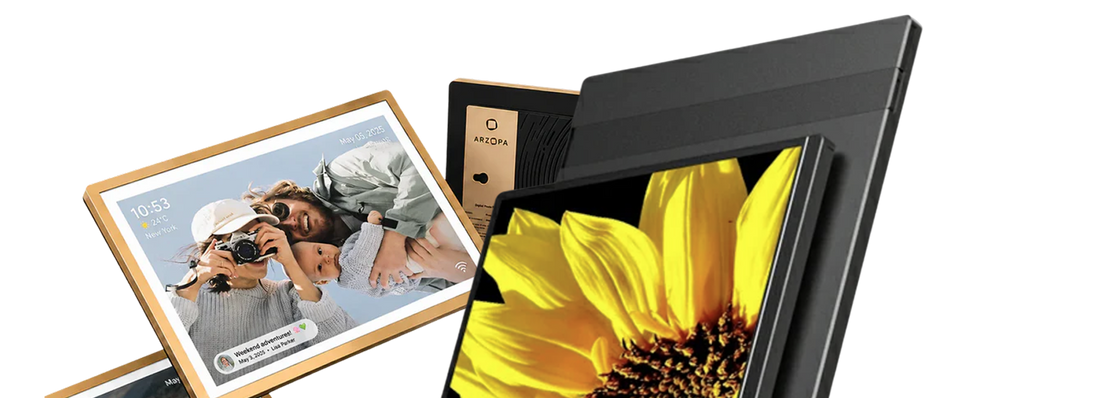
If your family already uses Google Calendar but rarely checks the schedule together, a dedicated display gives the calendar a permanent place in the room. The 14-inch Arzopa C1 brings supported Google, Apple, and Outlook calendars onto one shared tabletop screen with day, week, and month views. Its core family features do not require a subscription, and C1 is not designed for wall mounting. Explore the dedicated home calendar display.

How to connect Google Calendar to Arzopa C1
The rest of this walkthrough uses Arzopa C1 and the Arzopa app. An old tablet or DIY dashboard will have different menus.
1. Open Sync Calendar and connect Google
In the Arzopa app, open Sync Calendar and choose Google. Complete Google's authorization flow, then review the permissions before approving the connection.
If another person owns the calendar, that person must share it with the connected Google account. Google's sharing and permission instructions explain the access levels. Work or school administrators may restrict outside sharing.
2. Choose the Google calendars for C1
After connecting the account, select the calendars you want C1 to display. Family appointments and school schedules may belong on the shared screen. Confidential work events and private notes usually do not. Use calendar names that remain clear from several feet away.
3. Set clear calendar colors
Use the color settings in the Arzopa app to give each person or calendar type a consistent color. Keep the person's name or purpose in the event title as well. "Maya: soccer" is clearer than relying on color alone.
4. Choose the C1 calendar view
C1 includes day, week, and month views. Week view is a practical household default because it shows tomorrow without making event names too small. Day view keeps the focus on the next few hours, while month view works better for trips, school breaks, and appointments further ahead.
5. Test a Google Calendar event on C1
Create an event called "DISPLAY TEST" in Google Calendar. Confirm that the date, time, and source calendar appear correctly on C1. Change the time in Google Calendar and check the C1 again, then delete the test event.
This test confirms that the correct calendar is connected without promising a specific refresh time.

Connection is not the hard part. Habit is. A short Sunday check may do more for the household than another settings menu. The guide to a shared family calendar routine deals with that problem.
Add Apple and Outlook calendars to Arzopa C1
C1 supports Google, Apple, and Outlook calendars. In the Arzopa app, use the provider option shown for each account, complete that provider's authorization flow, and select only the calendars that belong on the shared screen. Another person's calendar may need to be shared with the connected account first. Apple's calendar-sharing guide and Microsoft's Outlook calendar-sharing guide explain their permission controls. Work or school administrators can restrict external access.
Calendar sharing, ICS subscriptions, and file imports describe how calendar services exchange data. They are not a list of connection methods confirmed for C1. Use the provider choices currently shown in the Arzopa app for device setup.
| Calendar method | What it means | Main limitation |
|---|---|---|
| Shared calendar | The owner grants another account access | Permissions can limit details or editing |
| ICS subscription | A receiving service checks a calendar feed for changes | Usually read-only; update timing varies |
| ICS or CSV import | Events are copied into another calendar | It is a snapshot; later source changes do not carry over |
Google's import guidance notes that imported events do not stay connected to their source. Add each source calendar once. If the same school calendar reaches the connected account through more than one route, duplicate events can appear.
Countertop vs. wall-mounted calendar displays
A touch screen belongs within reach, which usually favors a counter. Measure the stand depth before buying. Many product photos hide how much room a support leg needs.
A wall display saves that surface space and is easier to read across the room. The tradeoff is installation: the hardware must support mounting, and the power cable still has to go somewhere.
C1 is a 14-inch tabletop or countertop product. It supports horizontal and vertical placement on a surface and is not designed for wall mounting. If wall placement is essential, choose hardware built for that installation.

Google Calendar display troubleshooting
| Problem | Likely cause | Check first | Safer fix |
|---|---|---|---|
| Duplicate events | The same source was added twice, or both imported and subscribed | Compare calendar names, accounts, and subscription URLs | Remove the duplicate source instead of deleting events one by one |
| Events appear at the wrong time | Account, calendar, device, or daylight-saving time-zone mismatch | Check the owning calendar and device time zones | Align the settings before recreating events |
| Calendar is read-only | View-only permission or an ICS subscription | Review permission and connection type | Ask the owner for suitable access or edit at the source |
| Changes are delayed | Network, authorization, provider processing, or feed delay | Check Wi-Fi, account status, source event, and selected calendar | Use the documented refresh or reconnection steps; do not assume a fixed interval |
| A calendar is missing | Wrong account, hidden calendar, insufficient permission, or display filter | Check the source account and selected-calendar list | Re-share or reselect the intended calendar |
| Several accounts show conflicting copies | The same source is connected through multiple accounts | Identify the owner of each source calendar | Keep one owner and one connection path per calendar |
| Private details are visible | Permission or screen location is too broad | Review access levels and who can see the room | Limit displayed calendars or use free/busy access |
When an event looks wrong, open the original first. Check its calendar and time zone. Then follow the connection toward the screen. Reconnecting everything at once only removes the evidence. Also remember that "visible" does not mean "editable," and an ICS feed updates on the receiving service's schedule.
Before the screen goes into a shared room
A family calendar reveals more than dates. It can show a medical appointment, a meeting title, or the exact time nobody will be home. Read the screen from the doorway as if you were a visitor. Remove anything that feels too revealing.
- Keep public links away from family, medical, school, and work details.
- Hide meeting links, addresses, and private notes when the household does not need them.
- Turn off unrelated tablet notifications.
- Move the screen away from windows or delivery areas if it shows personal details.
- Use fictional household data in screenshots and demonstrations.
Frequently asked questions
Can I display Google Calendar on a dedicated screen?
Yes. A tablet, DIY screen, or dedicated calendar can do it. Check how the device connects and whether it only shows events or also edits them.
Can one display show multiple Google Calendars?
Usually. The device needs multi-calendar support, and its account needs permission to see each calendar. Use obvious names. Color alone is easy to misread.
Can Google, Apple, and Outlook calendars appear together?
Yes. Arzopa C1 supports Google, Apple, and Outlook calendars. Add each provider separately through Sync Calendar in the Arzopa app, then select the calendars you want C1 to display. Account permissions and work or school administrator policies may still apply.
Do I need a subscription?
Not always. Google Calendar does not add a display fee. The device or dashboard may charge for software and extra features, so read the current terms.
Is a tablet or dedicated calendar display better?
Start with the tablet when you already own it. Buy a dedicated display after the trial proves that the household wants a permanent screen. This comparison of dedicated digital calendar displays can narrow the hardware choices.
Which Google Calendar display should you choose?
Use the tablet for a week. Notice whether people look at it without being asked. Notice what annoys them too. That is the useful part of the experiment.
Then run the DISPLAY TEST. Add the event, move it, and delete it. Read the screen from the doorway before trusting it with real appointments.
If a countertop screen fits the room, the 14-inch Arzopa C1 tabletop family calendar supports Google, Apple, and Outlook calendars, includes day/week/month views, and provides its core family features without a subscription.